
Browser extension: overview and install
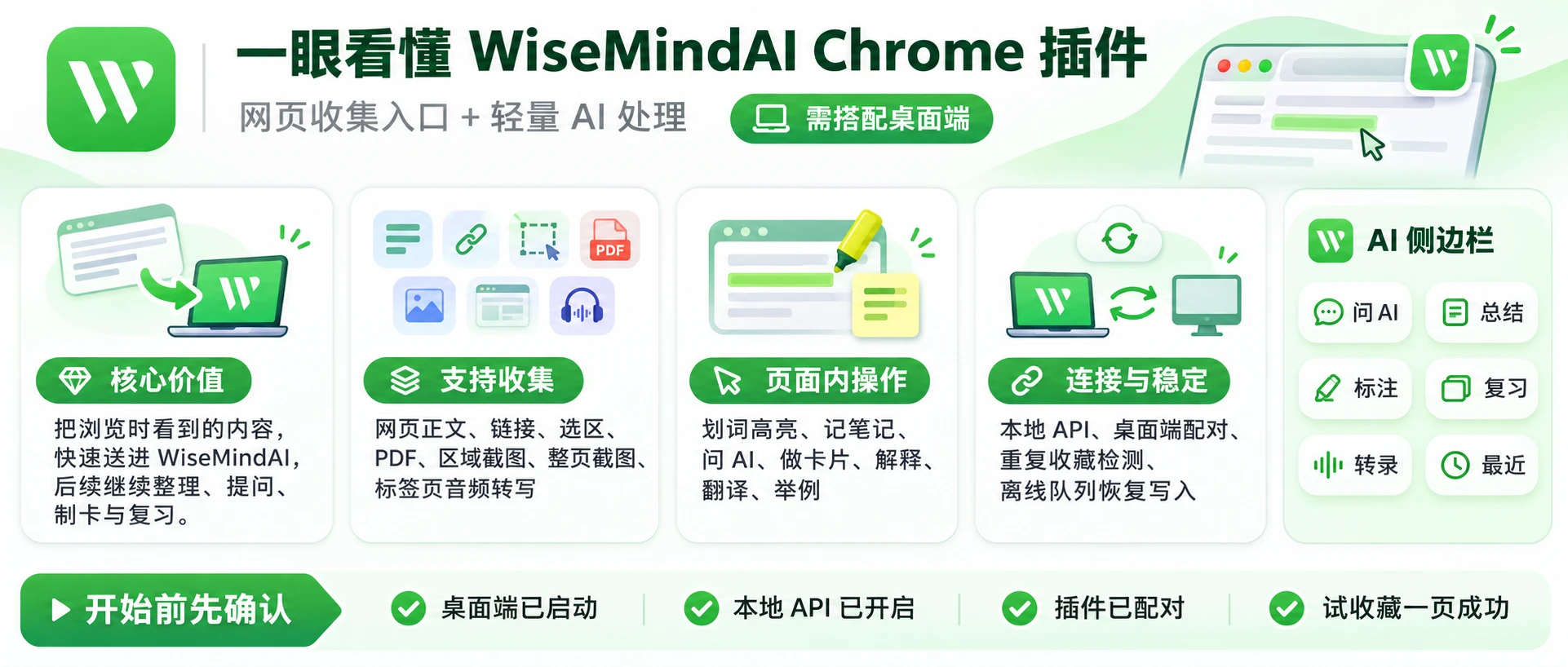
The WiseMindAI Chrome extension is the collection and light-processing entry on the web. It sends page bodies, links, selections, screenshots, PDFs, and tab audio into the desktop app. Deep reading, topics, AI Task, review, and local asset management still happen in the WiseMindAI desktop app.
In one line:
Save and highlight while you browse; content lands in My Materials on the desktop, where learning and organization continue.
Who it is for
- People who read web pages, Official Accounts, and docs sites and want one-click saves into a knowledge base
- People who need selection explain, translate, and annotate, then continue asking or making cards on the desktop
- People who want screenshots, PDFs, and tab audio collected into local materials together
- People who already use the WiseMindAI desktop app and need a stable web entry
Install the extension
Install from the Chrome Web Store, or download the zip and load it as an unpacked extension.
Pin to the toolbar
- Click the puzzle icon at the top right of the browser.
- Find WiseMindAI and click the pin.
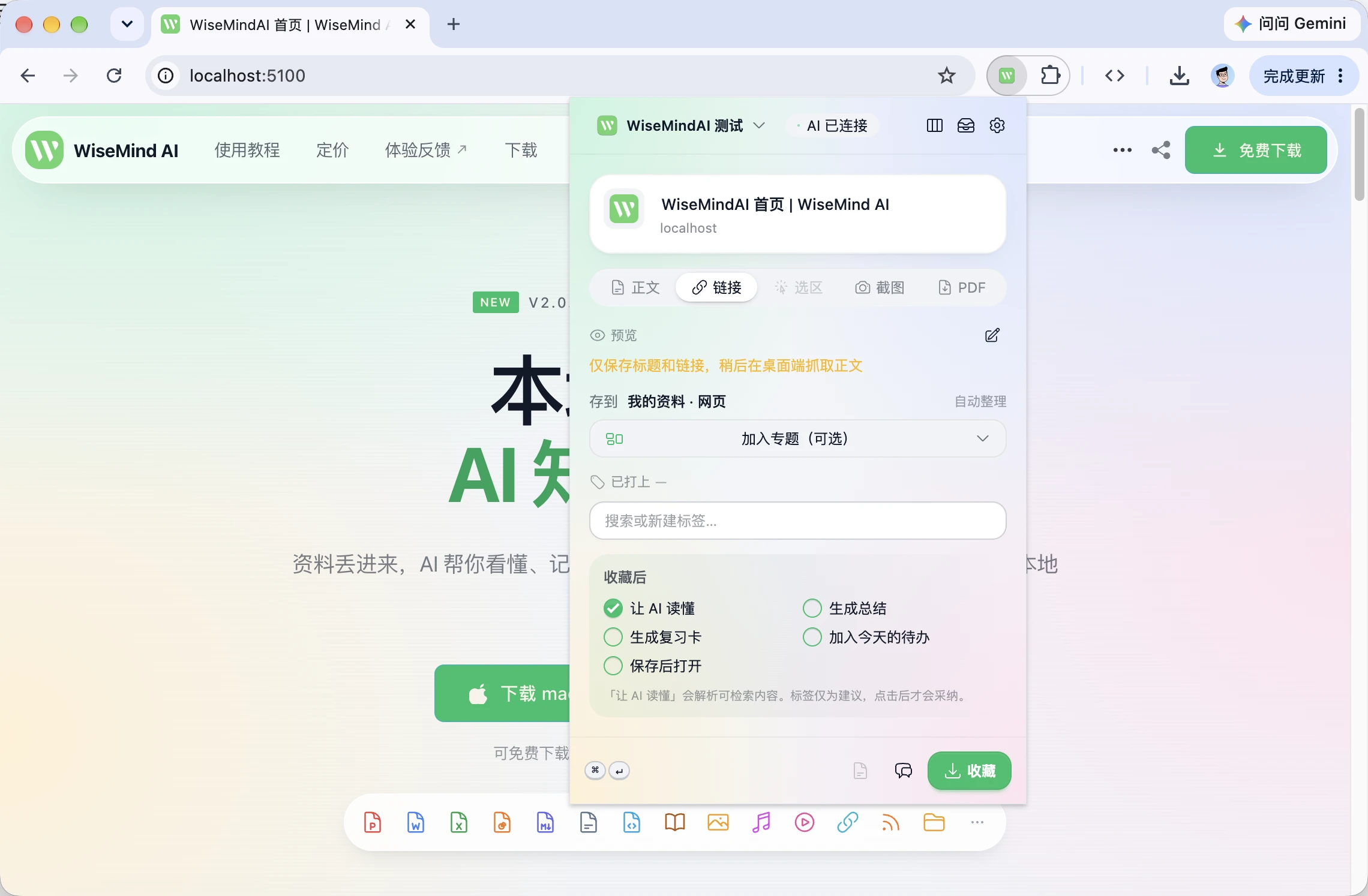
- Then click the toolbar icon to open the clipper panel.
Prepare the desktop app
- Download and launch WiseMindAI. See Install.
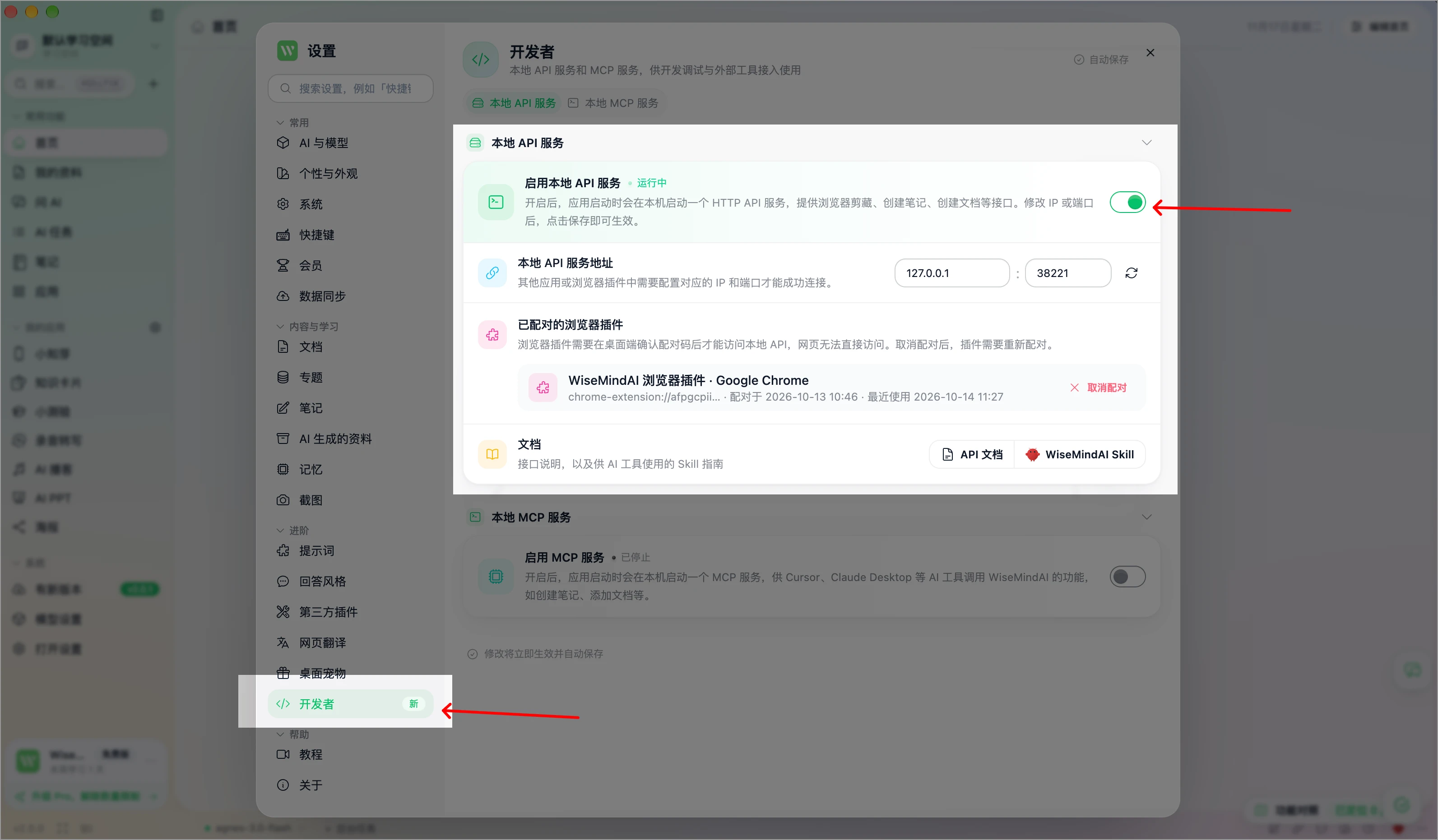
- In the desktop app, open Settings → Advanced → Developer and enable Local API service (default address is usually
http://127.0.0.1:38221). - Keep the desktop app running.
- If you changed the port, enter the same address in extension settings. Only local addresses are allowed (
127.0.0.1/localhost/::1). - Connect an AI model before Ask AI, summarize, explain, make cards, and similar features work. Saving and highlighting still work without AI connected.
Related: Model setup
Finish pairing
The extension must pair with the desktop app before it can write materials. Pairing stops web pages or other programs from misusing the local API.
- Confirm the desktop app is open and the local API is enabled.
- Open the clipper panel or Connection & account in extension settings, then click Test connection.
- If the status is Waiting to pair, click Start pairing, check the code in the desktop app, and click Allow.
- Save one page as a test and confirm it appears in My Materials.

| Status | Meaning |
|---|---|
| Connected | You can save; AI needs a chat model connected in the desktop app |
| Not connected | Desktop app is not running, or the address does not match |
| Waiting to pair | The local API is reachable, but authorization is not finished |
| AI not connected | Desktop app is connected, but no usable chat model is available |
If the desktop app is temporarily unavailable, content can enter a local queue first and write after connection or pairing succeeds. Check Recent in the side panel.
Checklist before you use it
- [ ] Chrome extension version is 2.0
- [ ] Desktop app is running and the local API is enabled
- [ ] Extension and desktop app are paired
- [ ] A test save succeeded
Main entry points
| Entry | How to open | Best for |
|---|---|---|
| Clipper panel | Toolbar icon | Saving pages, tags, and topics |
| Side panel | Panel button or shortcut | Ask AI, summarize, highlights, review, transcription |
| Floating ball | Right side of the page | Quick save, screenshot, batch transfer |
| Selection toolbar | Appears after selecting text | Highlight, explain, make cards, save selection |
| Context menu | Right-click page / link / selection | Save, screenshot, Ask AI |
| Extension settings | Gear icon | Connection, defaults, privacy, and site recipes |
Docs in this section
- Save and selection: one-click save, selection toolbar, floating ball
- Side panel: Ask AI, summarize, highlights, review, transcription
- Settings and FAQ: connection security, privacy, and troubleshooting
Related: My Materials · Ask AI