
Browser extension: settings and FAQ
Open settings from the top right of the clipper panel or side panel.
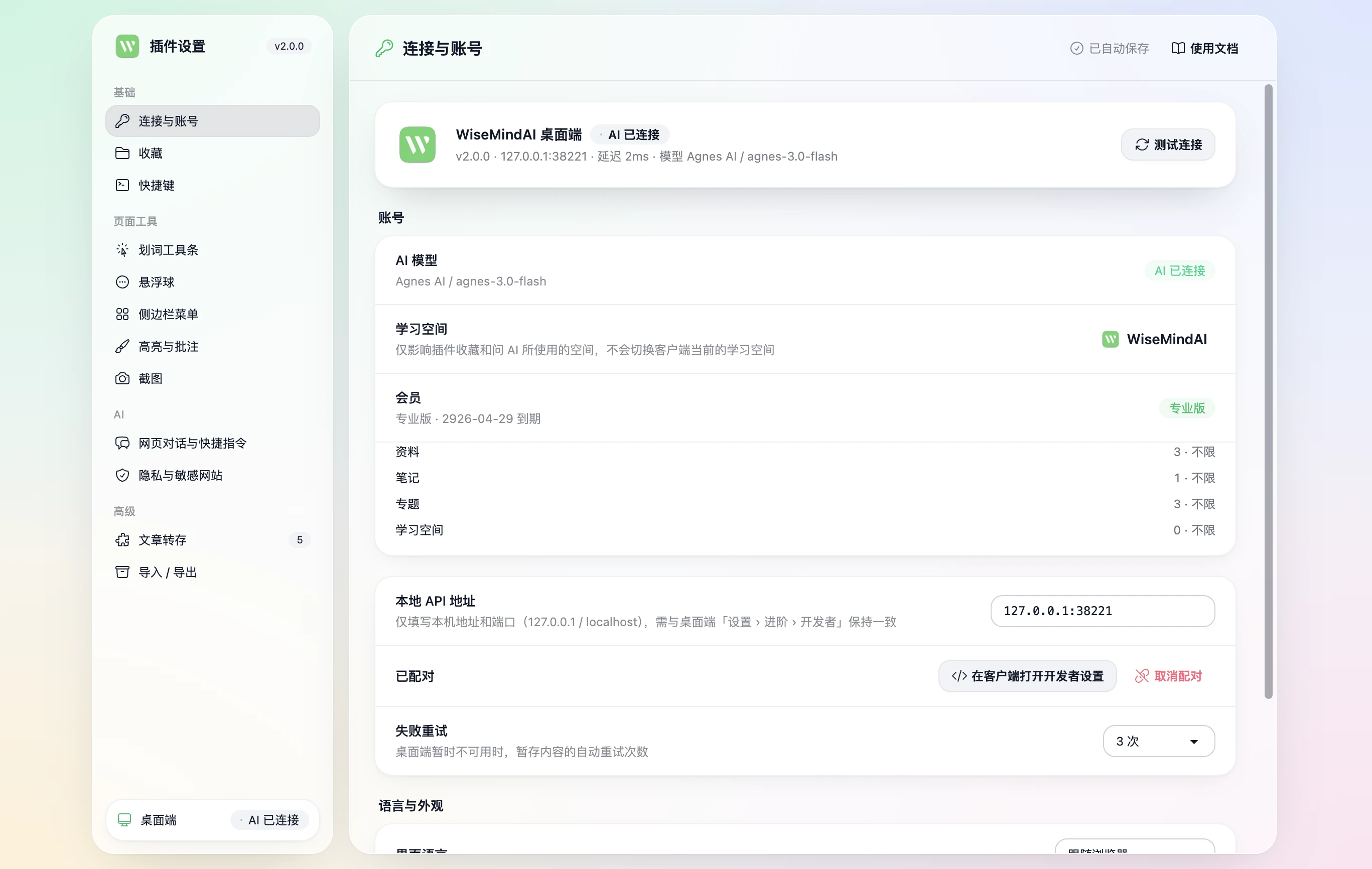
Connection, security, and stability
- Only local API addresses are allowed (such as
127.0.0.1/localhost). The page context does not call the local API directly. - Pairing authenticates with the desktop app. When unpaired or offline, work goes to a queue and continues after recovery.
- Mixing an older store extension with desktop 2.0 can make saves fail. For real use, upgrade to extension 2.0 and finish pairing.
- Against an older desktop app, unavailable entries hide automatically. Against 2.0, pairing result is what counts.

Setting groups
Basics
- Connection & account: local API address, test connection, pairing, language and theme, retry on failure
- Save: default topic, duplicate-save handling, after-save actions, note title format, card color
- Shortcuts: open clipper panel, open side panel, one-click save, highlight selection (change them on the browser extension shortcuts page)
Page tools
- Selection toolbar: on/off, button visibility, writing help in inputs, disabled sites
- Floating ball: show and dock, menu items, hide per site
- Highlights and notes: enable, restore on reopen, export Markdown, clear local highlights
- Screenshots: default action after capture and save location
AI
- Page chat and shortcuts: whether to attach body by default; custom side-panel shortcuts
- Privacy and sensitive sites: banks, payments, accounts, and similar sites do not send body text to AI by default
Advanced
- Article transfer: site recipes, recipe library, default concurrency
- Import / export: export or import settings; restore defaults does not delete highlights or Recent
Shortcuts
| Command | Action |
|---|---|
| Open clipper panel | Open the toolbar clipper panel |
| Open side panel | Open the side panel |
| One-click save page | Save with default settings |
| Highlight selection | Highlight the current selection |
On the page: Esc exits screenshot or content-block picking; Enter sends; Shift + Enter inserts a new line.
Privacy boundaries
- Only connects to the local API on this computer; does not upload to WiseMindAI cloud by default.
- Web pages cannot call the local API directly; requests are proxied by the extension background.
- Sensitive sites are configurable and do not send body text to AI by default.
- Highlights and some drafts stay in the current browser; write important content into the desktop app promptly.
- AI processing happens in the desktop app and the model service you configure.
FAQ
Save failed or stays queued
Confirm the desktop app is running, the local API is enabled, and the extension is paired. Upgrade older extensions to 2.0.
Panel shows Not connected / Waiting to pair
Confirm the desktop app is open, the local API is enabled, the address matches and is local, then reconnect. When waiting to pair, start pairing in the extension, check the code in the desktop app, then allow.
Can save, but cannot Ask AI / summarize / make cards
The extension is connected to the desktop app, but AI is not. Configure Settings → AI & models in the desktop app, then try again.
Side panel has no current-page content
Refresh the page and reopen the side panel. Some sensitive sites do not inject in-page UI by default.
Selection toolbar does not appear
Check the selection switch in settings, and whether the current site is hidden or marked sensitive.
Audio transcription is unavailable
You must start it yourself, and confirm related desktop capabilities and permissions are available.
Body extraction is incomplete
Switch to link only, pick content blocks, or capture the full page.
Built-in browser pages do not work
Settings pages, the extension store, new tabs, and similar pages usually cannot inject scripts. Use a normal web page.
Extension and desktop versions do not match
Update the desktop app and the browser extension together.
When to use which tool
| Scenario | Suggested tool |
|---|---|
| Save, highlight, screenshot, or transcribe while browsing | Chrome extension |
| Keep working in an existing Obsidian Markdown vault | Obsidian plugin |
| Reading, topics, review, AI Task, local asset management | Desktop app |
Related: Overview and install · My Materials · Ask AI · Model setup