
Image Studio
Image Studio generates images from learning scenes or templates and manages your works. Open it from Apps, or pin it to the sidebar. Image generation from Ask AI can also continue here.
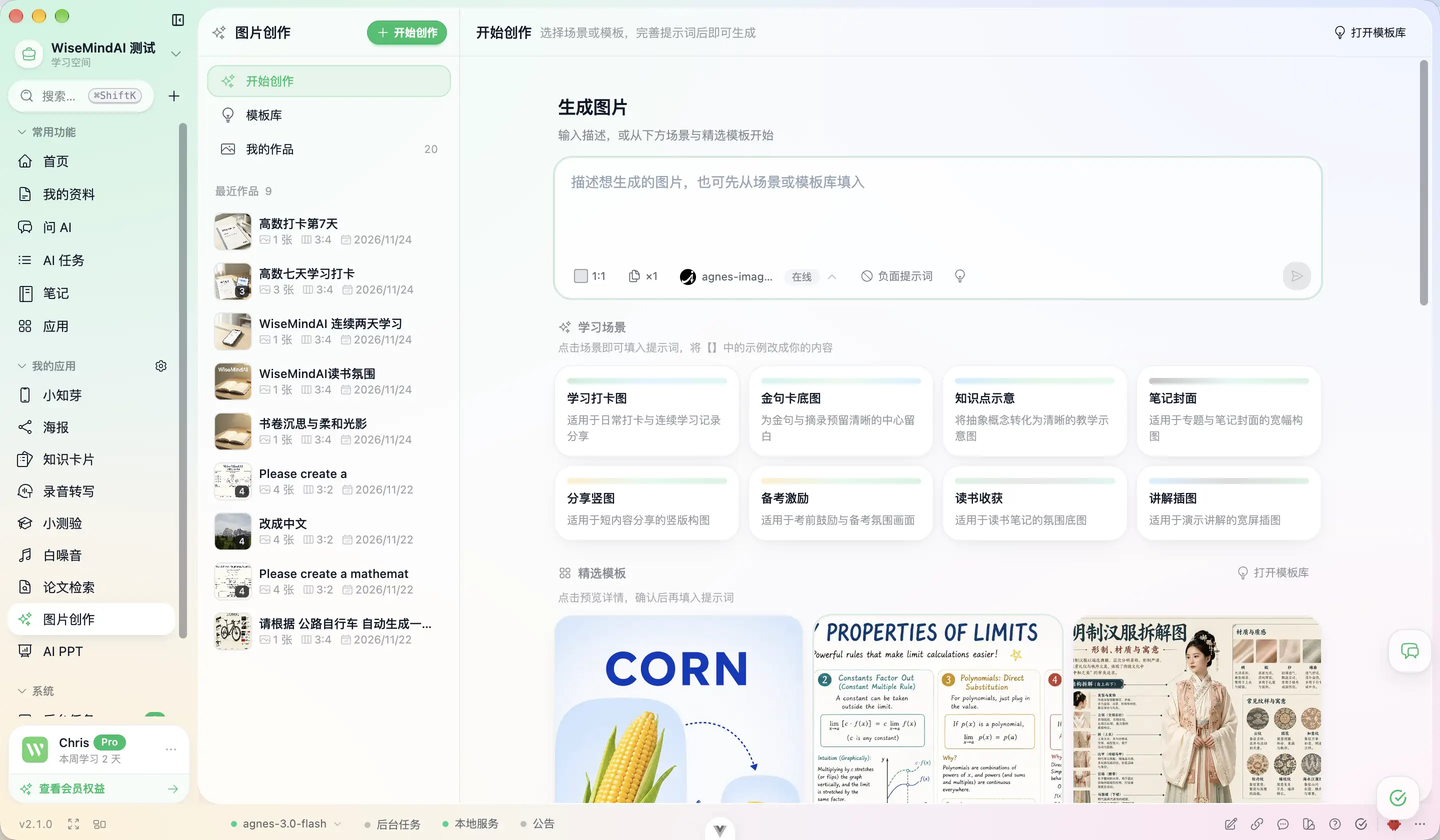
Before you start, connect at least one image generation model under Settings → AI & models → Image generation models. Generation is unavailable until a model is connected.
Start creating
- Open Apps → Image Studio.
- Under Start creating, choose a learning scene, or pick a template from the Template library.
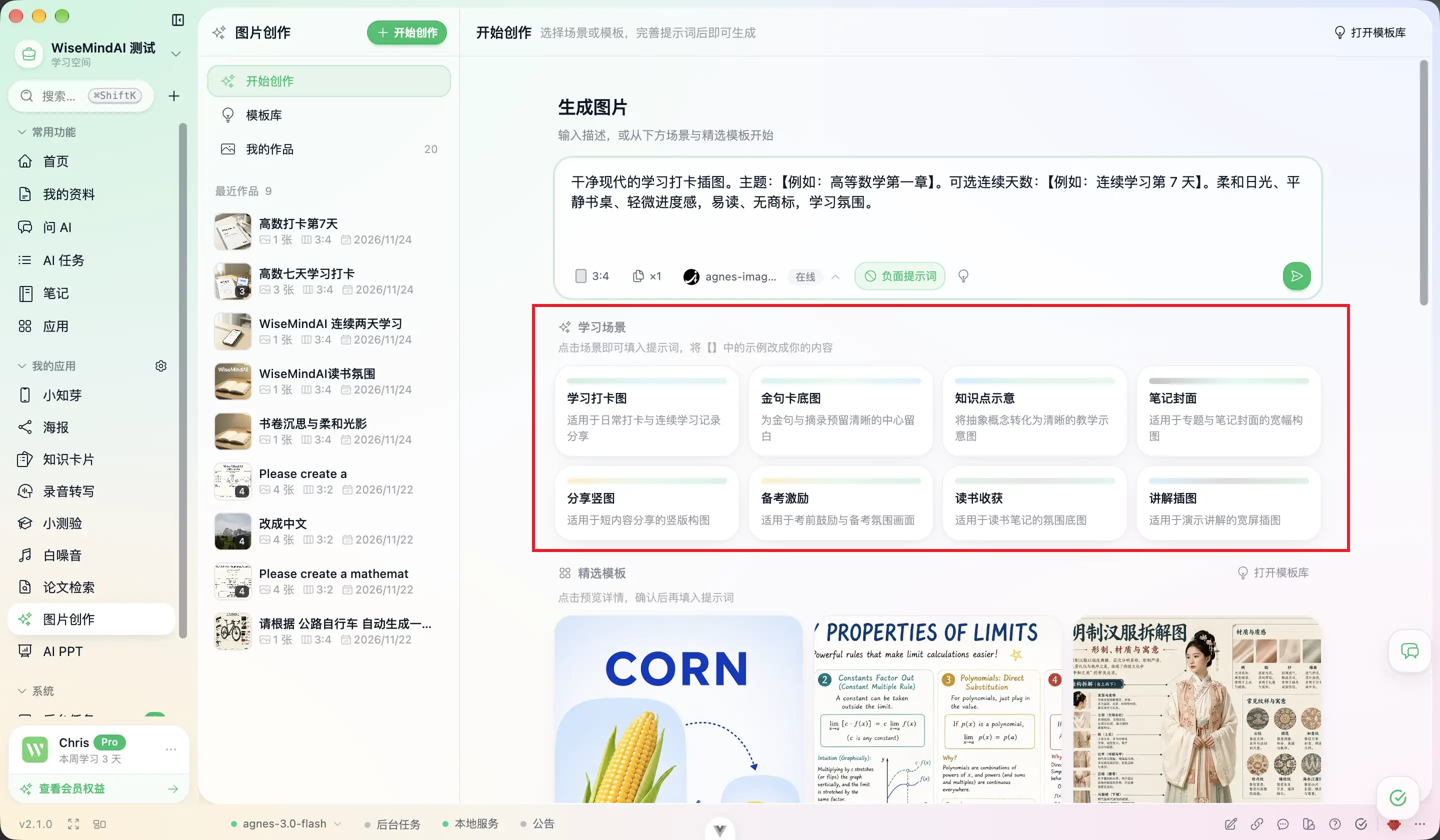
- Fill in the placeholders in the prompt, and confirm the prompt, negative prompt, aspect ratio, model, and number of images.
- Click generate. Generation can run in the background, and you can stop it midway.
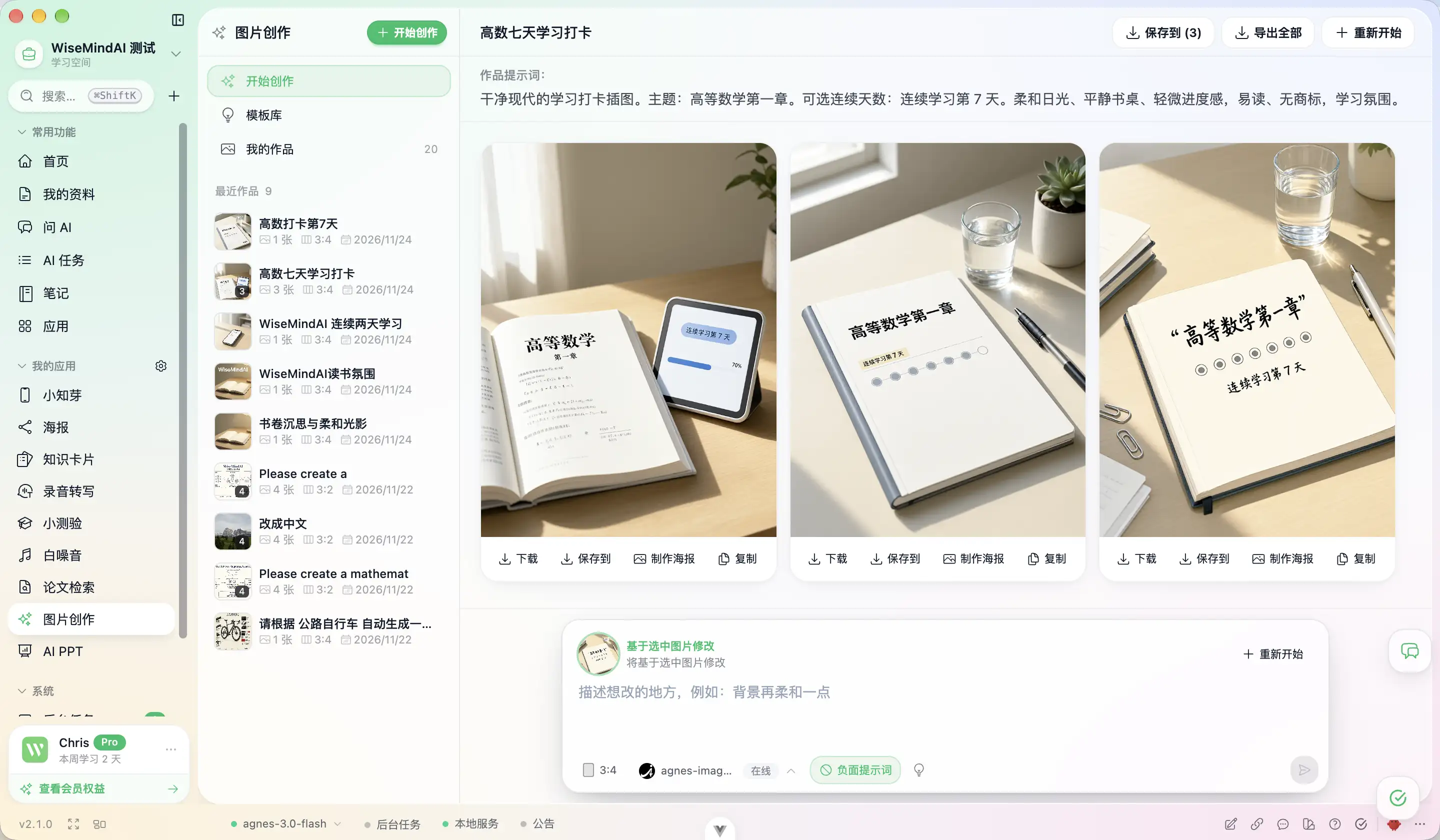
You can usually generate 1–4 images. The aspect ratio is aligned automatically to the current model’s capabilities. After generation, download the images, reuse the prompt to generate again, or continue editing from a selected image.
Template library and My works
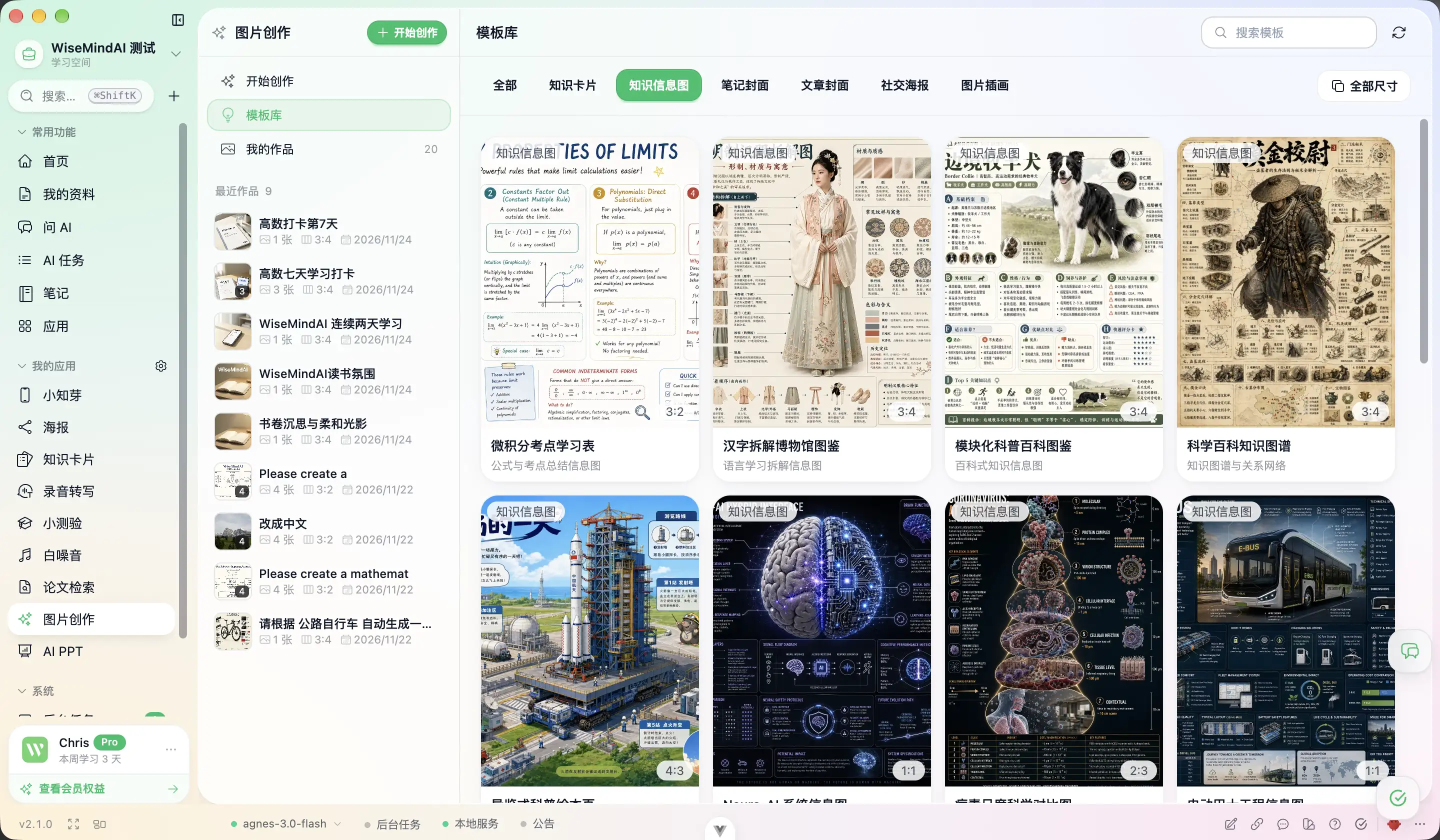
- Template library: search, preview, and fill prompts in one click. The template catalog requires a network connection. If loading fails, the page shows that templates are temporarily unavailable.
- My works: browse history by time; preview, rename, or multi-select and delete.
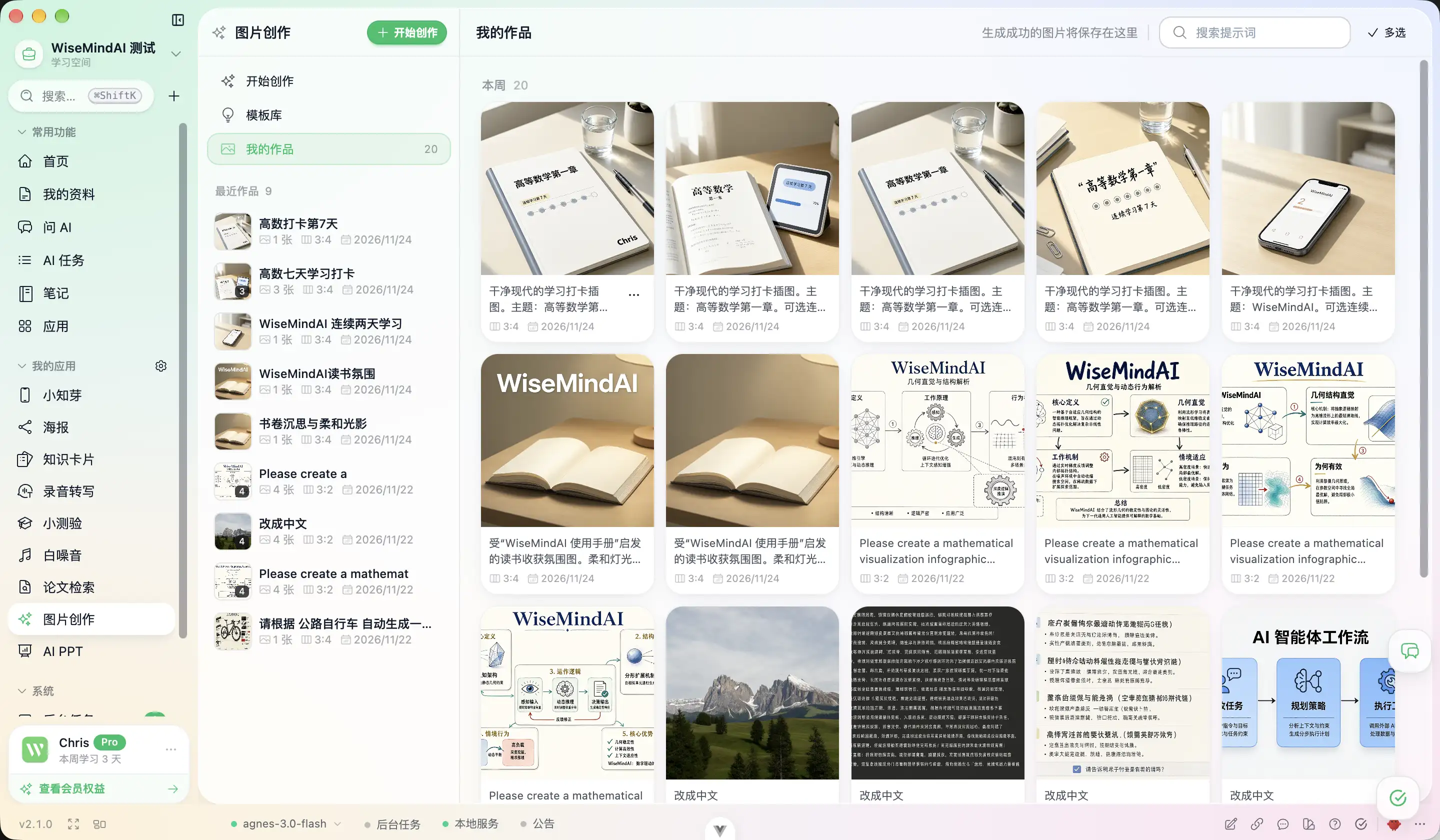
Works are saved inside the app by default and do not enter My Materials automatically. To keep them in your library, manually Save to materials or Save to a topic. After that, find them under My Materials → AI output, with the source marked as Image Studio.
Image editing notes
Some image platforms support reference-based edits, such as Agnes AI, Gemini, and Tencent Hunyuan TokenHub. Other models merge the edit instructions into the prompt and redraw, which may be less stable. Edits always generate 1 image.
You can also turn a work into a poster. See Poster.
Related: Built-in apps · Image generation models · Poster · My Materials