
🎙️ Live Transcription
WiseMindAI Live Transcription is designed for meetings, classes, interviews, and spontaneous ideas. Once recording begins, recognized speech appears in real time, so you do not need to wait for the entire recording to finish before processing it.
Starting with v1.3.1, you can use local FunASR Live Transcription in addition to online providers. Once the model is ready, audio is recognized directly on your computer. Recordings are not uploaded, and there are no cloud transcription fees.
After the session, AI can organize the transcript into a summary, highlights, and action items. You can then save the result to Document Center, Notes, or a Knowledge Base, completing the entire workflow from live capture to long-term organization in one place.
Before you begin
Choose a transcription method under Settings → Model Settings → Live Transcription. FunASR requires a downloaded or imported local model, while online providers require their corresponding credentials. Before your first recording, make sure the microphone can detect sound.
💡 Features
- Creates a transcript while you record and displays text that is still being recognized.
- Supports pause, resume, and safe ending without restarting after an interruption.
- Lets you switch to documents, notes, or Knowledge Bases while recording without stopping the session.
- Marks individual statements as highlights, action items, or questions.
- Provides summary templates for meetings, classes, interviews, and ideas.
- Lets you select a transcript segment to play the recording from the matching time.
- Imports existing audio and manages it alongside live transcription records.
- Supports transcript search, full-document or segment editing, content merging, deleted-segment recovery, and AI cleanup.
- Lets you rename, merge, or reassign speakers.
- Lets you play the recording and view the transcript after saving it to a document or Knowledge Base.
- Preserves recognized content whenever possible if a device or application error occurs.
📖 How to use it
1. Configure a Live Transcription model
Open Settings in the bottom-left corner of WiseMindAI, go to Model Settings, and select Live Transcription.
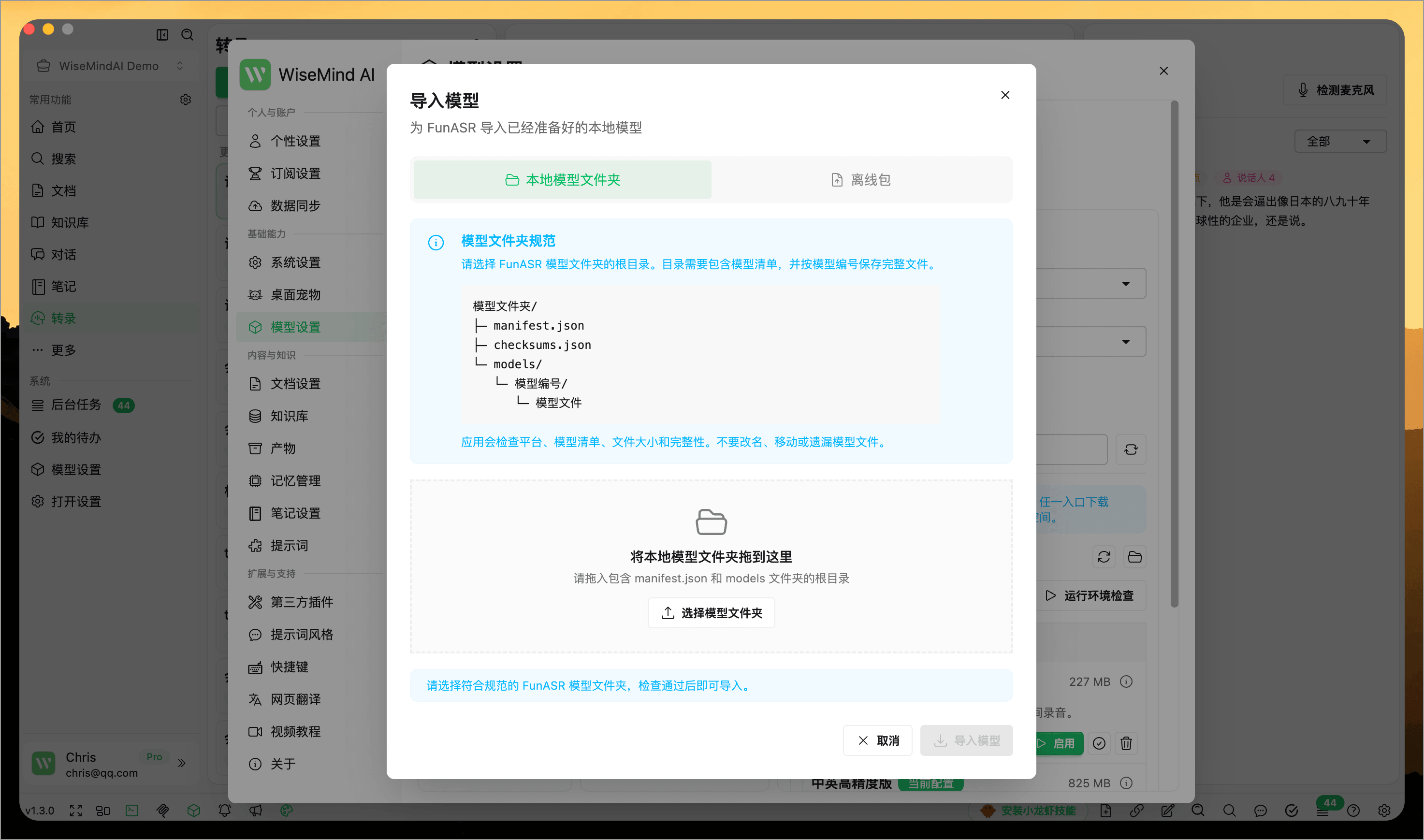
To keep recordings on your computer, select Local FunASR Transcription and choose a model based on your content and computer:
- Lightweight Chinese-English: Uses less storage and memory, and is suitable for Chinese, English, and mixed Chinese-English content.
- High-Accuracy Chinese-English: Uses more storage and memory, and is intended for scenarios where recognition quality matters more.
- Cantonese: Supports Mandarin, Cantonese, and English. Select this version explicitly for Cantonese recordings.
If the model cannot be downloaded on the current computer, prepare a FunASR offline package on another device, then import the archive or an extracted model folder. WiseMindAI checks file integrity, model type, and available space before importing.
For an online provider, enter the required credentials and model settings, then select Test to confirm that it returns recognized text.
With online providers, real-time speech recognition and audio/video file transcription may be separate services, so make sure you activate the correct product. FunASR can reuse the same local model for Live Transcription and existing audio files.
If you have not prepared a provider account, see Audio/Video and Live Transcription Service Keys.
2. Start a transcription session
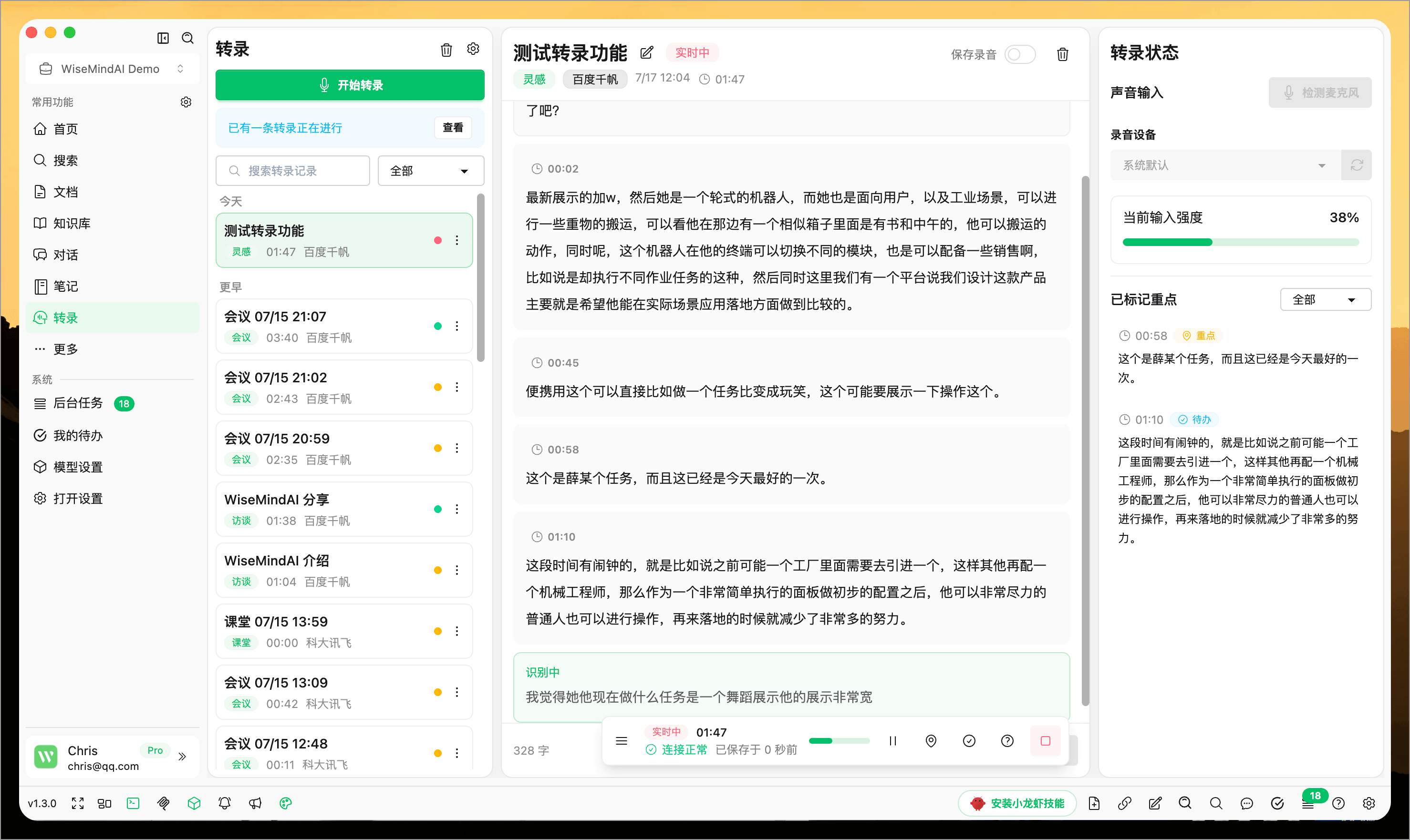
Open Transcription in the left sidebar and select Start Transcription. Before recording, set a title and choose:
- Use case: Meeting, class, interview, idea, or another scenario.
- Recording device: The system default microphone or another connected device.
- Speech recognition provider: The currently active provider in Model Settings is selected by default.
- Save recording: Keep the original audio if you want playback and timestamp navigation.
Select Test Microphone and speak into the current device. Begin recording after the input level changes and WiseMindAI confirms that sound was detected.
The page also shows the maximum duration per session and your remaining quota. When the duration limit is reached, WiseMindAI ends the recording safely and saves the content captured so far.
3. Organize key points while listening
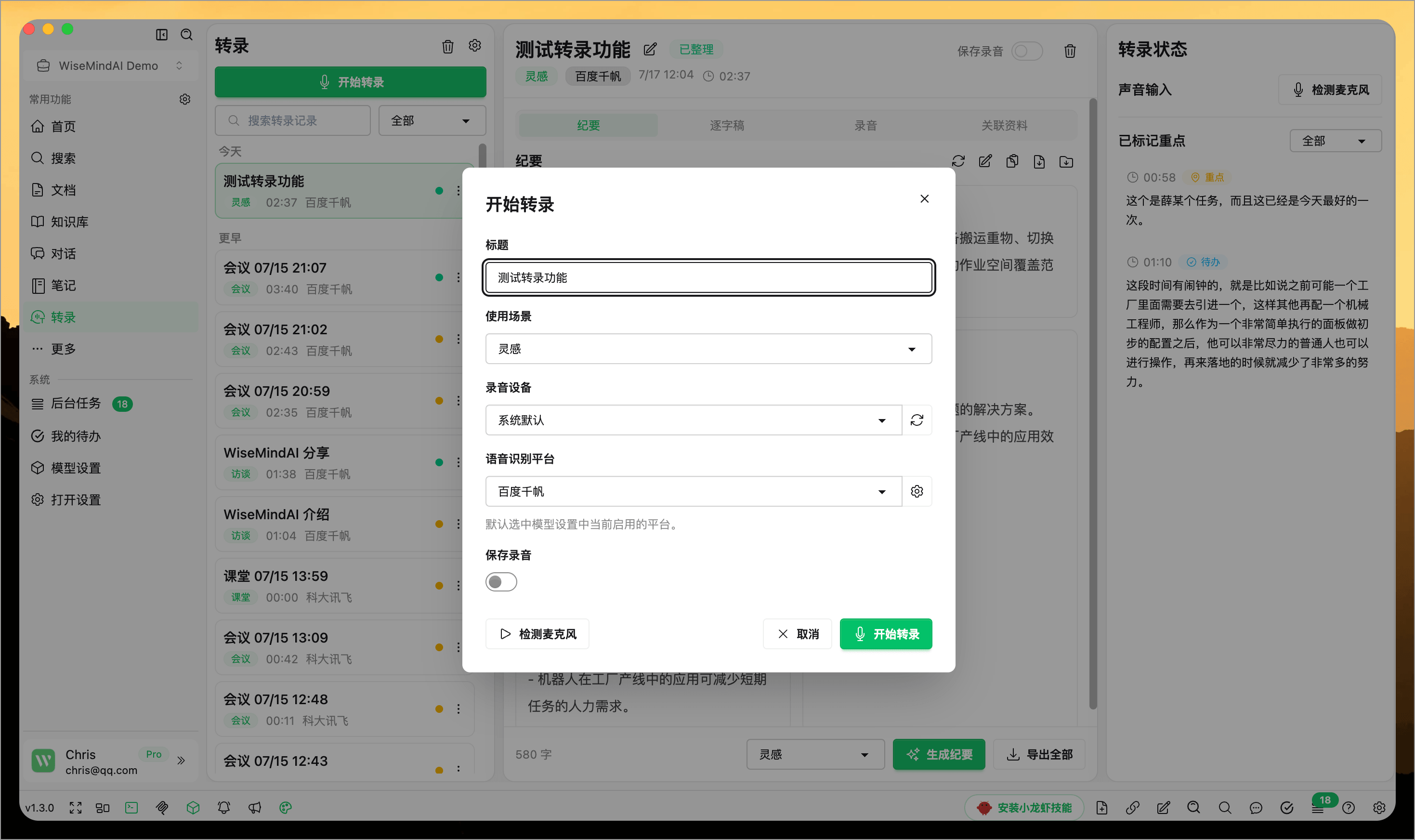
The transcript updates continuously as people speak. Text that has not yet been finalized by the recognition service is marked as Recognizing before it is added to the final transcript.
While recording, you can switch to documents, notes, Knowledge Bases, or other pages. The page footer and desktop pet show the current recording status, with controls to pause, resume, or return to the transcription page.
The page follows the latest content by default. If you scroll up to review earlier text, automatic following pauses so the page does not keep pulling you back to the bottom.
While recording, you can:
- Select Pause to stop recognition temporarily, then Resume to continue.
- Mark the current content as a highlight, action item, or question.
- Check the connection, audio input, and recorded duration.
- Read status messages when a device disconnects, no sound is detected, or the network reconnects.
4. End the recording and generate a summary
When you select End, WiseMindAI waits for the provider to return the final segment, then safely saves the session. Existing text is not discarded when the recording ends.
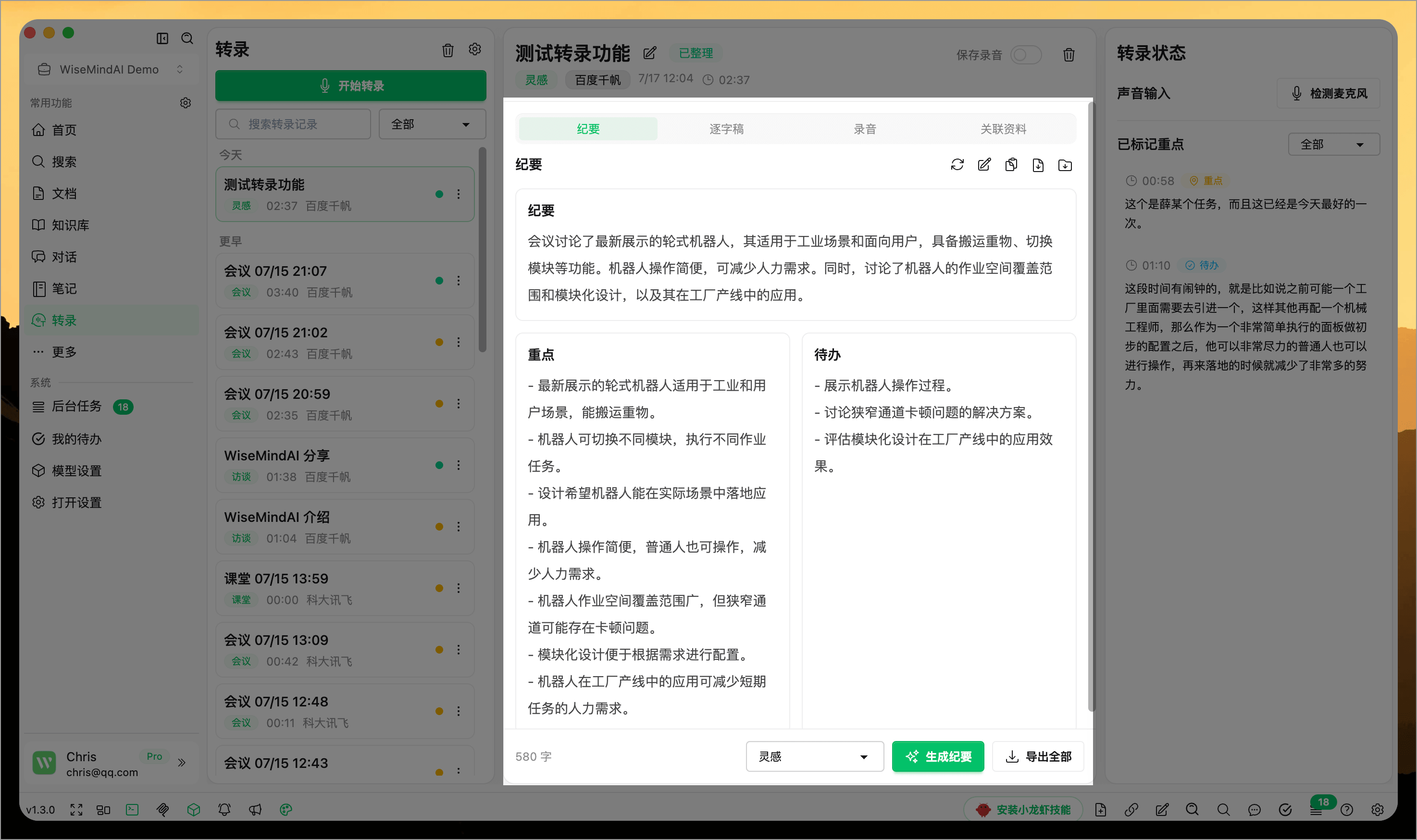
After transcription completes, select Generate Summary and choose a template:
- Meeting: Conclusions, disagreements, decisions, and action items.
- Class: Knowledge points, concept explanations, examples, and review tasks.
- Interview: The Q&A flow, interviewee viewpoints, and key quotes.
- Idea: The core idea, possible directions, and next experiments.
AI generates a summary, highlights, and action items from the complete transcript. You can regenerate the summary without changing the original transcript.
5. Search, edit, and play the transcript
In the transcription details, you can search and edit individual transcript segments or use Edit All for a complete review. You can also merge consecutive content, restore deleted segments, or use AI to clean up spoken phrasing, repetition, and obvious recognition errors.
Speakers can be renamed, merged, or reassigned. The corresponding transcript segments update with these changes.
If you chose to save the recording, select a transcript segment or highlight to play the audio from the corresponding time. The player supports playback speed control and 10-second skips in either direction, which is useful for checking names and terminology or reviewing context.
6. Save and export
When you finish organizing the session, you can:
- Save to Documents: Save the transcript as a Markdown document.
- Save to Notes: Save the summary, highlights, action items, or transcript as a note.
- Add to Knowledge Base: Add the transcript text to a selected knowledge base.
- Export File: Export plain text or a timestamped version.
After saving to a document or Knowledge Base, the item keeps the link between the transcript and its recording. You can view the transcript, play the original audio, and continue with summaries, questions, or study content.
Long audio and video transcription
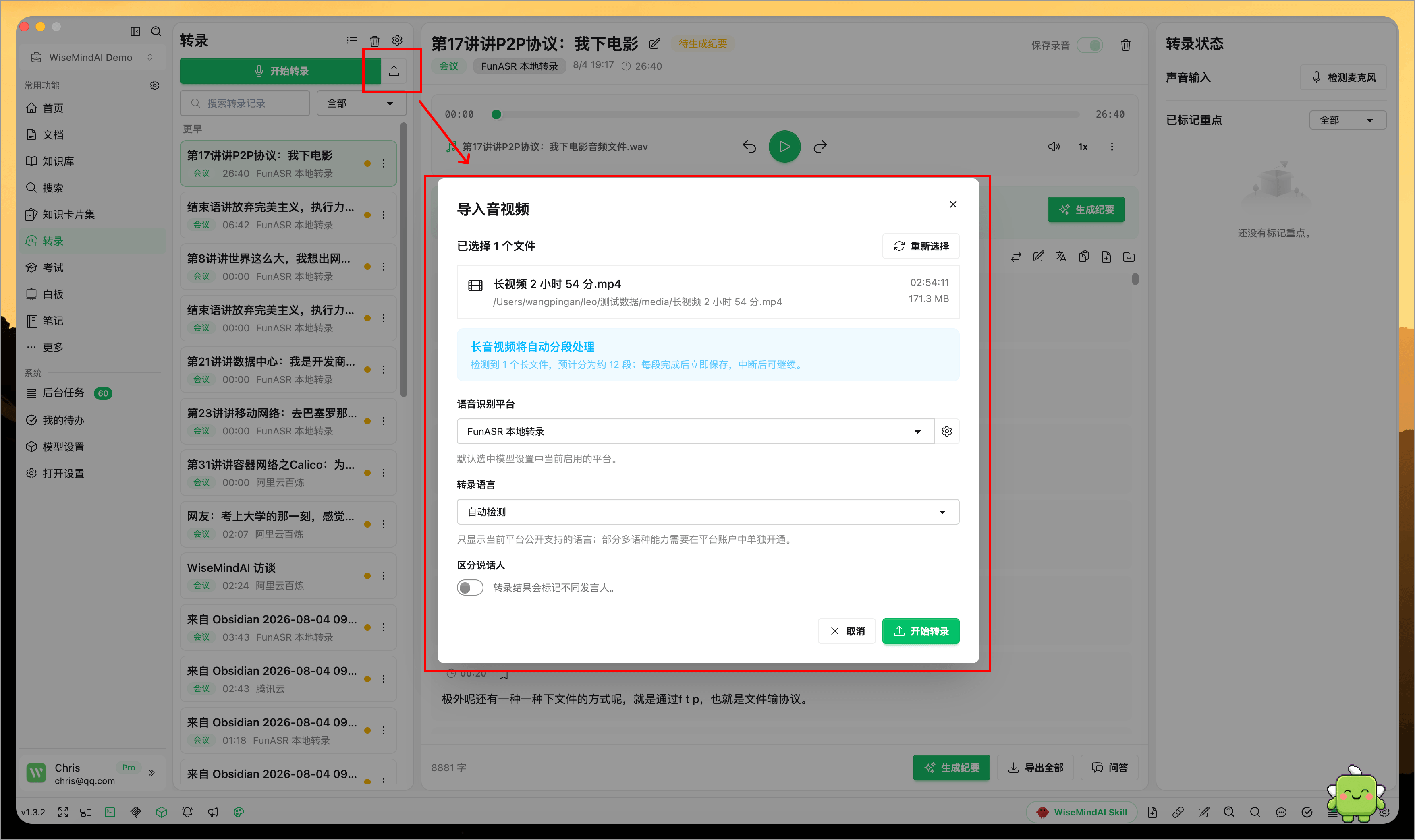
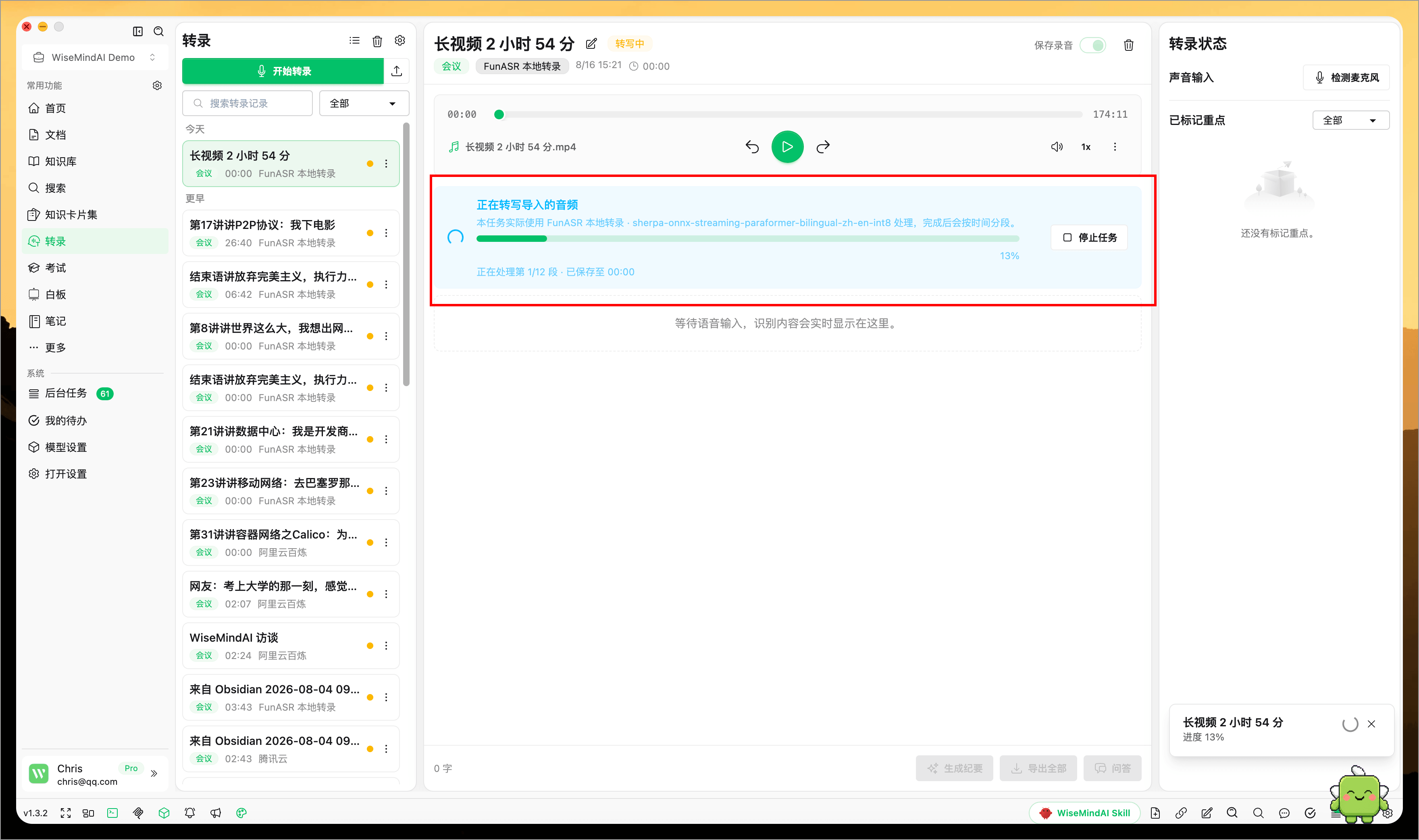
When you import an existing long audio or video file, WiseMindAI processes it in segments and saves progress after every completed segment. If the task stops, fails, or the app closes, completed transcripts and the original file are preserved.
When you return, continue from the previous position without starting over. The import page shows the file duration, estimated number of segments, and current position. You can also stop the task, review the failure reason, or start transcription again.
With local FunASR transcription, WiseMindAI selects a suitable installed model first. When a video format cannot be played directly, WiseMindAI prepares a playable version and shows the processing progress without modifying the original file.
Loading, scrolling, searching, and editing very long transcripts have also been improved. You can continue organizing speakers and reviewing text without waiting for the entire transcript to load at once.
Which Live Transcription providers are supported?
WiseMindAI Live Transcription supports local FunASR, along with online providers including Alibaba Cloud Bailian, Volcengine, iFlytek, Baidu AI Cloud, and Tencent Cloud.
Credentials, model names, and supported languages vary among online providers. Before configuration, activate the provider's real-time speech recognition product and confirm that the account has available quota. FunASR does not require a key, but its local model must be prepared first. Available options depend on the current client version.
🌈 Use cases
- Meeting notes: Mark decisions and action items during a meeting, then generate the minutes afterward.
- Classes: Preserve the full explanation, then organize concepts, examples, and review points.
- Interviews: Keep a timestamped record of the conversation for playback and insight extraction.
- Voice notes: Capture ideas by speaking without stopping to type.
- Existing recordings: Import previous lectures, interviews, and voice memos into the same transcription workflow.
FAQ
What is the difference between live and audio/video transcription?
Live Transcription processes continuous microphone input and is intended for meetings and classes in progress. Audio/video transcription processes saved files and is intended for past recordings. Online services may require separate configuration, while FunASR can share one local model between both entry points.
Why is no text recognized after recording begins?
First check whether the page shows audio input. Then verify microphone permission, the selected recording device, and the Live Transcription model. Use Test Microphone and the model Test separately to locate the problem.
Why does the page stop scrolling when I review an earlier part of the transcript?
This is expected. WiseMindAI detects that you are reviewing earlier content and pauses automatic following. Scroll back to the bottom to resume following the latest recognition result.
Can I recover a recording after an unexpected interruption?
If WiseMindAI finds an unfinished session when you return to Transcription, you can save the content captured so far. Whether the complete recording and final text segment are available still depends on the device state and the provider's response.
Do I need to restart after long audio or video transcription is interrupted?
No. Completed segments are saved progressively, and you can continue from the previous position when you return. The original media file and completed transcript are both preserved.
Does Live Transcription cost money?
Local FunASR transcription does not incur cloud transcription fees, but it uses storage, memory, and computing resources on your computer. Online Live Transcription is usually billed by audio duration or request volume, with charges set by the model provider.