
📊 Knowledge Infographic
WiseMindAI Knowledge Infographic turns a document or knowledge base into a clear visual presentation. It is useful for presenting knowledge structures, course highlights, project information, and content summaries.
Before generating an image, WiseMindAI prepares an infographic content draft. Review its title, modules, and key points, make sure nothing is missing, and simplify the wording before selecting a template. This helps prevent discovering excessive text or an unclear structure only after the image is generated.
Before you begin
Configure an Image Generation Model Key first.
💡 Features
- Generates infographics from document content.
- Generates infographics from knowledge base content.
- Creates an editable content draft before generating the image.
- Simplifies wording, improves expression, and reorganizes the structure.
- Visualizes key knowledge for easier understanding and sharing.
- Provides multiple built-in infographic templates.
📖 How to use it
1. Open Knowledge Infographic
Open a document in Document Center or enter a Knowledge Base, then find Knowledge Infographic on the current page.
When opened from a document, the infographic is based on that document. When opened from a knowledge base, it organizes the selected knowledge base materials.
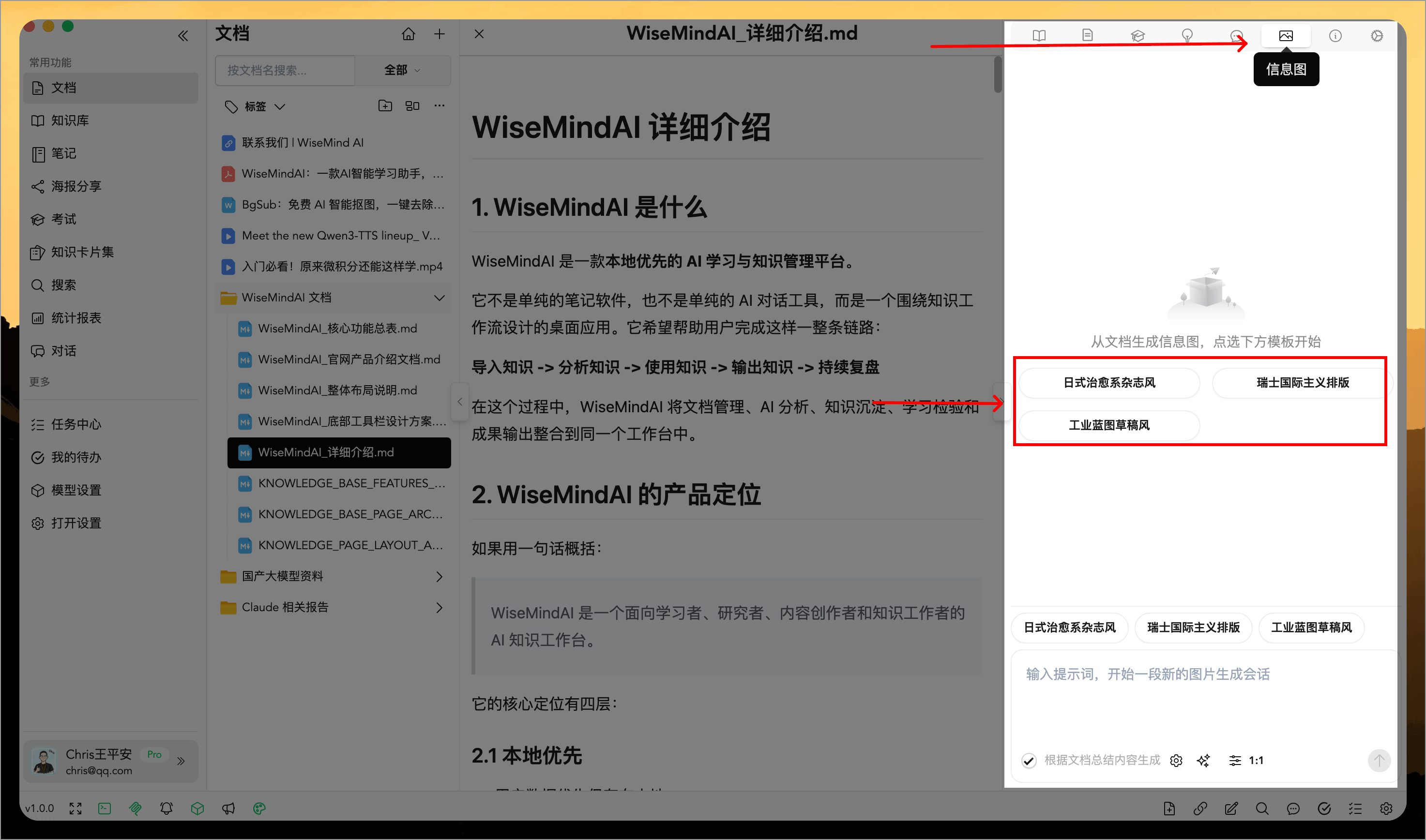
2. Select an infographic template
Choose a suitable built-in style, preview it, and confirm your selection.
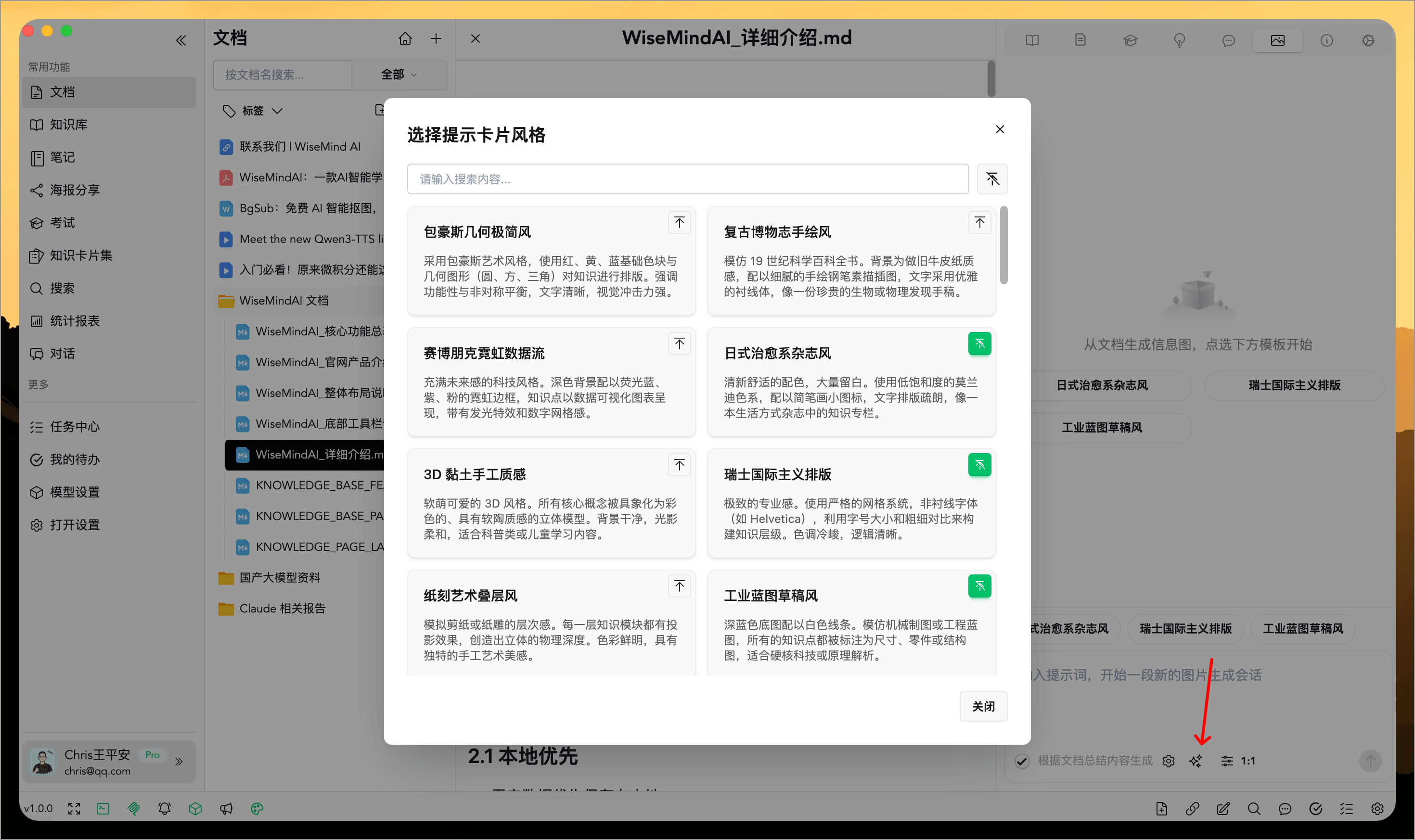
You can also select Choose Prompt to use a different image-generation prompt style.
3. Generate the infographic content draft
After you select a template, WiseMindAI organizes the source into a draft that usually includes:
- A main title and subtitle.
- The core modules to present.
- Short points for each module.
- Visual cues that help guide the composition.
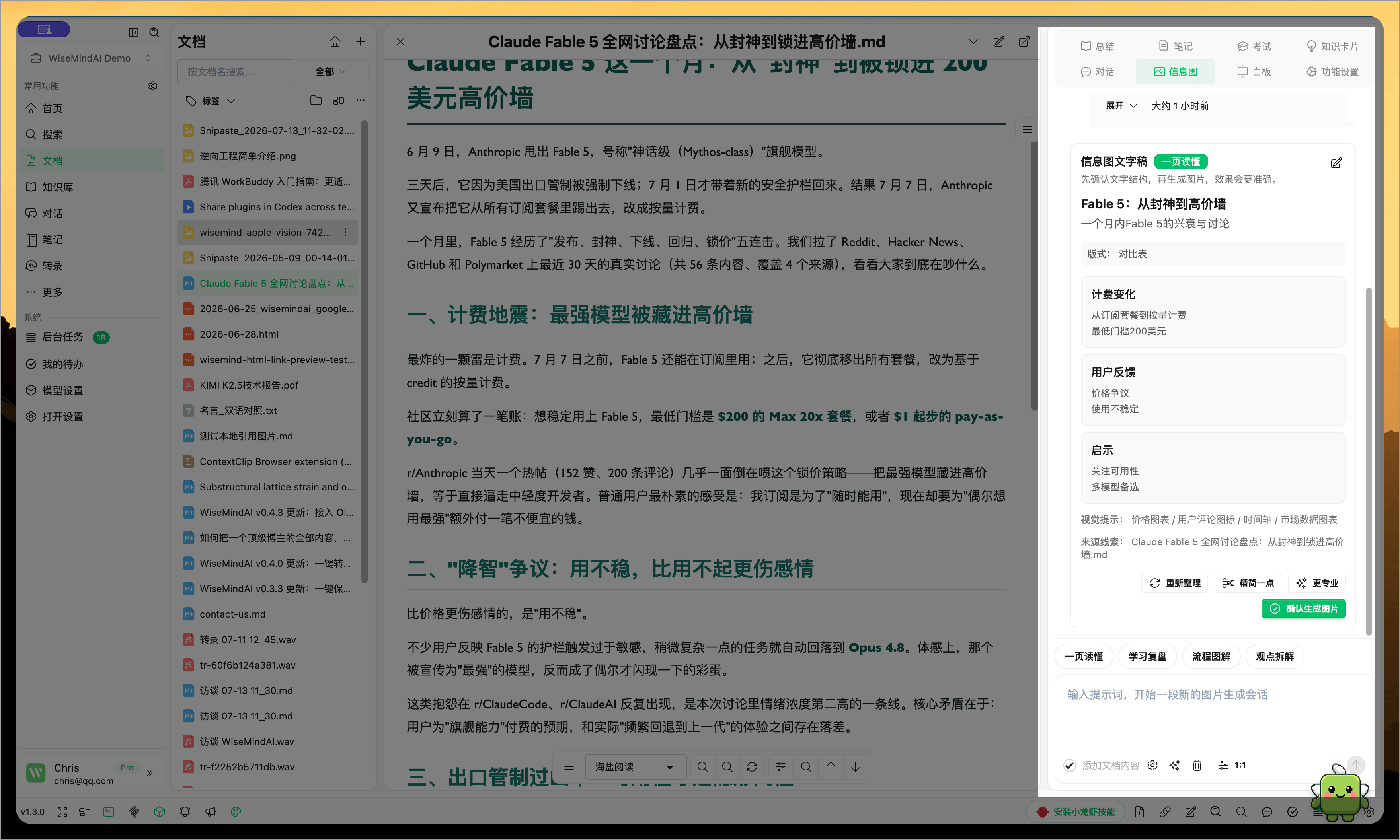
No image has been generated yet, so review the complete content before inaccurate information or unnecessary modules enter the final design.
4. Edit and improve the draft
Edit the title, modules, and key points directly, or ask AI to continue refining them:
- Simplify Content: Reduce the amount of text for a clearer image.
- Professional Tone: Improve wording for formal sharing.
- Reorganize: Rearrange the module and point structure.
- Manual Editing: Remove unnecessary modules or add missing information.
Keep only a few short points in each module. An infographic should highlight structure and key ideas, not contain the complete article.
5. Generate and save the infographic
After confirming the draft, generate the image. WiseMindAI combines the content, selected template style, and visual instructions into the final infographic.
You can save it locally, copy and share it, or continue adjusting the content.
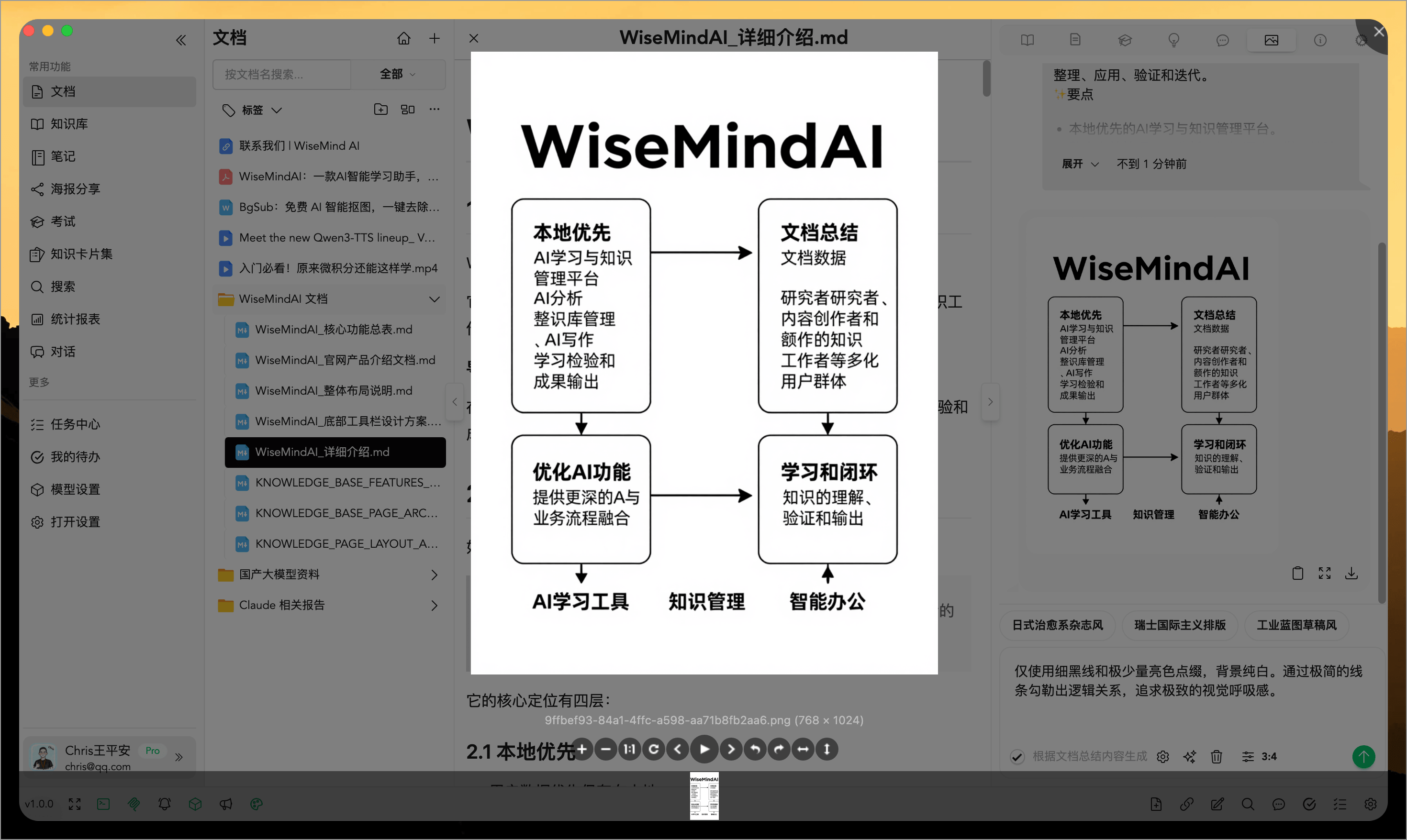
If the wording or structure is still unsatisfactory, return to the draft and simplify it instead of repeatedly generating the same image.
What is the difference between document and knowledge base infographics?
- Document Infographic: Focuses on one document and is suitable for article summaries, course chapters, and report presentations.
- Knowledge Base Infographic: Combines multiple materials on the same topic and is suitable for complete knowledge systems, focused research, and project summaries.
Both workflows create a content draft for your review before generating the image.
Recommendations
- Verify facts and data before focusing on the visual style.
- Keep the title short so the topic is immediately clear.
- Keep only the two to four most important points in each module.
- For a long source, generate an AI Knowledge Outline first and select the most important content for the infographic.
- Before public sharing, check proper nouns, numbers, and complex charts in the generated image.
FAQ
Why generate a content draft first?
The draft lets you confirm the structure before generating the image. Organizing the title, modules, and key points first is usually faster than repeatedly correcting generated images.
Can I edit AI-generated text myself?
Yes. Edit the main title, subtitle, modules, and points before generating the image, or ask AI to simplify or reorganize them.
What should I do if the infographic contains too much text?
Use Simplify Content first and remove long explanatory sentences. Keep the details in the original document or note while using the infographic for structure and highlights.