WiseMindAI Web Clipper Browser Extension
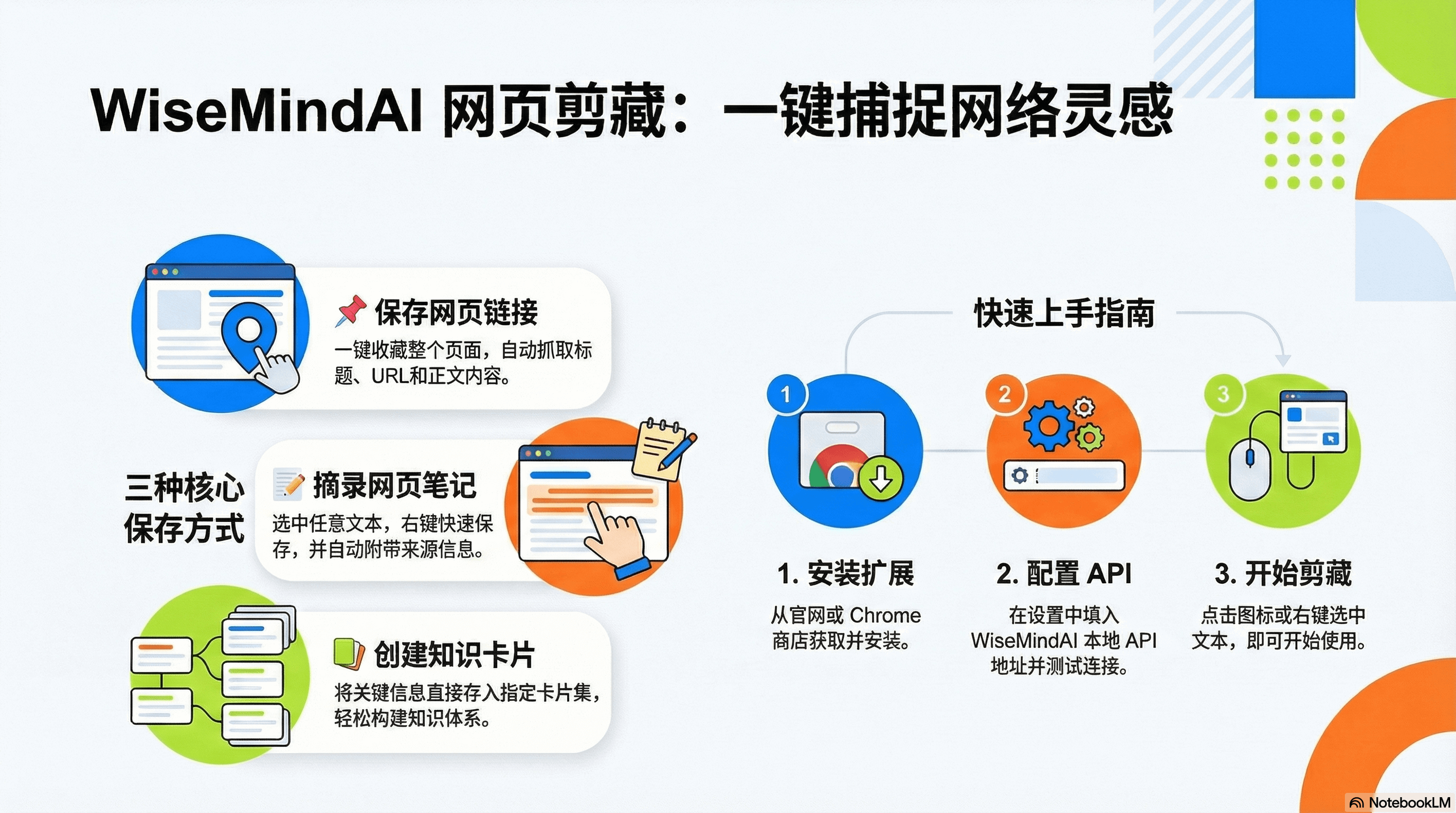
A powerful browser extension that helps you quickly save webpage content to your WiseMindAI Knowledge Management Platform. Supports saving links, notes, and knowledge cards to make your knowledge collection more efficient and convenient.
I. Getting Started Quickly
1. Installation Requirements
- Chrome browser or Chromium-based browsers (e.g., Edge, Brave)
- WiseMindAI client installed and running
- Local API service enabled in WiseMindAI
2. Installation Steps
- Download the Extension
Download the extension package from WiseMindAI Official Website or install it via Chrome Web Store.
Enter
chrome://extensions/in the Chrome address bar to open the extensions management page.Find the "Developer mode" switch in the upper-right corner and turn it on.
Drag the downloaded
wisemindai-extension-*.zipfile into the extensions page to install it. After installation, the extension appears in the list and shows as enabled.After installation, the WiseMindAI extension icon appears on the browser toolbar.
If the icon is not visible, click the Extensions icon in the upper-right corner, find WiseMindAI, and click Pin.
After installation, we recommend pinning the extension to your toolbar for easy access later.
- Configure API Endpoint
Click the extension icon and select "Settings". In "API Configuration", enter the local API service port of WiseMindAI (default: 127.0.0.1:38221).
You can click "Test Connection" to verify if the configuration is correct, then click "Save Settings".
The port number must match the "Local API Service Port" configured in WiseMindAI settings.
- Start Using
You can now start using the features you need, such as saving web page links and more.
II. Save Web Page Links
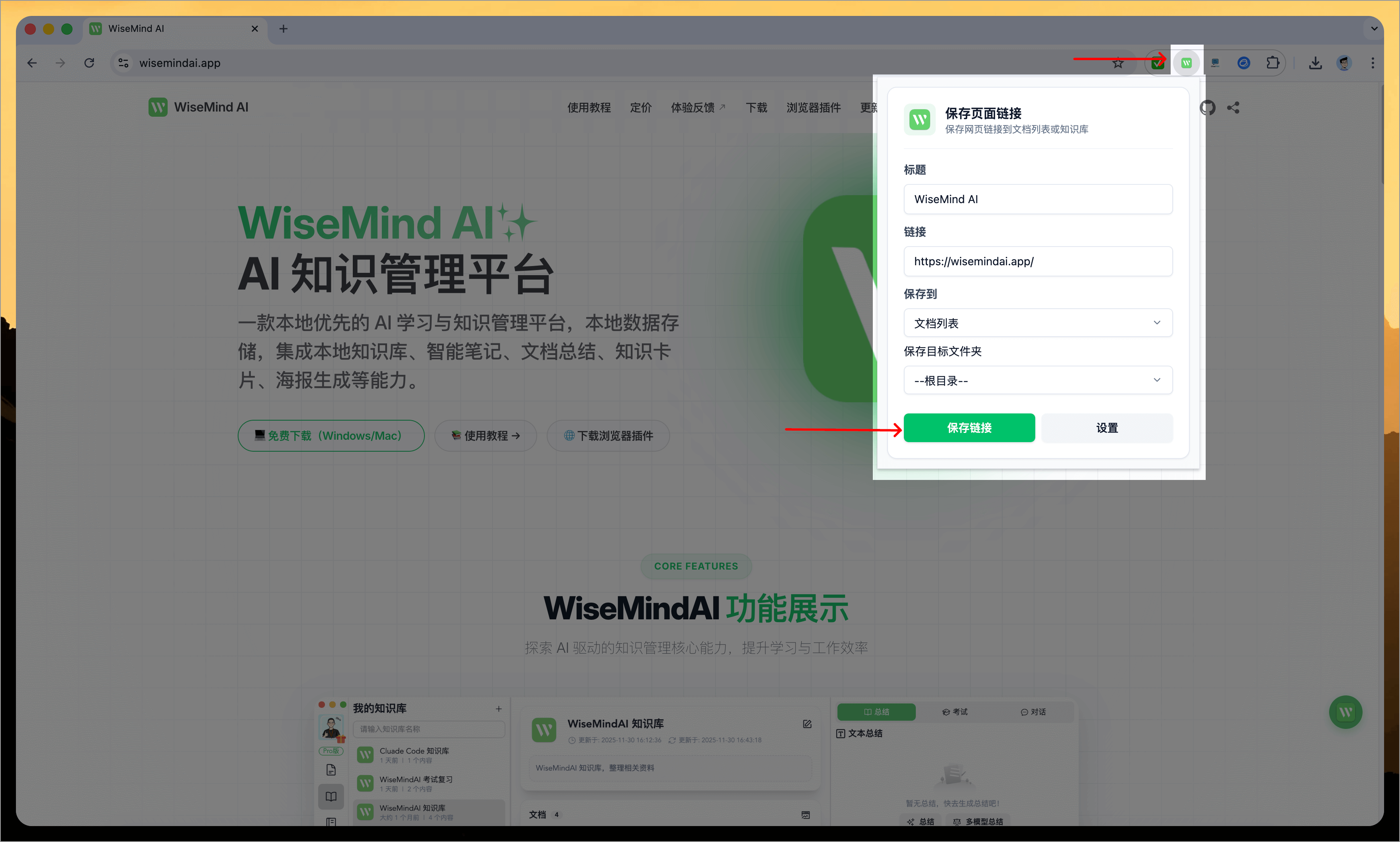
Save the current webpage to WiseMindAI with one click. It automatically retrieves the page title, URL, icon, and plain text content, supporting custom titles and link information.
Note: Saved links will automatically include the page's plain text content for easy searchability and viewing later.
III. Right-click Menu
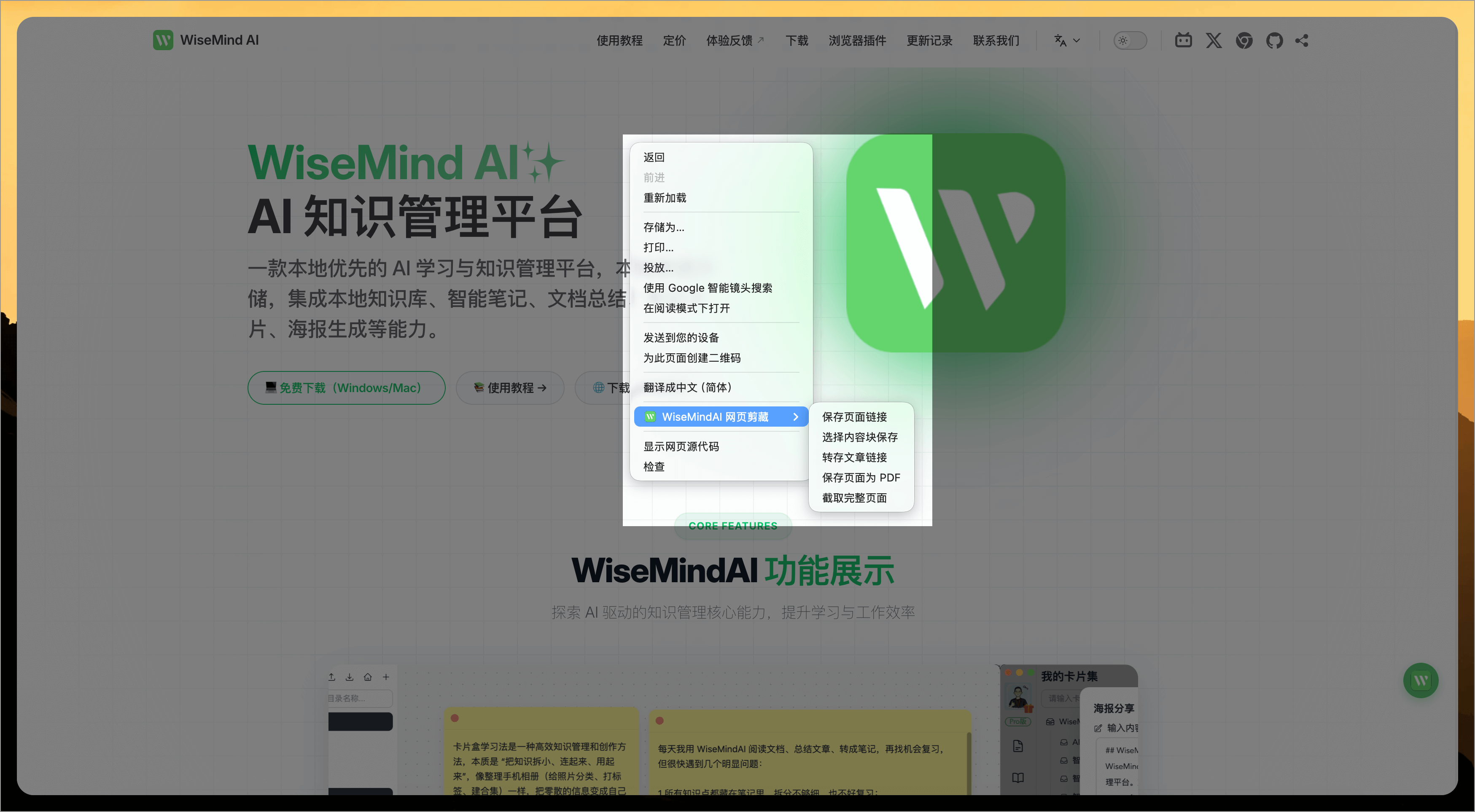
Right-click anywhere on a webpage to open the WiseMindAI right-click menu, which includes the following main features:
1. Save Web Page Link
This function works similarly to "Save Page Link" when clicking the extension icon directly.
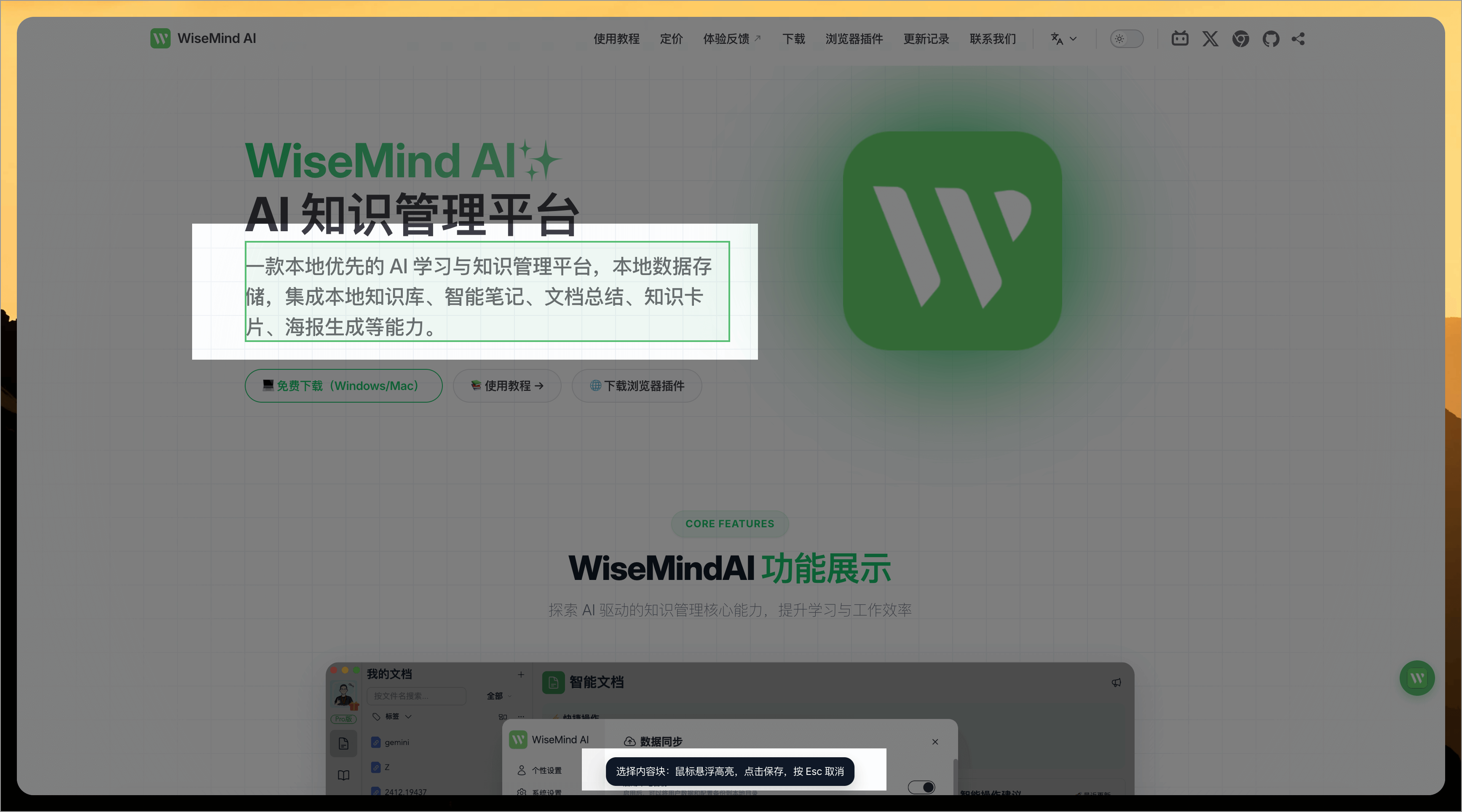
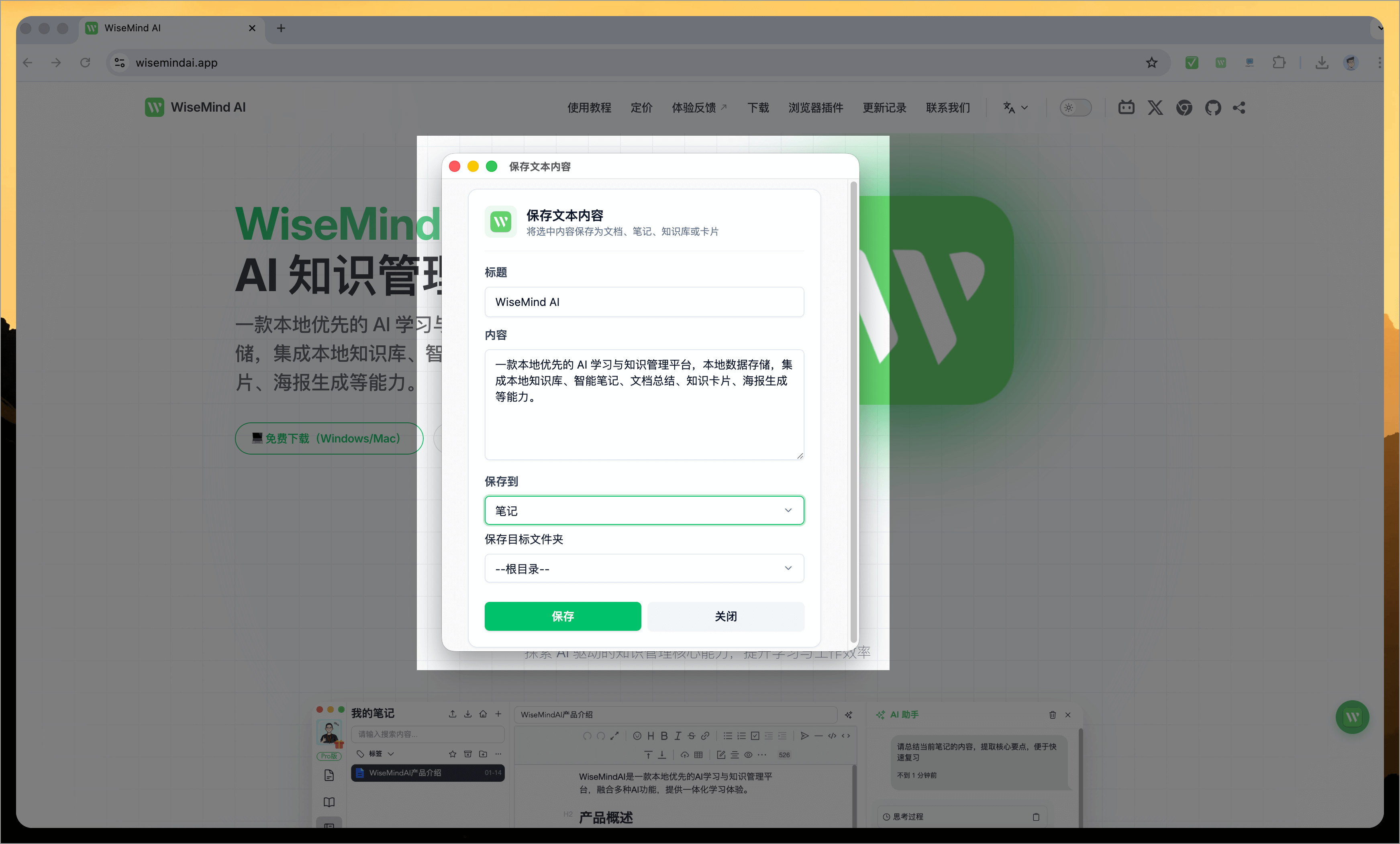
2. Select Content Block for Saving
After selection, your mouse cursor will change into a style allowing you to select text content blocks. You can then save any selected block as notes, documents, knowledge base entries, or knowledge card sets, ensuring more accurate saving of required text content.
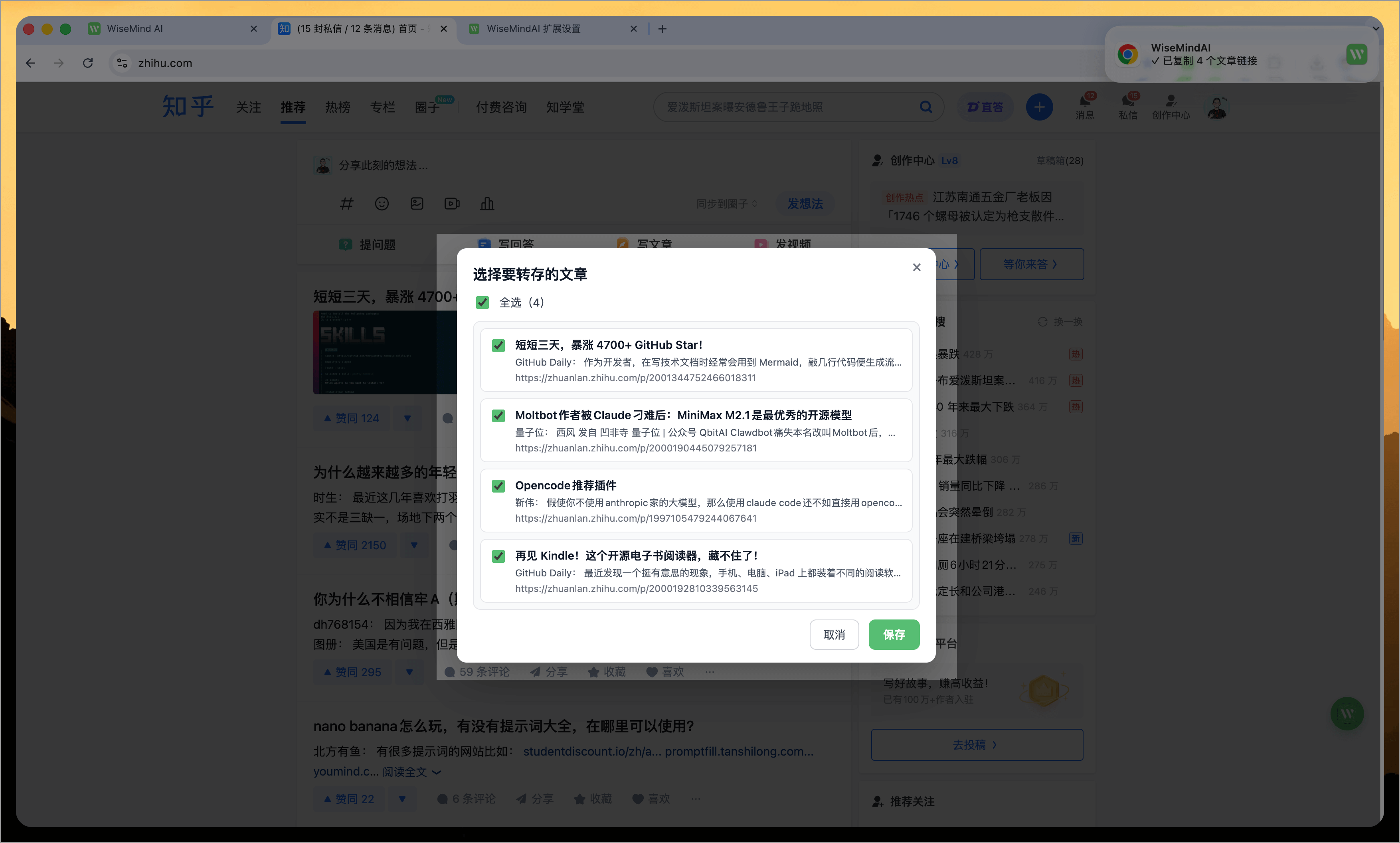
3. Save Article Links ⭐️
In designated pages, clicking "Save Article Link" will extract all article links from the current page. You can choose which articles to save into WiseMindAI for better management of your favorite content.
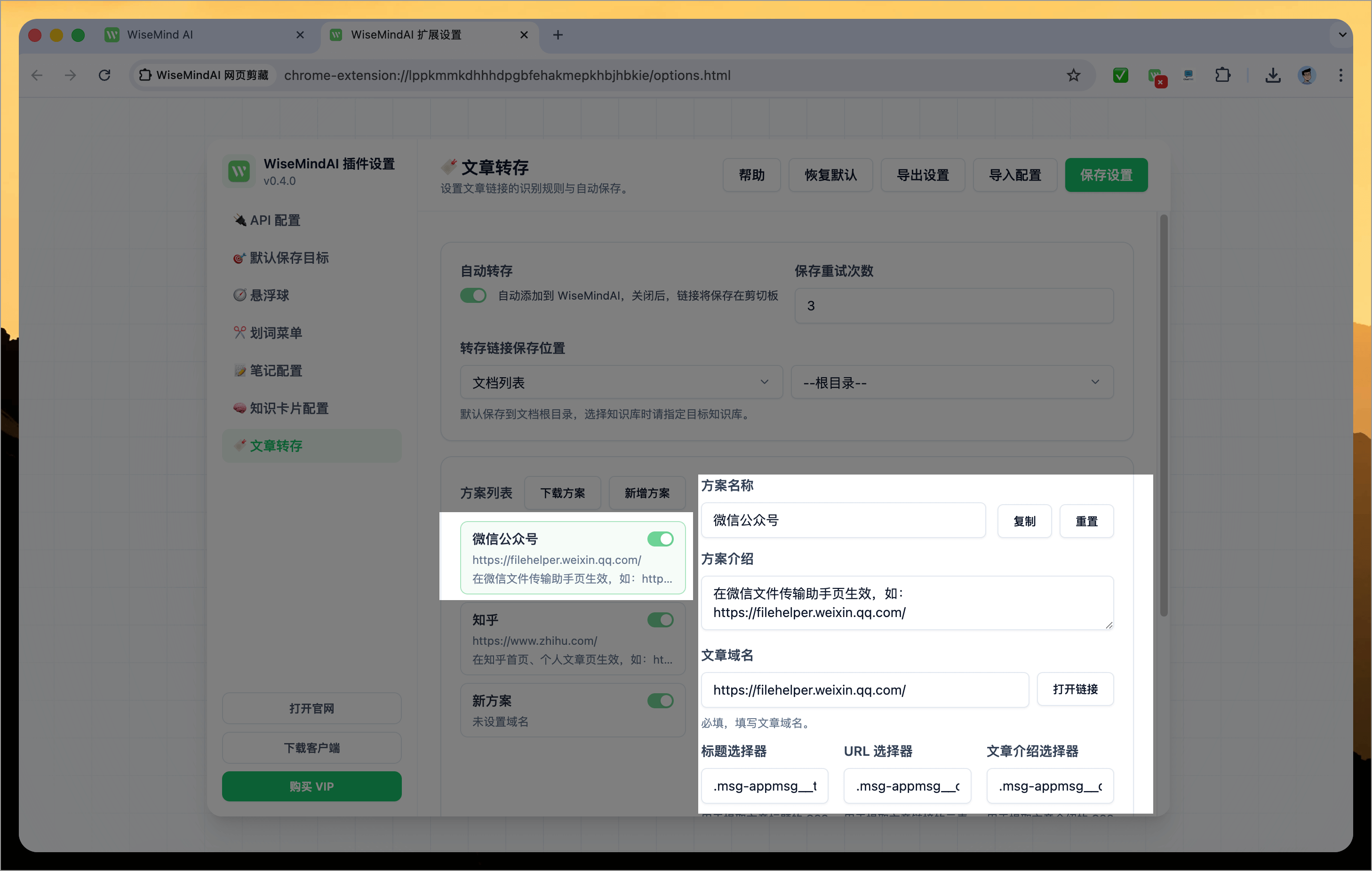
If a platform you need is not currently supported, go to "Plugin Settings Page" -> "Article Saving" settings to add new platform schemes.
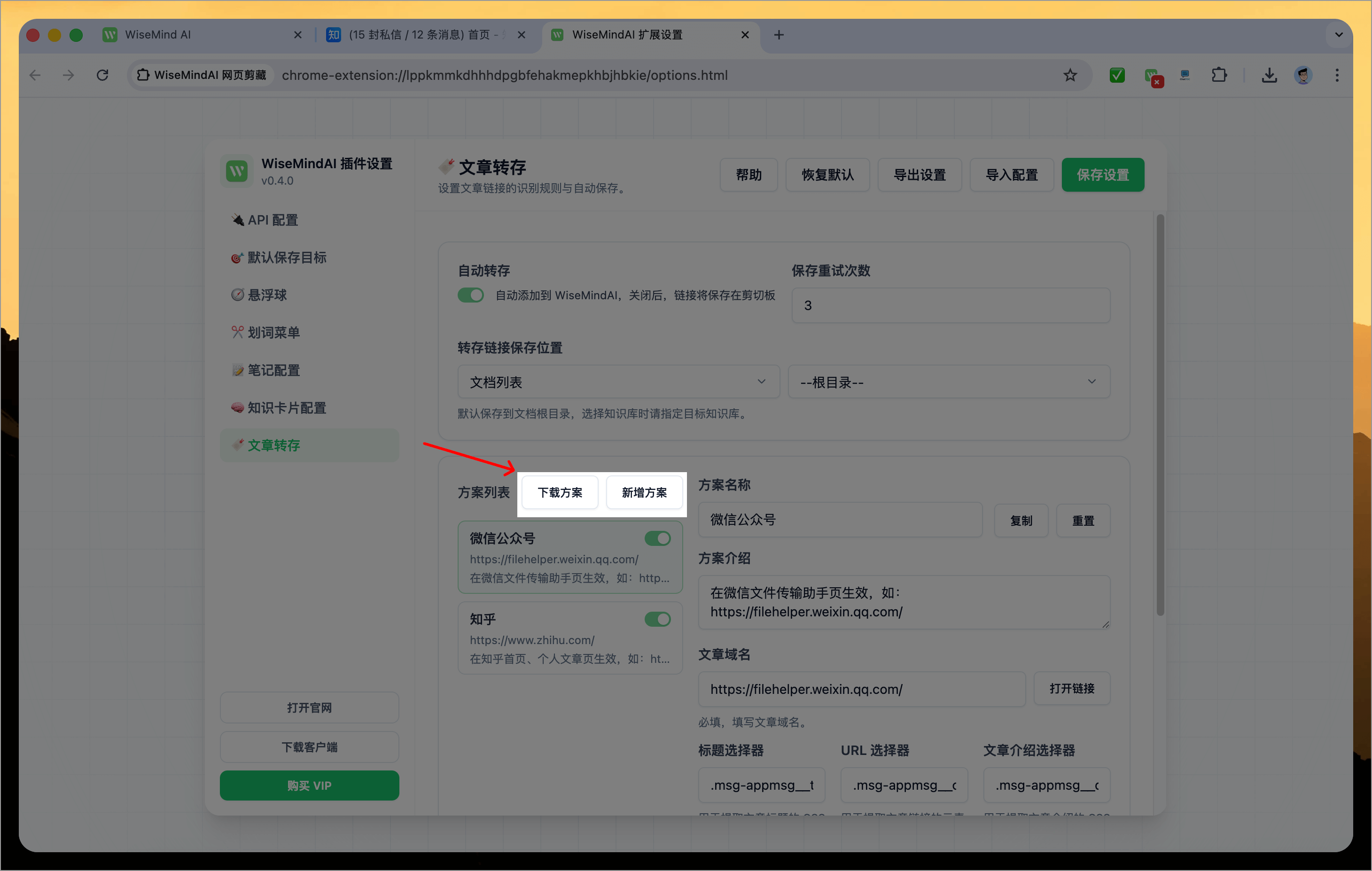
Currently supports:
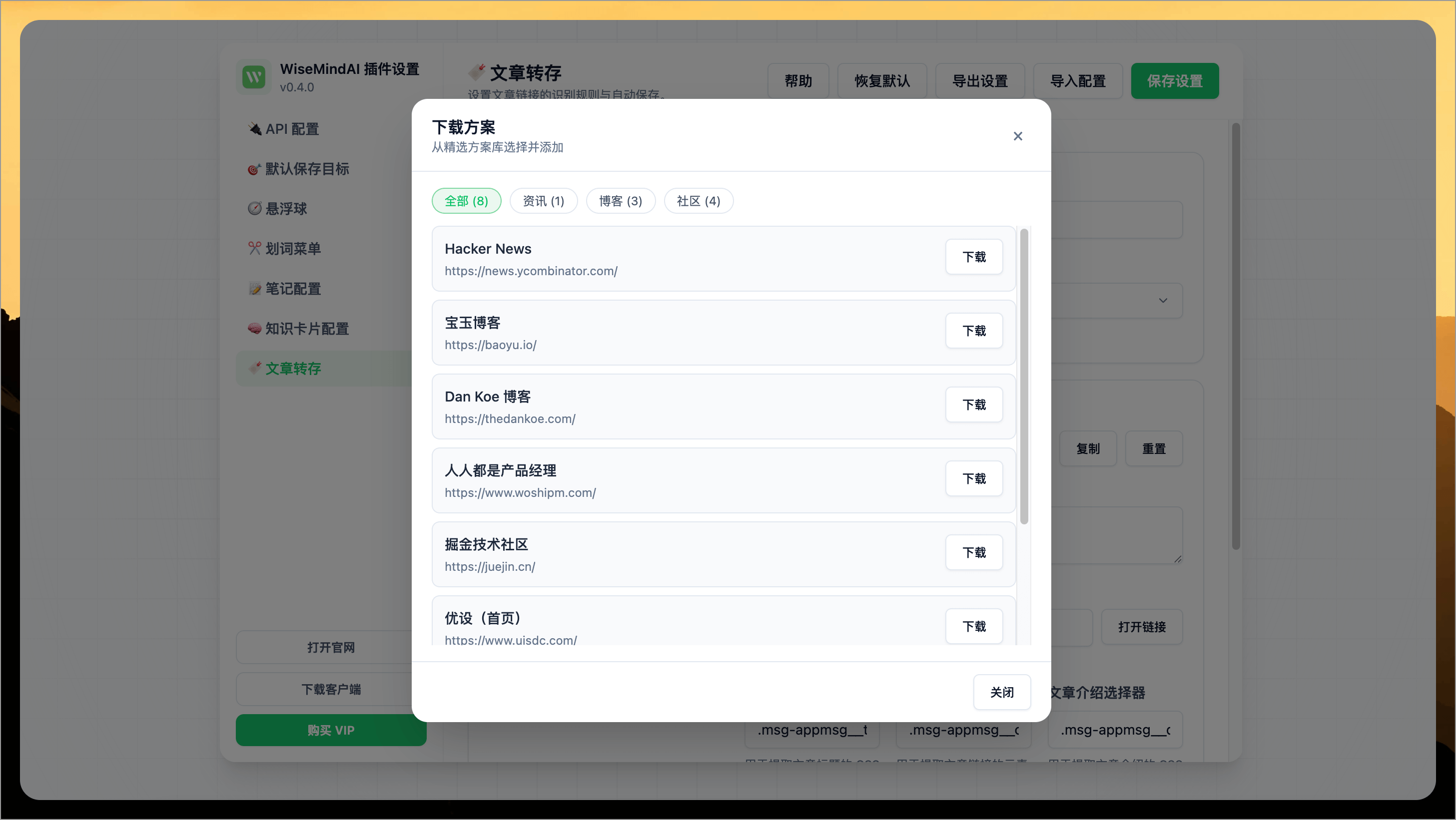
- Download Scheme: Download recommended platforms like Hacker News, Juejin (掘金), and UI Design (优设).
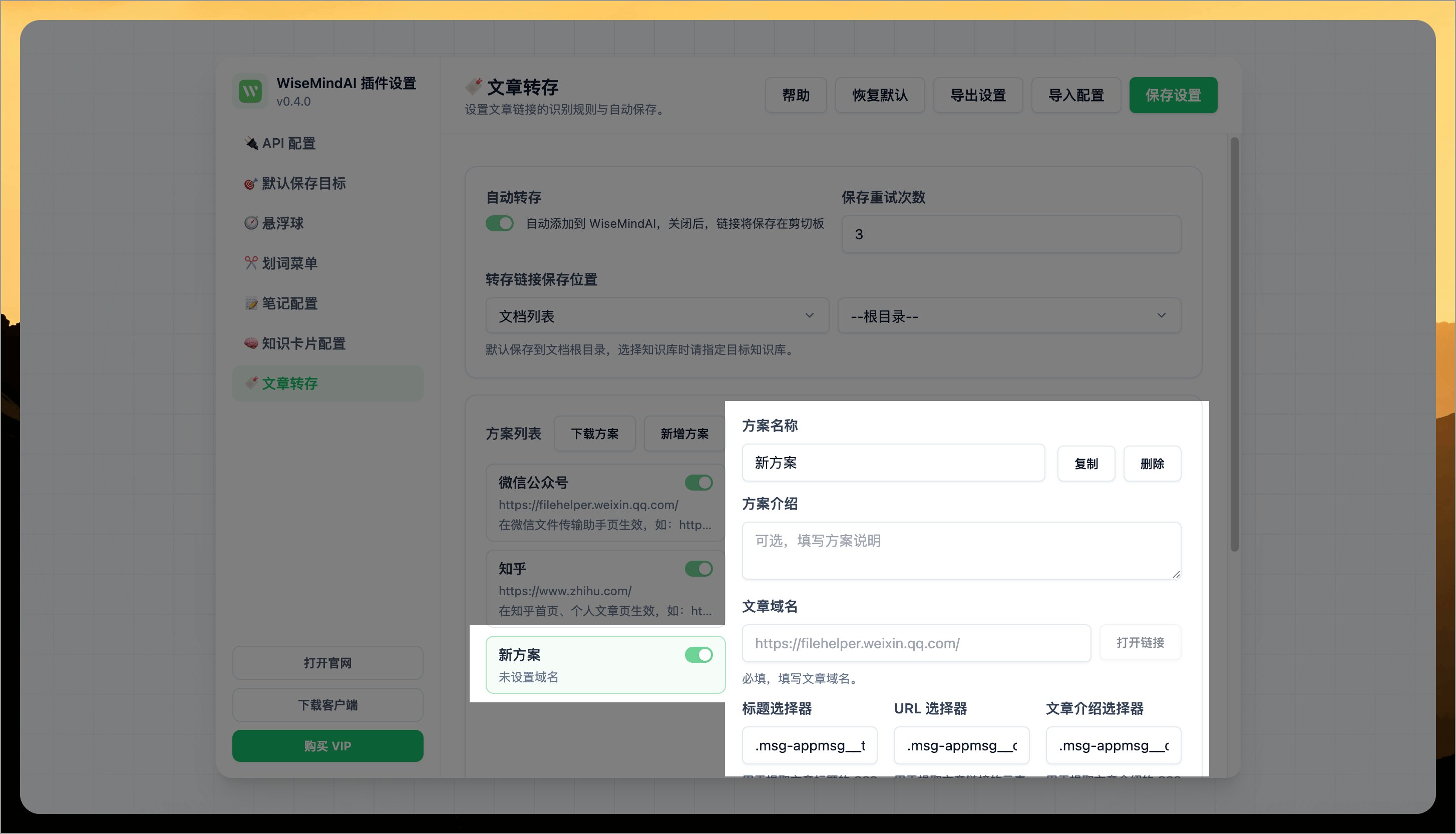
- New Scheme: Create a blank scheme to add new platforms according to your needs.
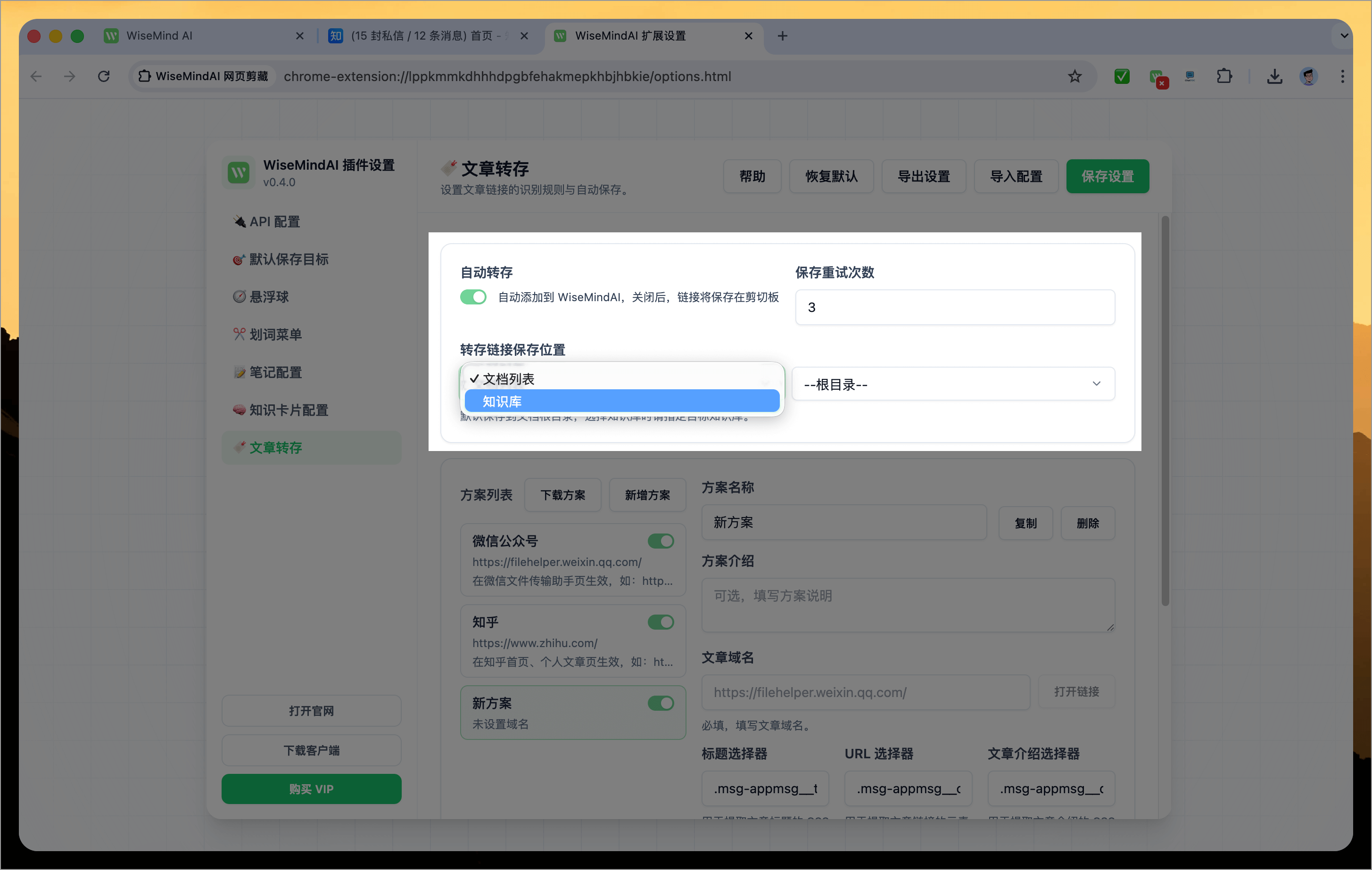
Finally, you can configure the article saving function with options like:
- Auto-save: Automatically save to WiseMindAI; if disabled, links will be saved to clipboard.
- Save Retry Count: If a save fails, it will automatically retry.
- Link Save Location: Choose whether to save links as documents or knowledge base entries.
4. Export Page as PDF
WiseMindAI now supports exporting webpage content directly into a PDF or image file in one click, preserving original layout and key points for offline reading, archiving, or secondary sharing—ideal for knowledge collection and long-term storage.
5. Capture Full Page
Click to save the current page as a full-page screenshot, which is particularly suitable for articles exceeding one screen height for easy preservation.
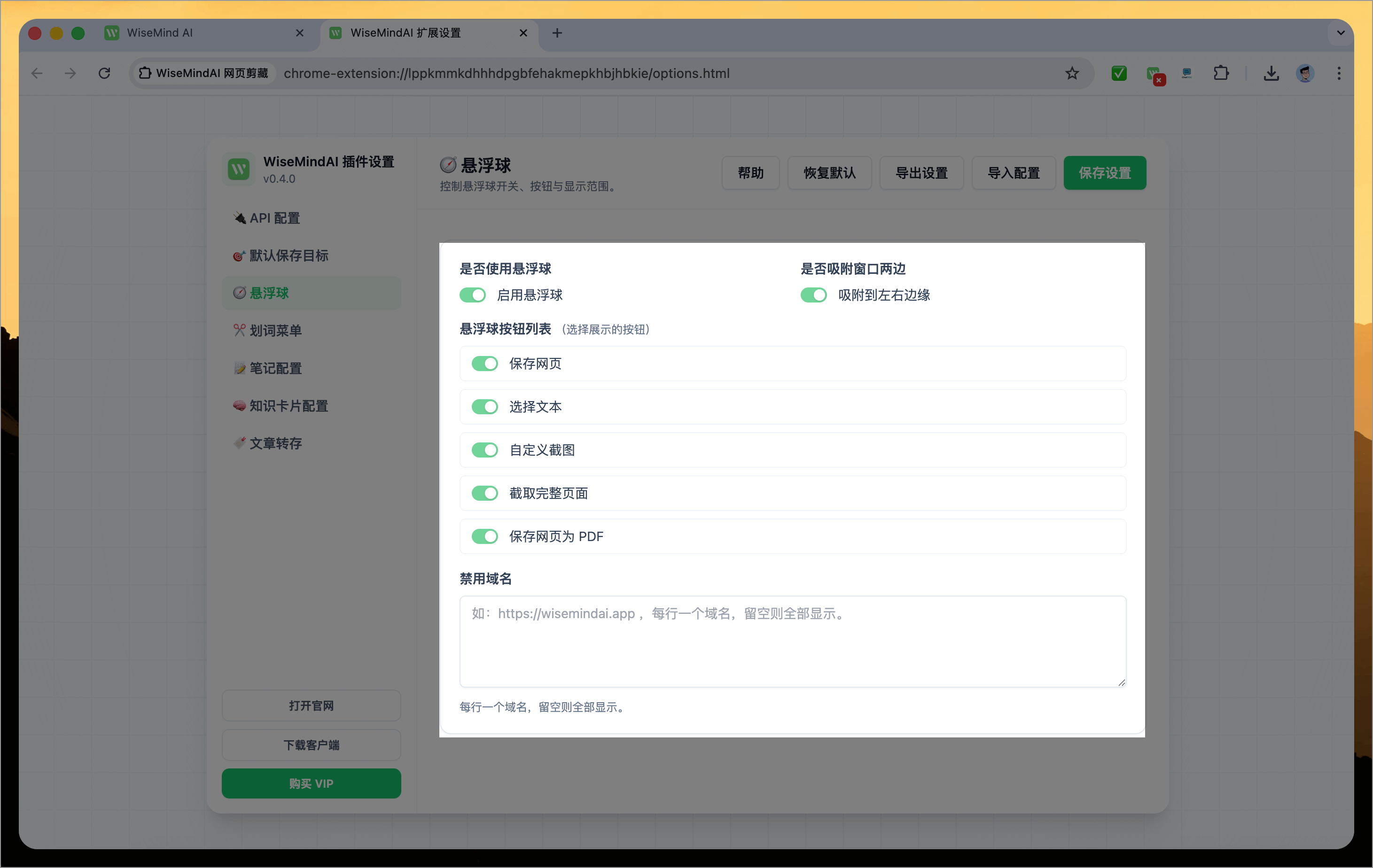
IV. Floating Button
Displays a floating button in the bottom-right corner of any webpage:
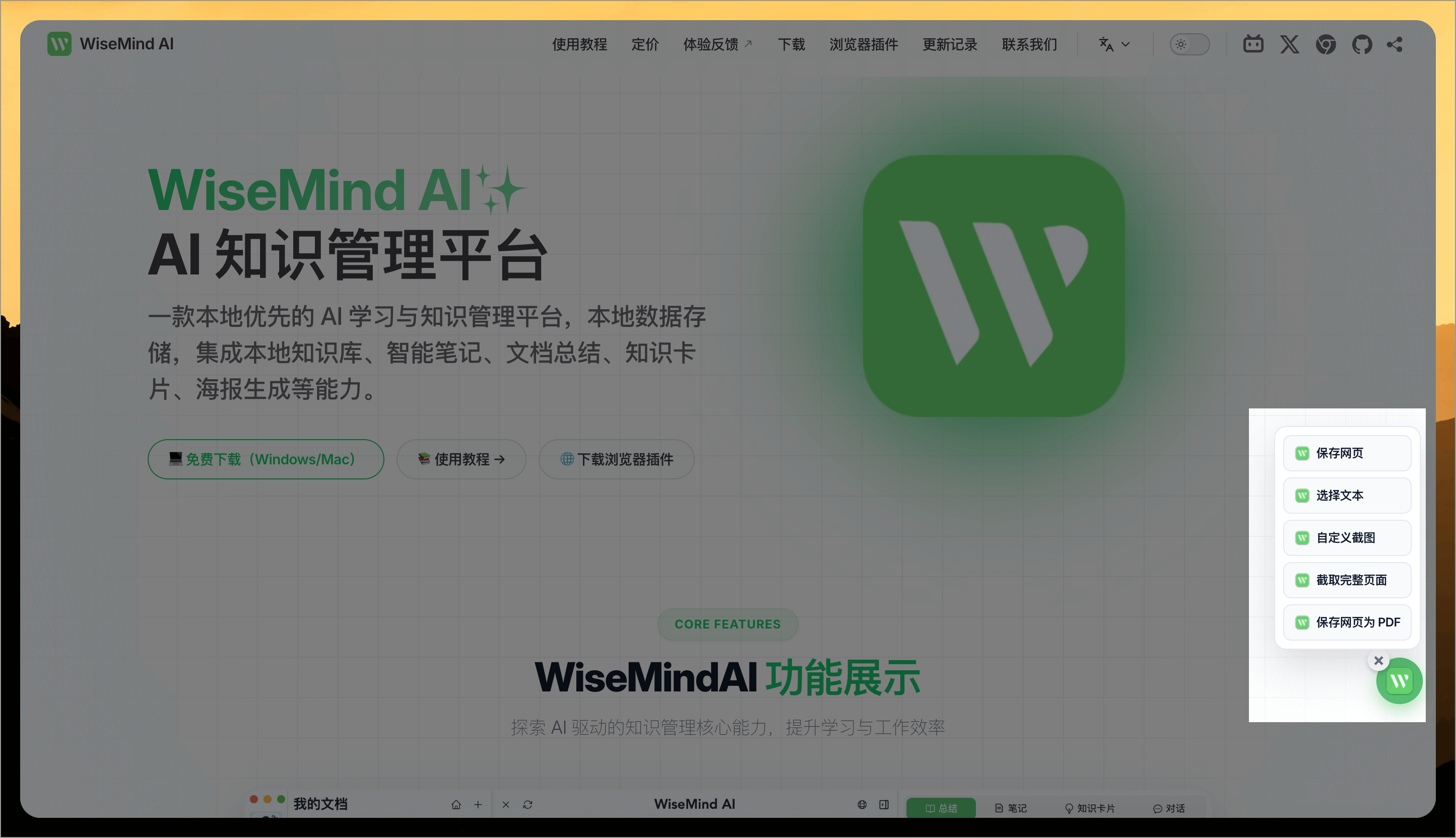
You can also customize the menu list displayed by the floating button via the settings page:
V. Text Selection Menu
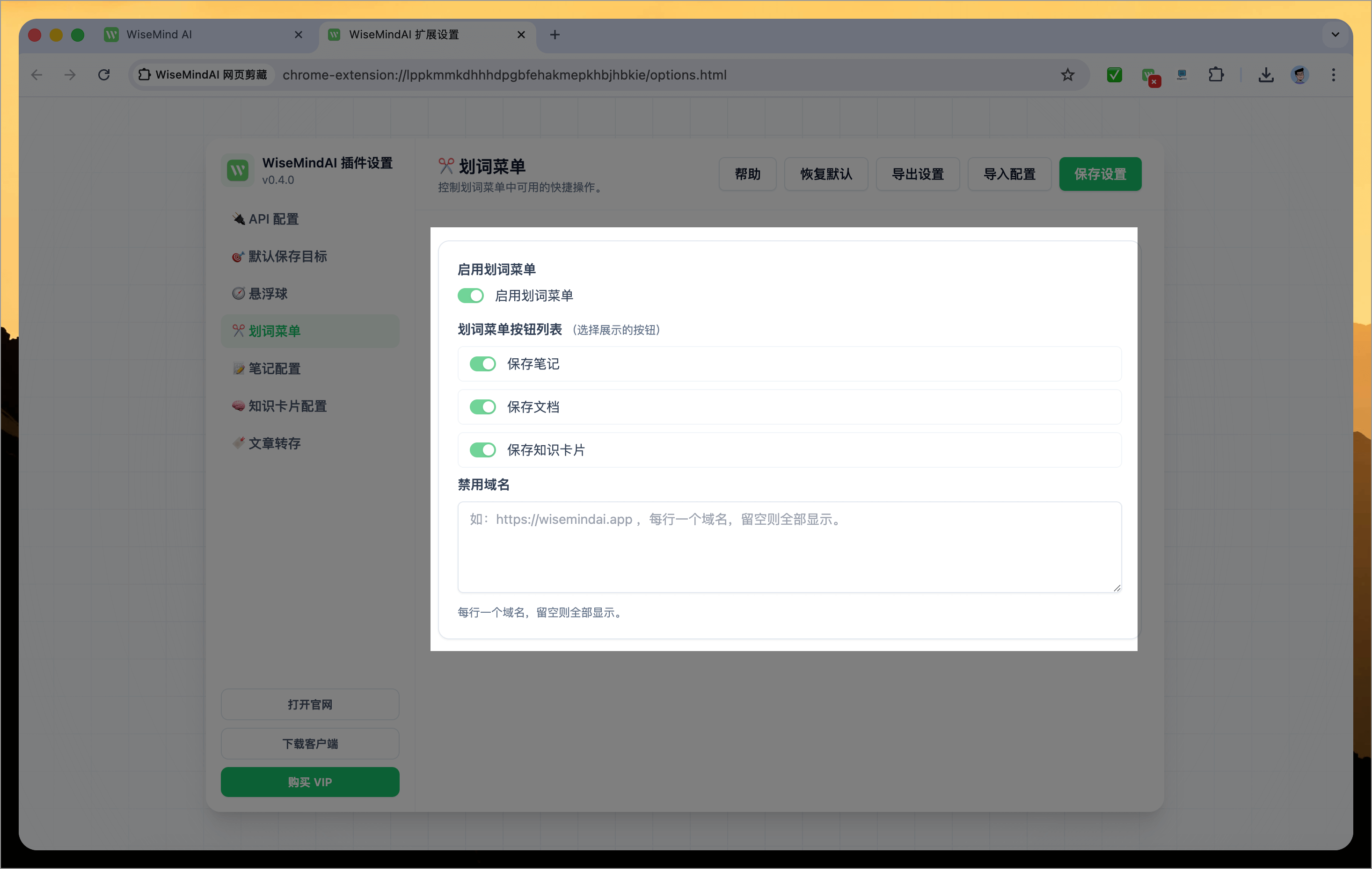
After selecting any text on a webpage, a row of menu buttons will appear above the selected text (e.g., Save Note, Save Document, Save Knowledge Card), allowing you to save content into WiseMindAI more efficiently.

Similarly, you can open the settings page to customize the buttons in the text selection menu:
VI. Note Settings
Currently, there are multiple sources for saving notes within the browser extension. This section also supports unified formatting settings for these notes, including:
- Custom note title format (supports variables:
{title},{date},{time}) - Automatically add source information (customizable suffix template):
Source: {title}
Original link: {url}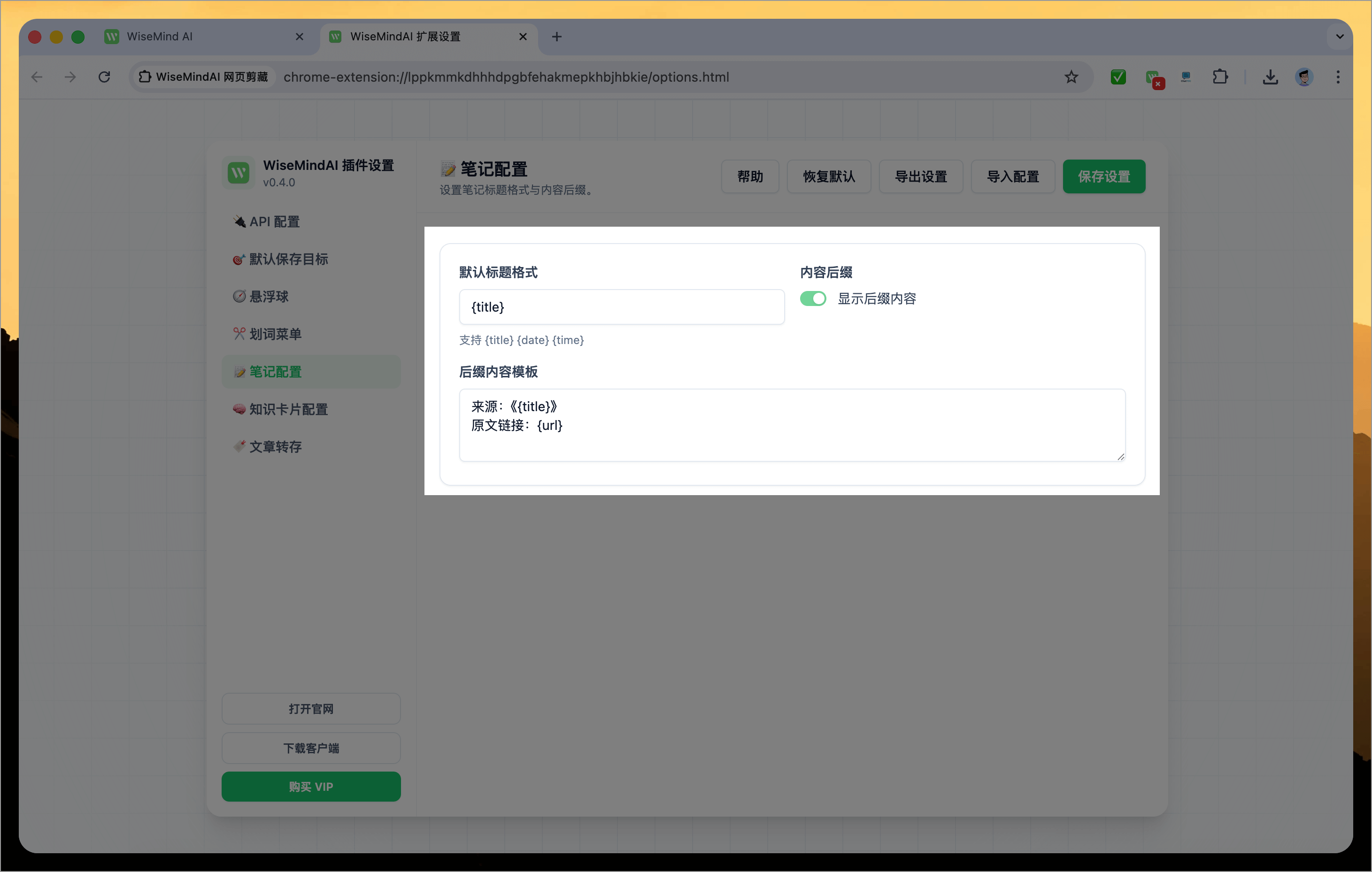
VII. Default Save Destination Settings
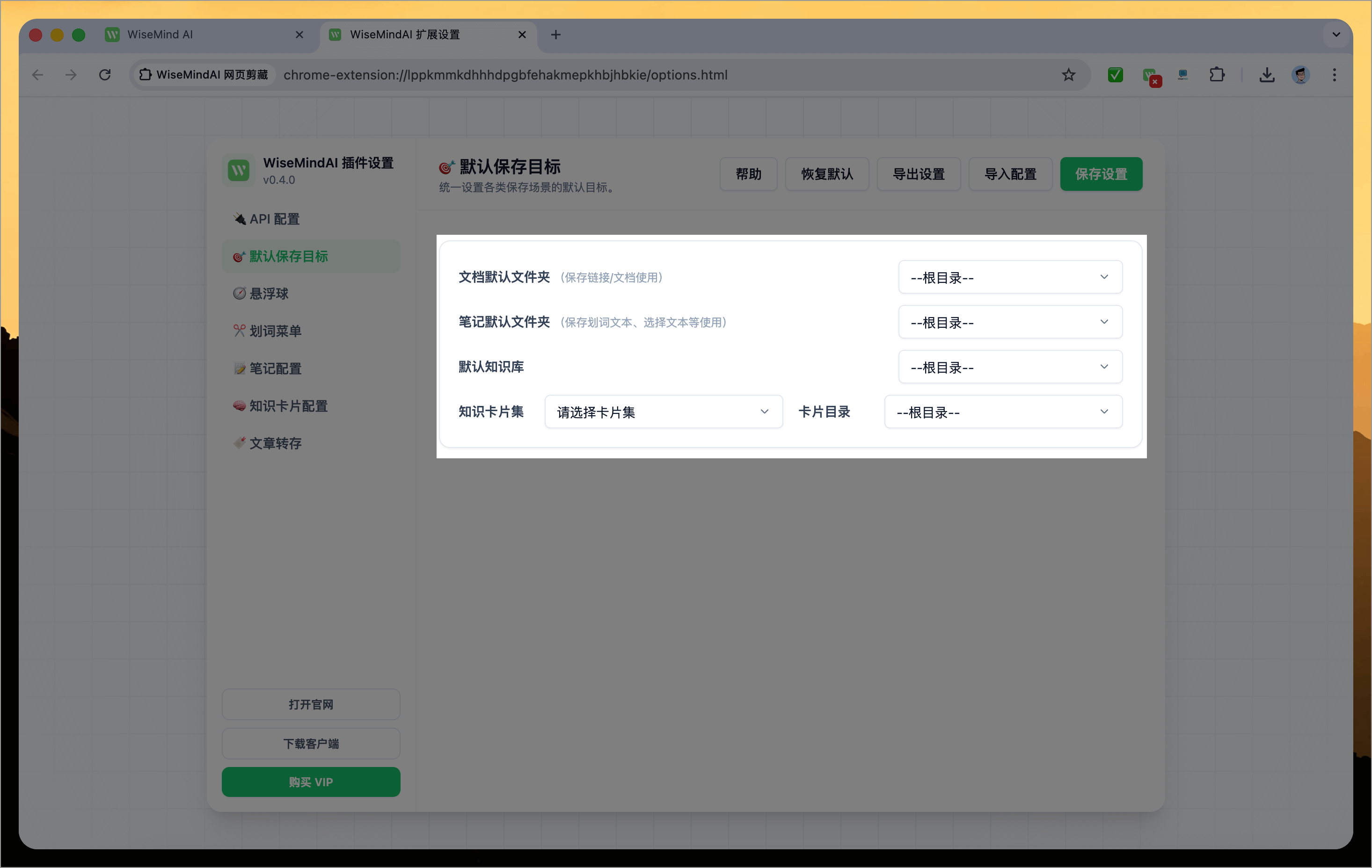
Currently, WiseMindAI supports multiple save methods—such as saving notes or knowledge bases—and can be triggered via the highlight menu, right-click context menu, floating action button, and other scenarios. To avoid configuring default destinations separately for each scenario, we provide unified settings for all functions:
- Default document folder
- Default note folder
- Default knowledge base
- Knowledge card set
For example, any save-to-document actions within the plugin will use this same document folder by default.
VIII. One-Click Import of WeChat Favorites Links
The WiseMindAI browser extension (v0.1.3) supports one-click import of WeChat-favorited article links, consolidating scattered high-quality content from WeChat into WiseMindAI for organized summarization and deep learning, truly enabling the workflow: "Favorite → Learn → Reuse".
After upgrading to v0.4.0, you can also save articles from any platform; original WeChat article links are now upgraded to use the "WeChat Official Account" method with identical usage instructions as before.
Usage Instructions
1. How to Use
First, log in to WeChat File Helper Web via your browser. Then select the links you wish to import into WiseMindAI from WeChat favorites and forward them to "File Helper" (via right-click or share):
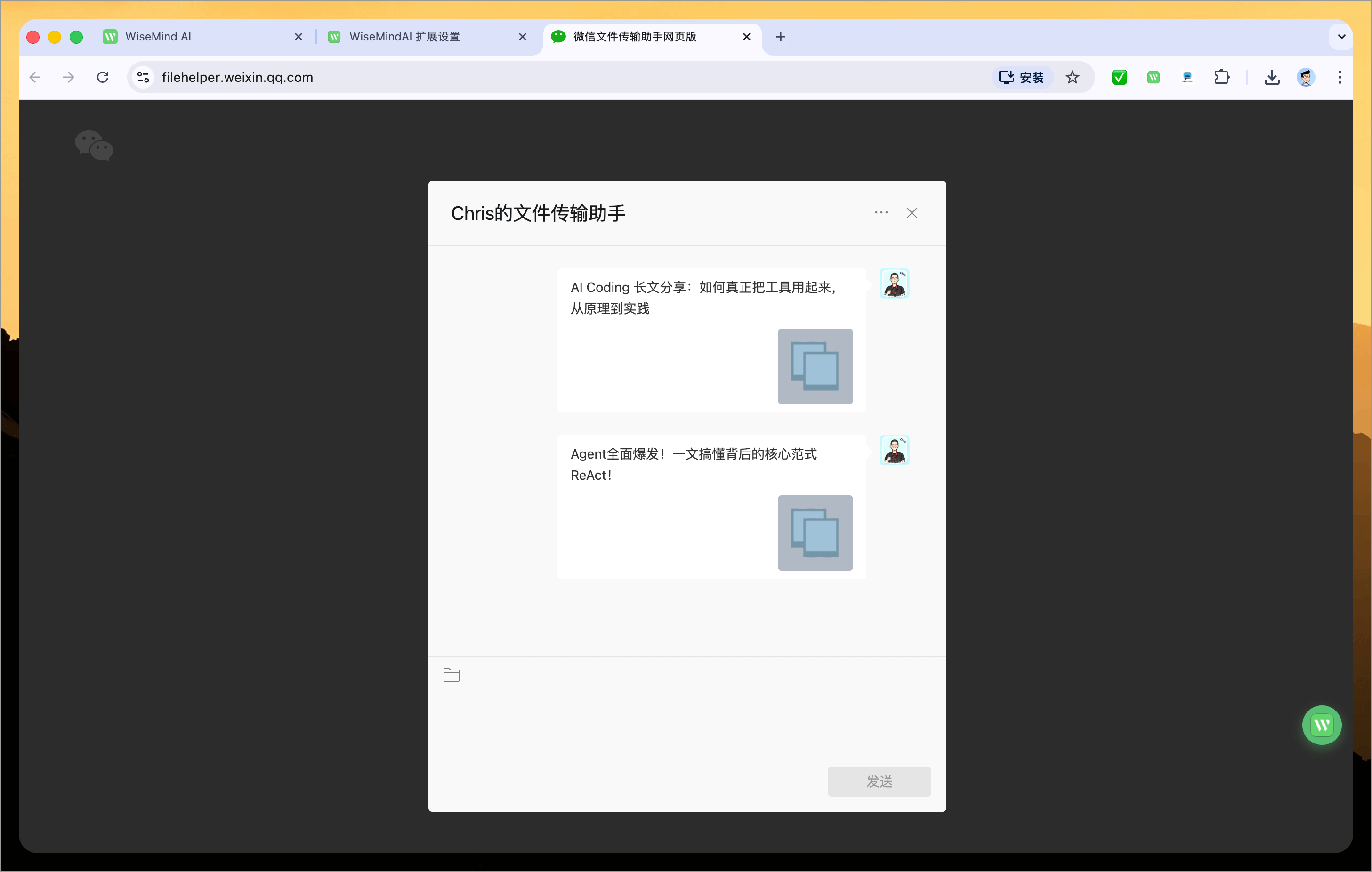
Next, return to the WeChat File Helper Web page. Right-click in an empty area and click the "Save Article Link" button. You will now see a list of all articles:
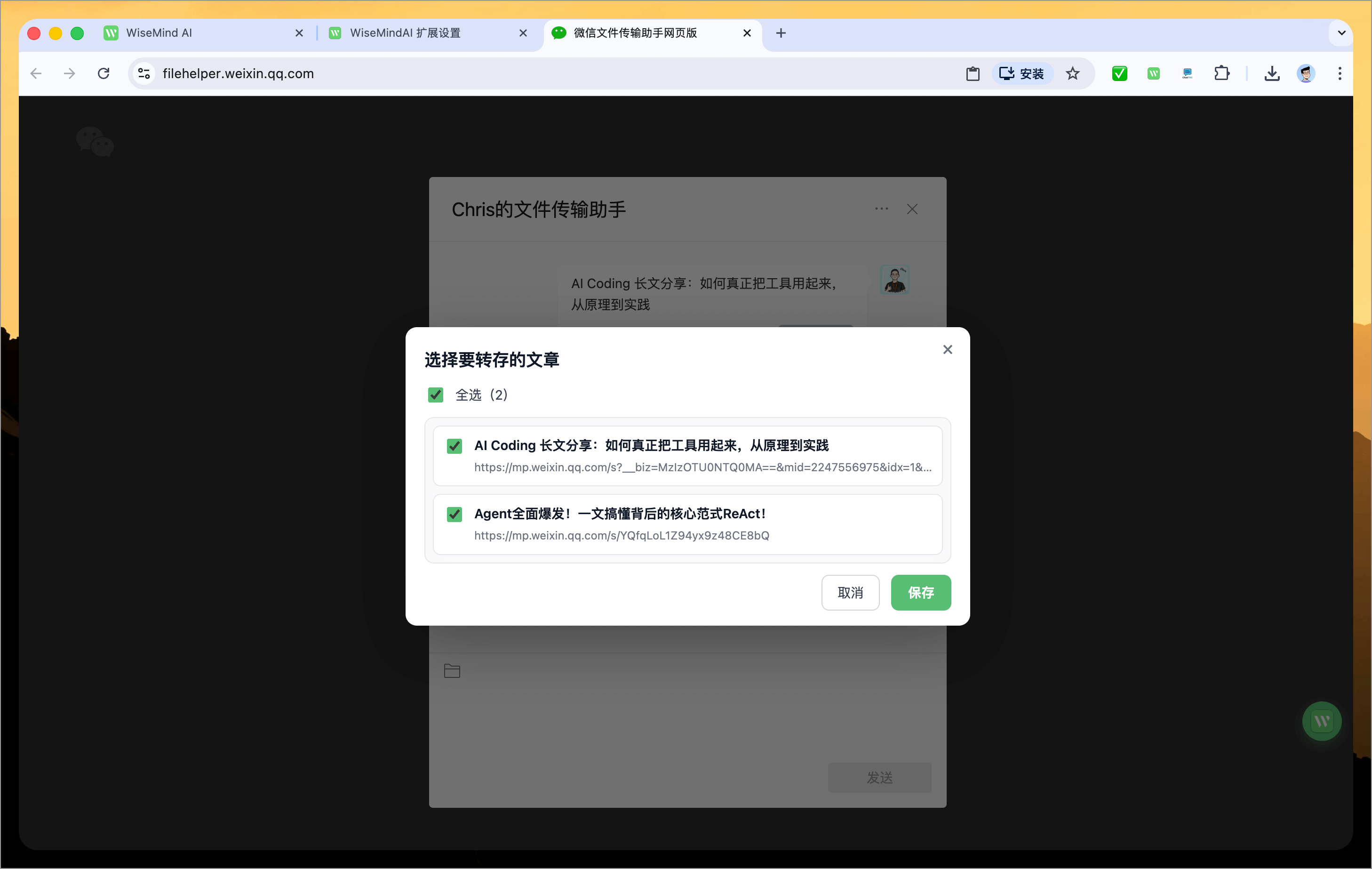
Select the article(s) you wish to save, then click Save. The WiseMindAI browser extension will automatically open each page and save them into your WiseMindAI client. Simply wait for the automatic saving process to complete.
If an error message appears on first use, try clicking "One-Click Save Official Account Link" again.
Upon successful completion, WiseMindAI will refresh its file list so you can see that these links have been saved successfully.
Please note: Currently, this feature only supports link cards—specifically page details forwarded via the share function (e.g., WeChat official account articles).
In future updates, support for text, images, and other content types will be added.
2. My Thoughts
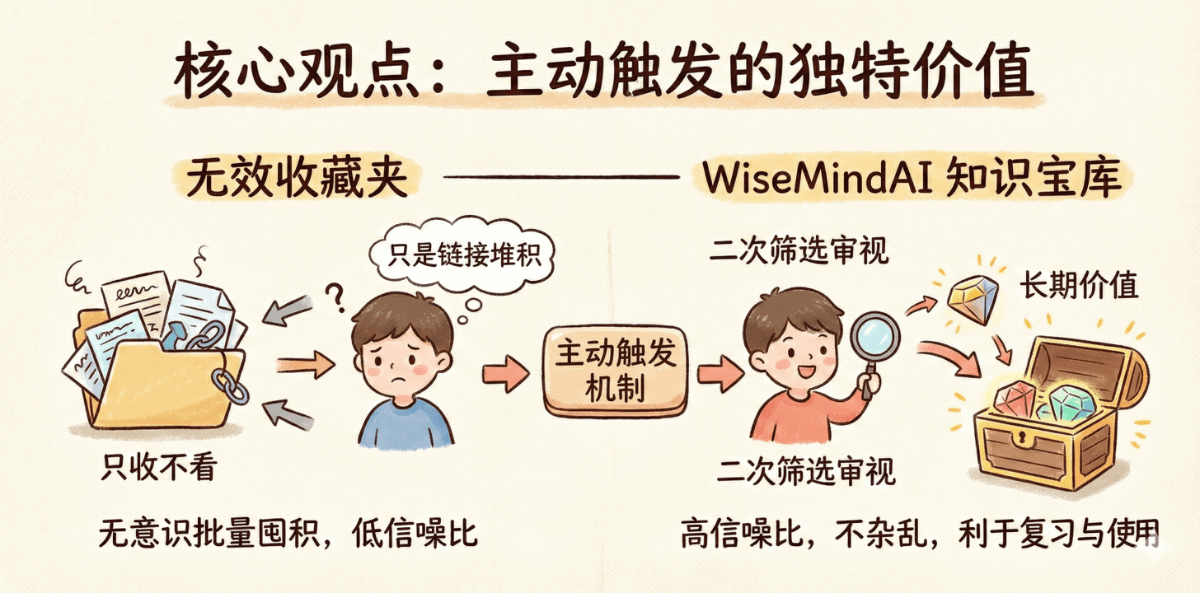
To be honest, given current limitations in WeChat's ecosystem openness, this is indeed a compromise technical solution. However, from a knowledge management perspective, this "active trigger" mechanism holds unique value: it grants users the opportunity for "secondary filtering," rejecting unconscious bulk accumulation and storing only content that has been personally reviewed as having long-term value.
Chris hopes your knowledge base serves as an exquisite treasury of essentials, not just another passive collection folder where you store but never review.
A high signal-to-noise ratio, uncluttered knowledge base is far more beneficial for future revision and application than a massive pile of unscreened links.