
Obsidian plugin: intro and install
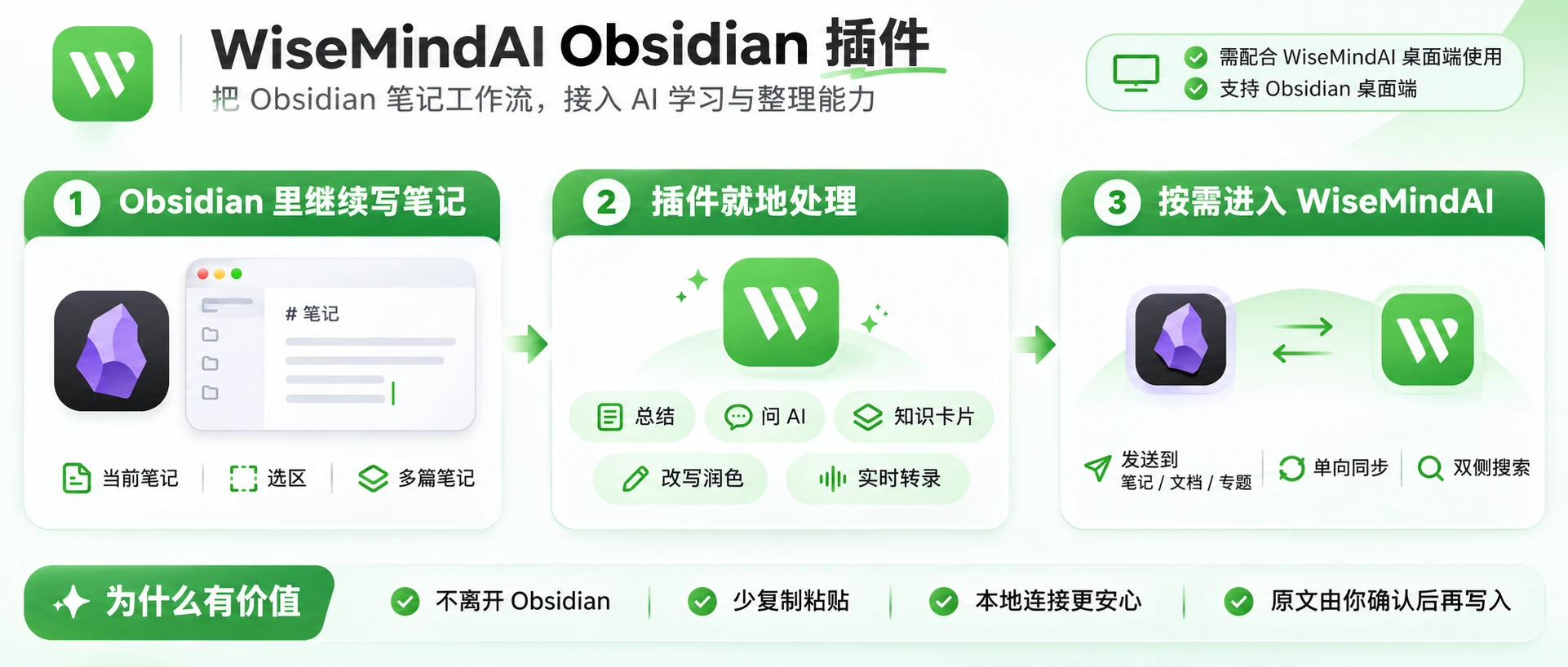
The WiseMindAI Obsidian plugin is a local bridge between your Obsidian Markdown vault and the WiseMindAI desktop app. You can summarize, ask, make cards, rewrite, live-transcribe, and search existing notes inside Obsidian, then one-way sync them into WiseMindAI My Materials—without copying and pasting between apps.
In one line:
Keep writing in Obsidian; when you need AI learning and organizing, do it in place and sync to WiseMindAI as needed.
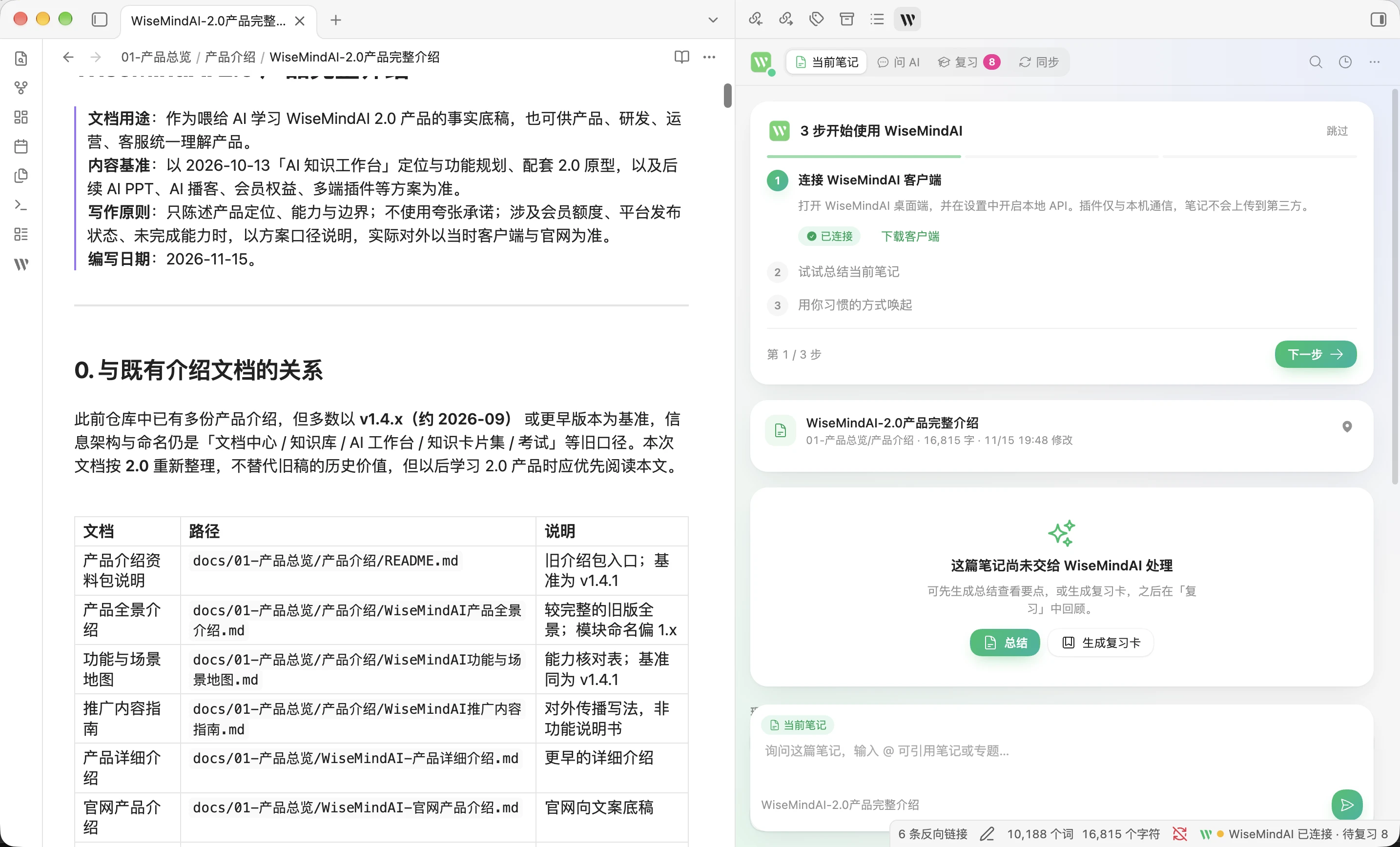
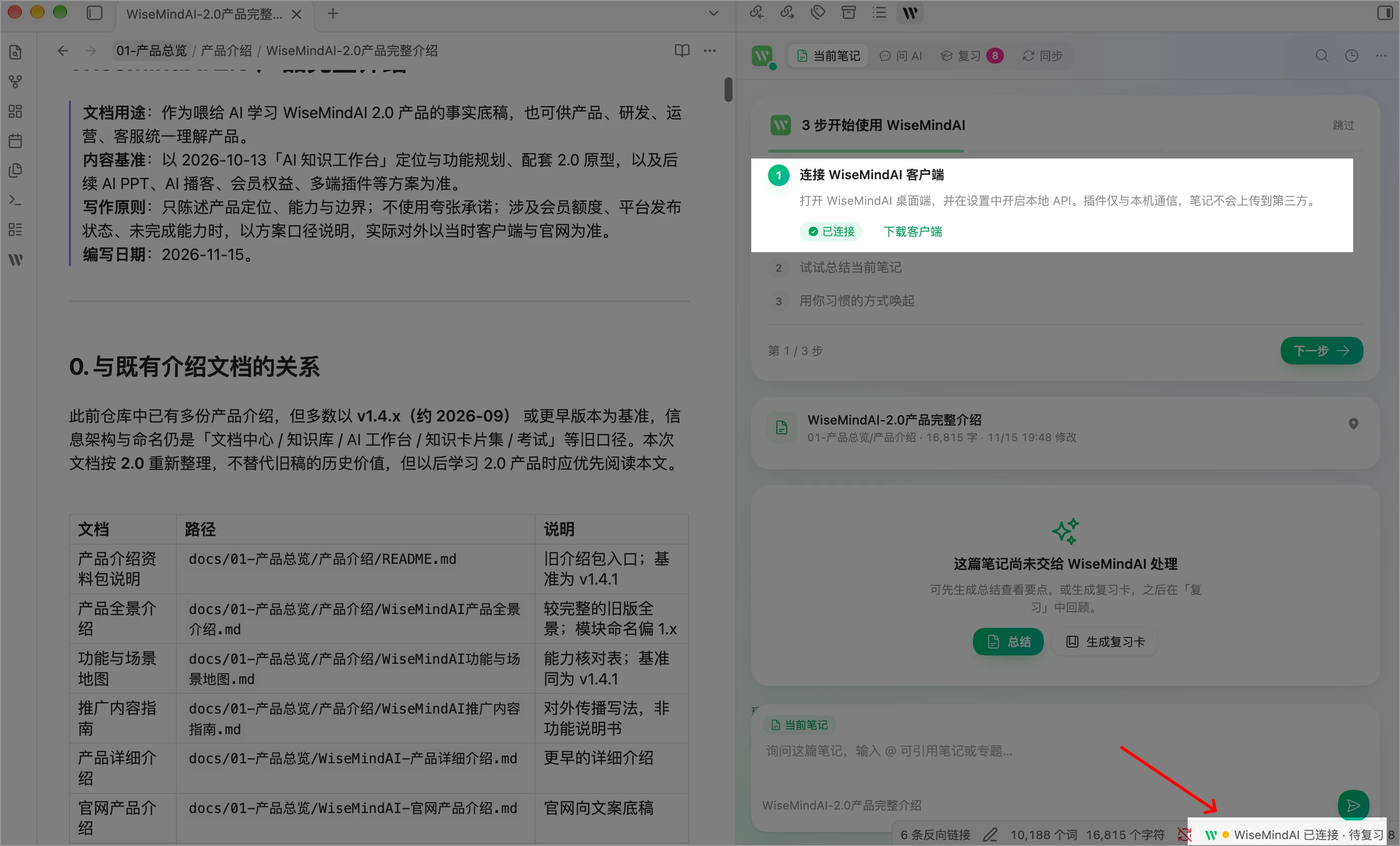
On first open, you can follow the “3 steps to start with WiseMindAI” guide:
Who it is for
- People who already have an Obsidian vault and want to keep a Markdown workflow;
- People who want to summarize, ask, and make cards in notes, then write results back or send them to WiseMindAI;
- People who need live transcription for meetings or classes written into a chosen note;
- People who want incremental sync from Obsidian into WiseMindAI, then topics, review, and AI tasks in the client.
Not a fit: people who have never used Obsidian and only want web clipping—prefer the browser extension + desktop app.
Install the plugin (recommended)
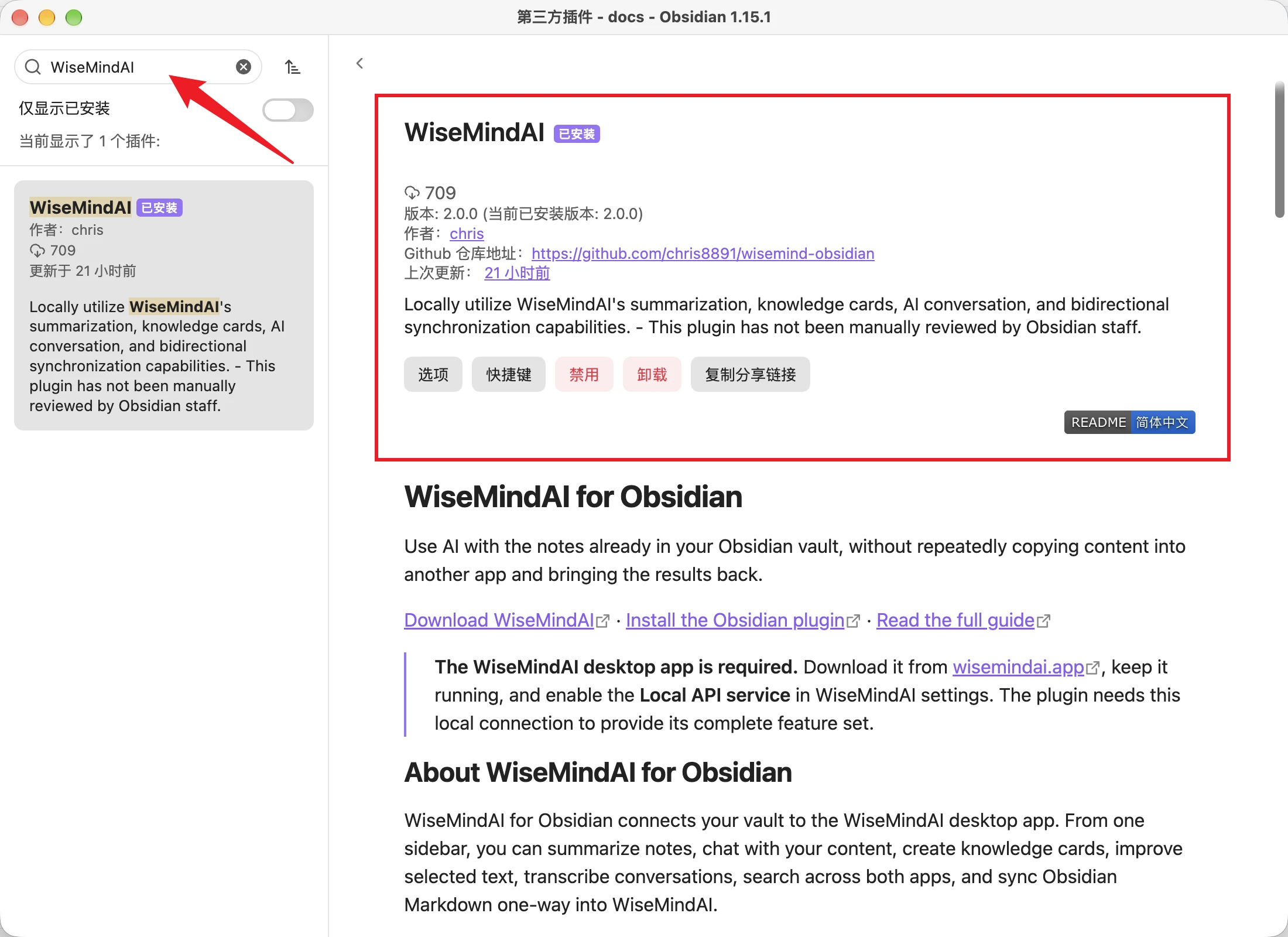
- In Obsidian desktop, open Settings → Community plugins;
- Click Browse, then search for WiseMindAI;
- Install and enable it.
Prepare the desktop app
- Download and start WiseMindAI. See Install.
- In the desktop app, open Settings → Advanced → Developer and enable Local API service.
- Keep the client running while you use the plugin.
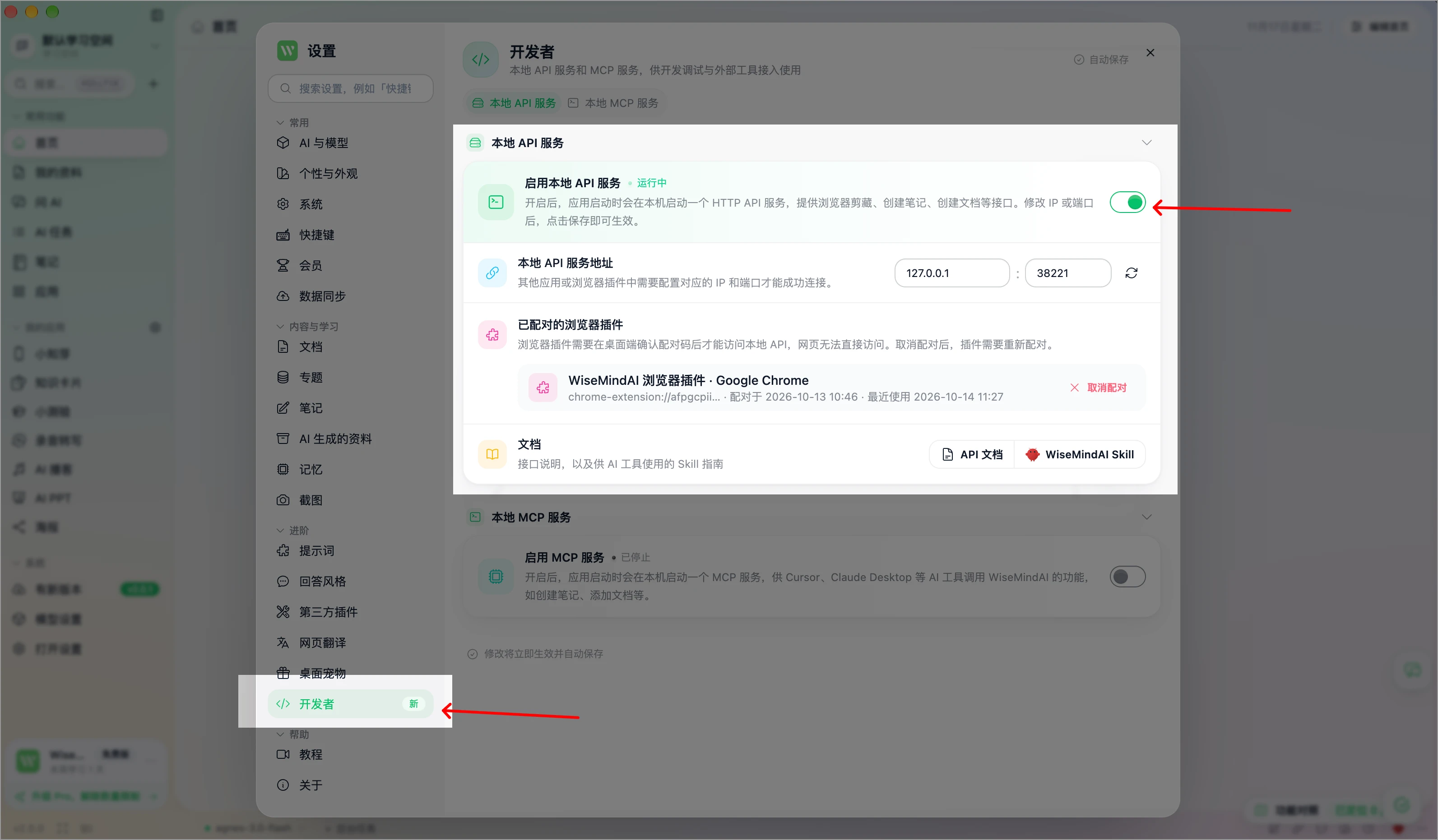
Default local API address:
http://127.0.0.1:38221If you changed the port, keep the plugin setting aligned. Only local addresses are allowed. After AI is connected, summarize, Ask AI, rewrite, and make cards work; send and sync work by capability.
Related: Model setup
Test connection
- In Obsidian, open Settings → WiseMindAI;
- Keep or correct the API address;
- Click Test connection.
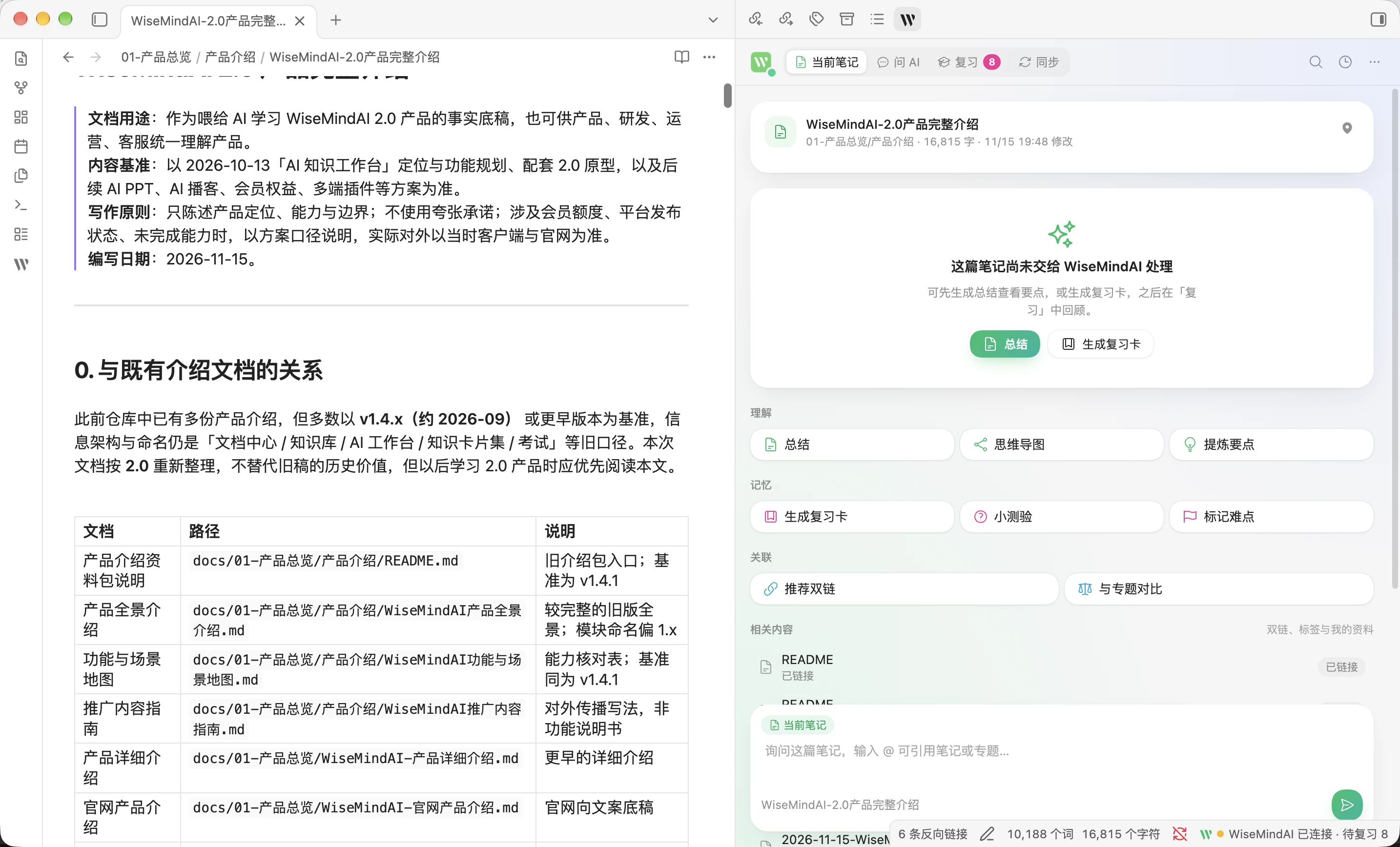
After it succeeds, open the plugin from the left ribbon, status bar, or command palette WiseMindAI: Open panel.
Manual install (optional)
- Download
main.js,styles.css, andmanifest.jsonfrom the latest Release; - Place them in
.obsidian/plugins/wisemindai/in your vault; - Restart Obsidian and enable the plugin.
Checklist before use
- [ ] Desktop app is running and local API is enabled
- [ ] Plugin connection test passed
- [ ] Sync direction is Obsidian → WiseMindAI
- [ ] A test summarize or send of one note succeeded
Main entry points
| Entry | How to open | Best for |
|---|---|---|
| Side panel | Left ribbon; Open panel command; status bar | Current note, Ask AI, review, sync |
| Unified search | Search Obsidian and WiseMindAI command | Search both sides, or ask the whole library |
| Selection toolbar | Select text in the editor | Rewrite, Ask AI, make cards, send |
| Slash command | Type /wm | Summarize, rewrite, make cards, quiz |
| Context menu | File / folder / selection → WiseMindAI | Send, summarize, sync, AI tasks |
| Live transcription | Open live transcription command | Record and write into a note |
Side panel tabs: Current note, Ask AI, Review, Sync. Recording opens as an overlay.
Docs in this section
- Notes and Ask AI: summarize, ask, make cards, selection rewrite
- Sync and send: right-click send and one-way sync
- Review, transcription, and search: review, live transcription, dual search
- Settings and FAQ: privacy, connection, and troubleshooting
Related: Browser extension · My Materials