
Obsidian plugin: sync and send
Use this to sync Obsidian data into WiseMindAI, so you can learn from and work with vault materials using the full WiseMindAI feature set. Sync does not change vault notes, and conflicts do not overwrite Obsidian originals by default.
Context menu
A unified WiseMindAI entry appears for the file list, multi-select, and editor selections (can be turned off in settings):
- Send to WiseMindAI
- Summarize / make cards / make a quiz / AI Task
- Sync now (when rules match)
- For a selection: rewrite, Ask AI, summarize, make cards, send
Best for a single note, a selection, or one folder. For ongoing batch sync, rules work better.
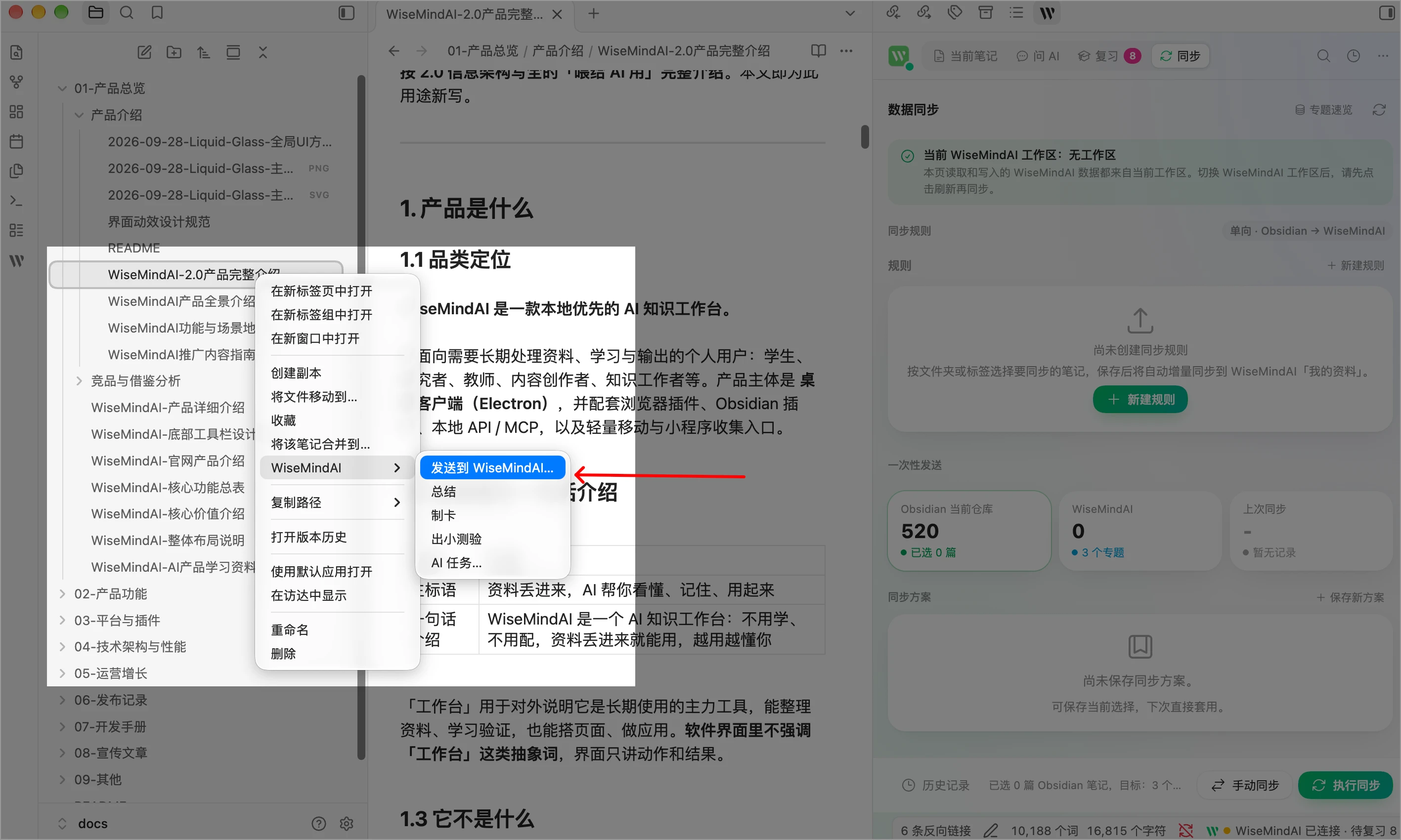
Right-click send
Right-click a Markdown file, selection, or folder to send it to WiseMindAI notes, documents, or topics.
If you have not created rules yet, use right-click or the “Send to WiseMindAI” command:
- Choose send as a note, material, or add to a topic.
- Choose the destination.
- Optionally let AI process it, generate a summary, auto-make review cards, or create a follow-up auto-sync rule for that folder.
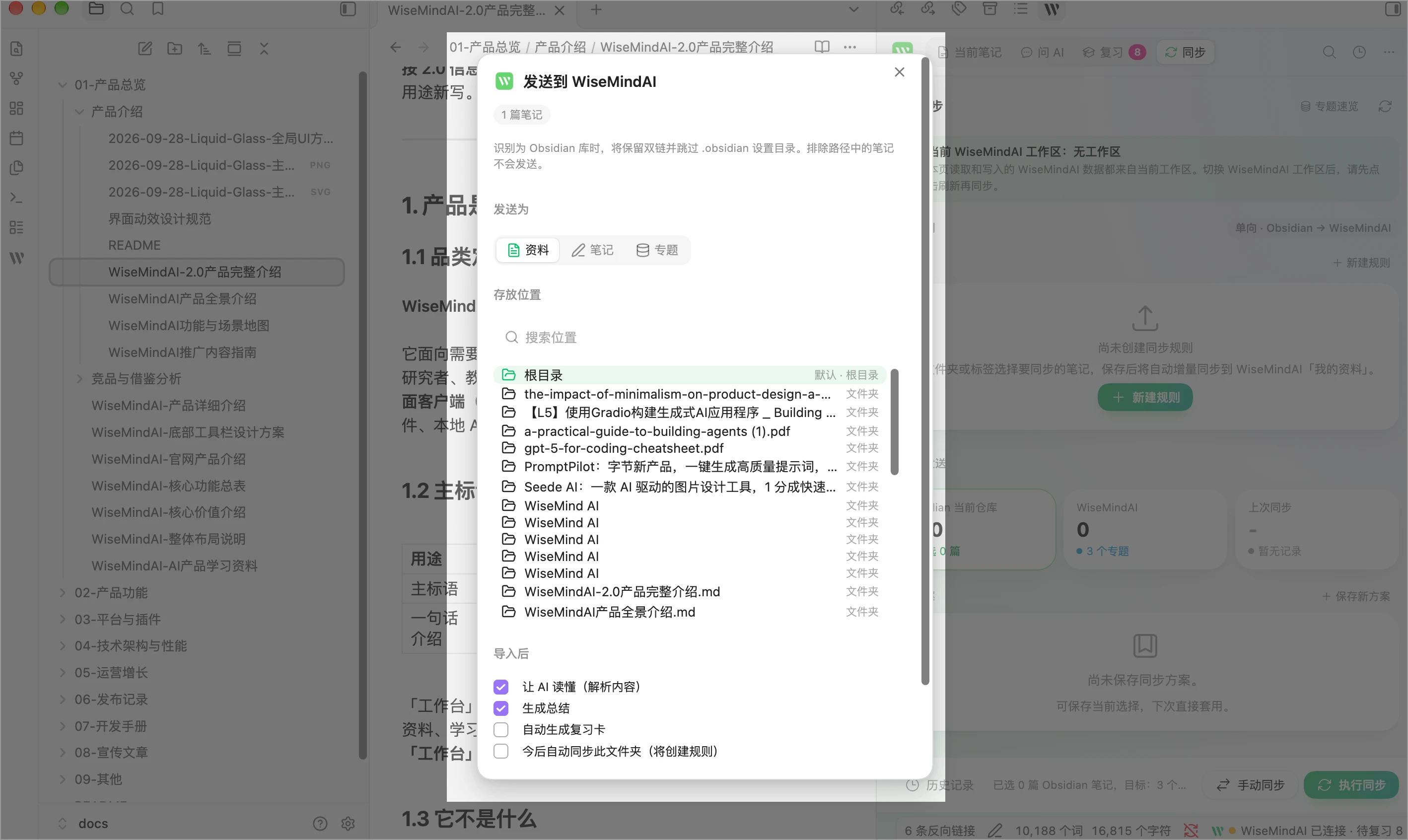
On the Sync page you can also use the plan wizard to select multiple notes, sync once, and save as a plan.
Rule-driven incremental sync
The Sync page supports rule-driven incremental sync from an Obsidian vault into WiseMindAI.
On the Sync page, create rules by folder or tag:
- Trigger: automatic (within a few seconds after save) or manual
- Target: one or more topics
- Optionally include subfolders
After creating a rule, review synced / pending / conflicts, run “Check for changes”, then “Sync N notes”.
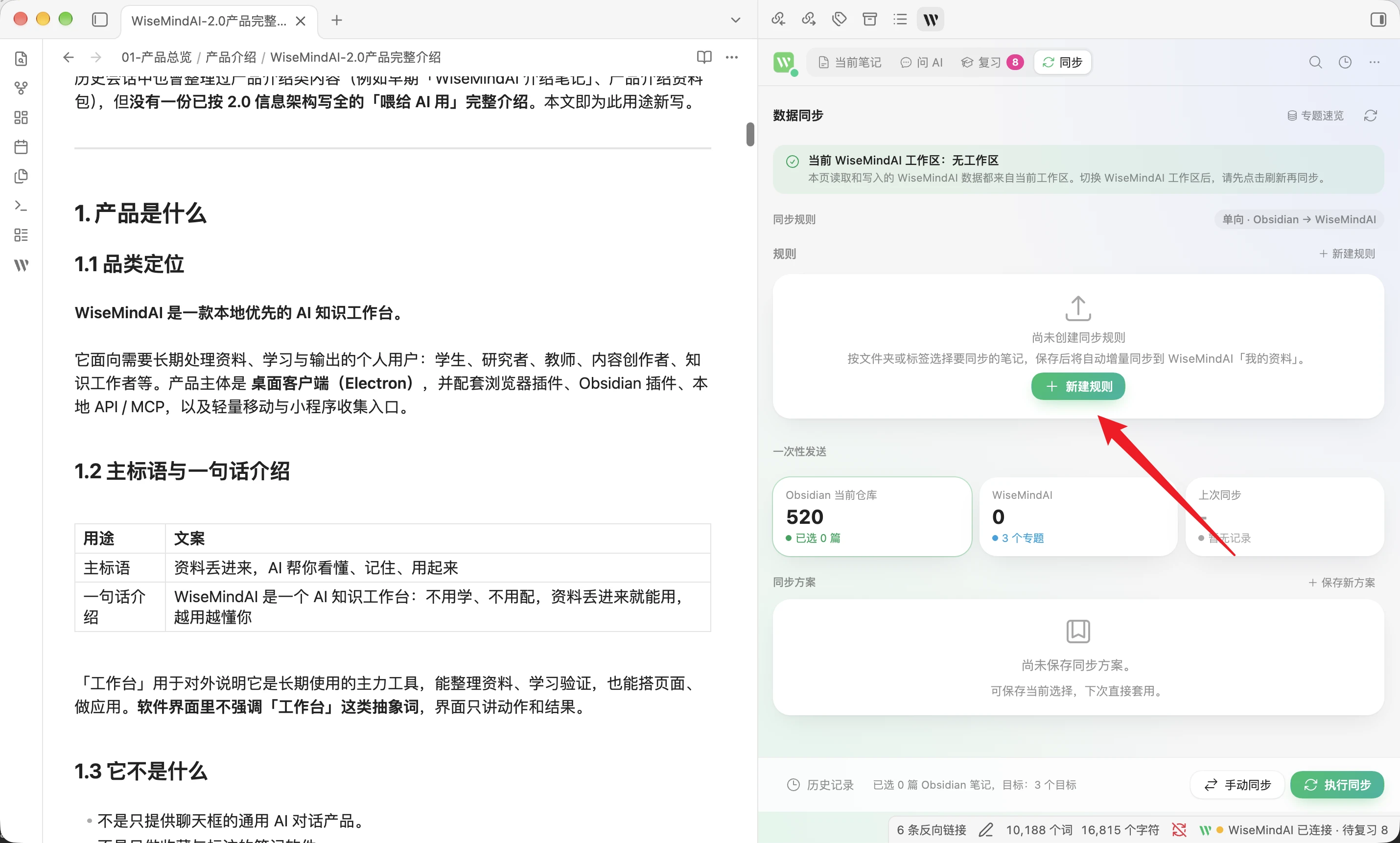

Conflicts and duplicates
When the destination already has content, you can update, skip, or create a copy.
- If the WiseMindAI copy was edited, it goes to the conflict list; keep the client version or overwrite from Obsidian.
- On conflict, Obsidian originals are not overwritten by default.
- Failed items can be retried. Clearing local sync records only resets comparison state; it does not delete content on either side.
Topics at a glance
After a rule is linked to a topic, you can add or remove the current note from that topic. Removing only affects the topic reference; it does not delete the Obsidian note or the file in My Materials.