
Obsidian plugin: notes and Ask AI
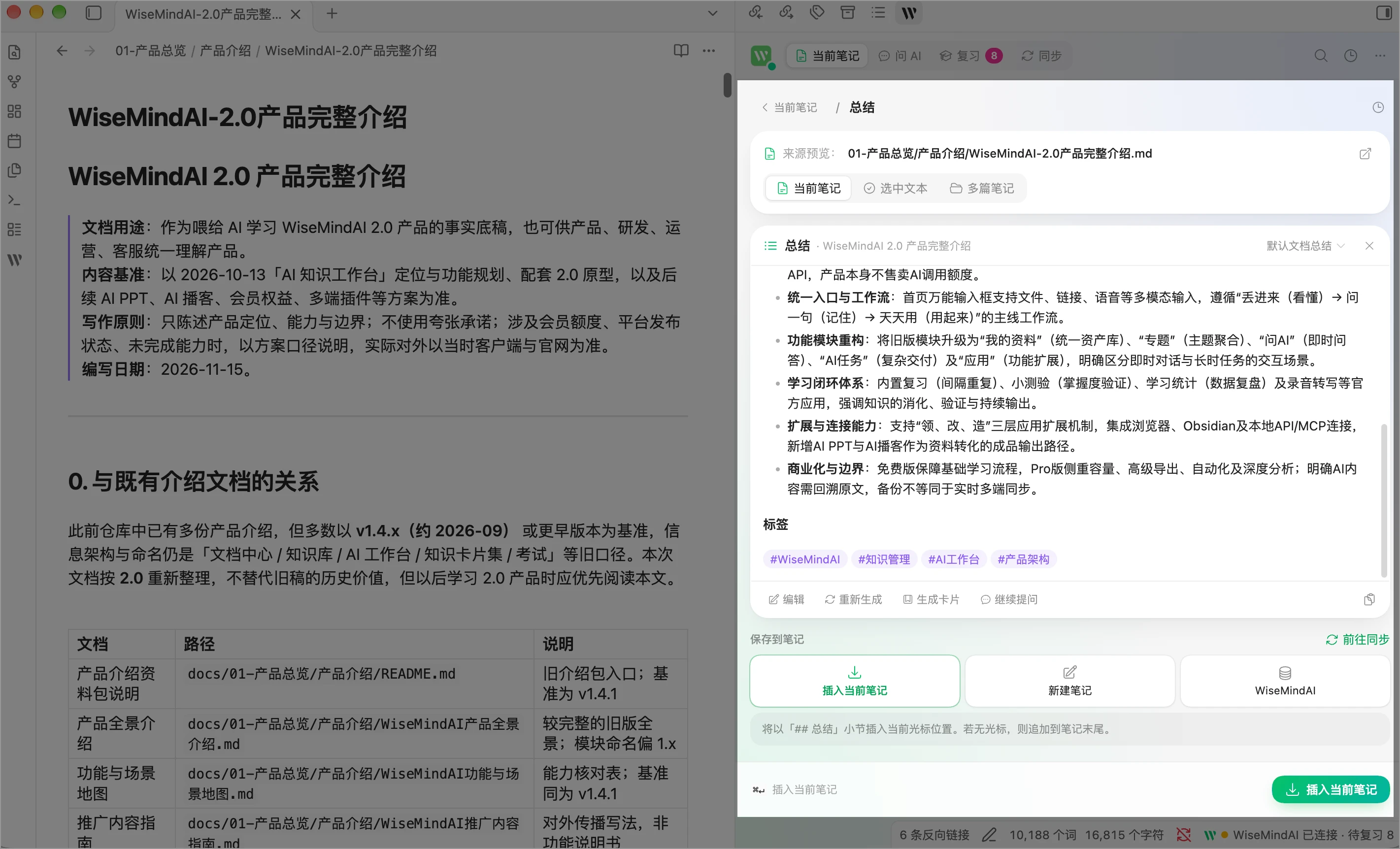
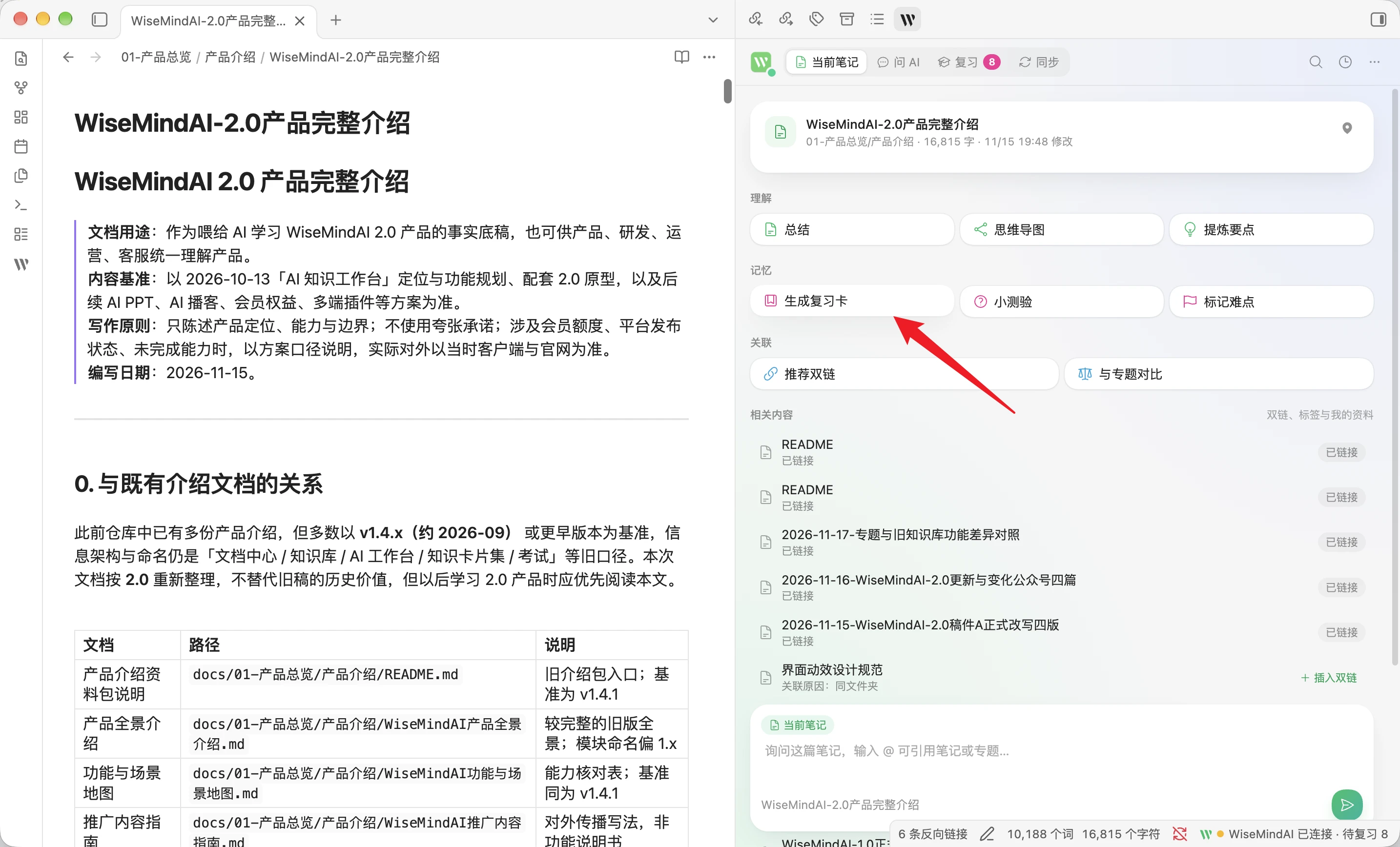
After you open a Markdown note, the Current note side panel shows word count, modified time, sync status, and common actions. Summarize, chat, and make cards do not rewrite the original note automatically; they write only when you explicitly insert, create, and so on.
Note summarize
You can summarize the current note, a selection, or multiple notes.
After generation you can:
- Copy
- Insert at the cursor
- Save as a new Obsidian note
- Save to WiseMindAI notes
- Continue asking
- Make knowledge cards from the summary
Summarize does not rewrite the original note automatically; it writes only when you explicitly insert, create, and so on.
You can also use prompts such as extract key points, mind map, MOC, and recommended backlinks to build structure or related suggestions.
Related content and private notes
The workbench can show related notes in the vault and related materials in WiseMindAI. Notes that match “paths not to send” or whose frontmatter includes private: true are not used for summarize, make cards, ask, or sync. Non-Markdown files such as whiteboard, images, and PDFs also do not support these actions.
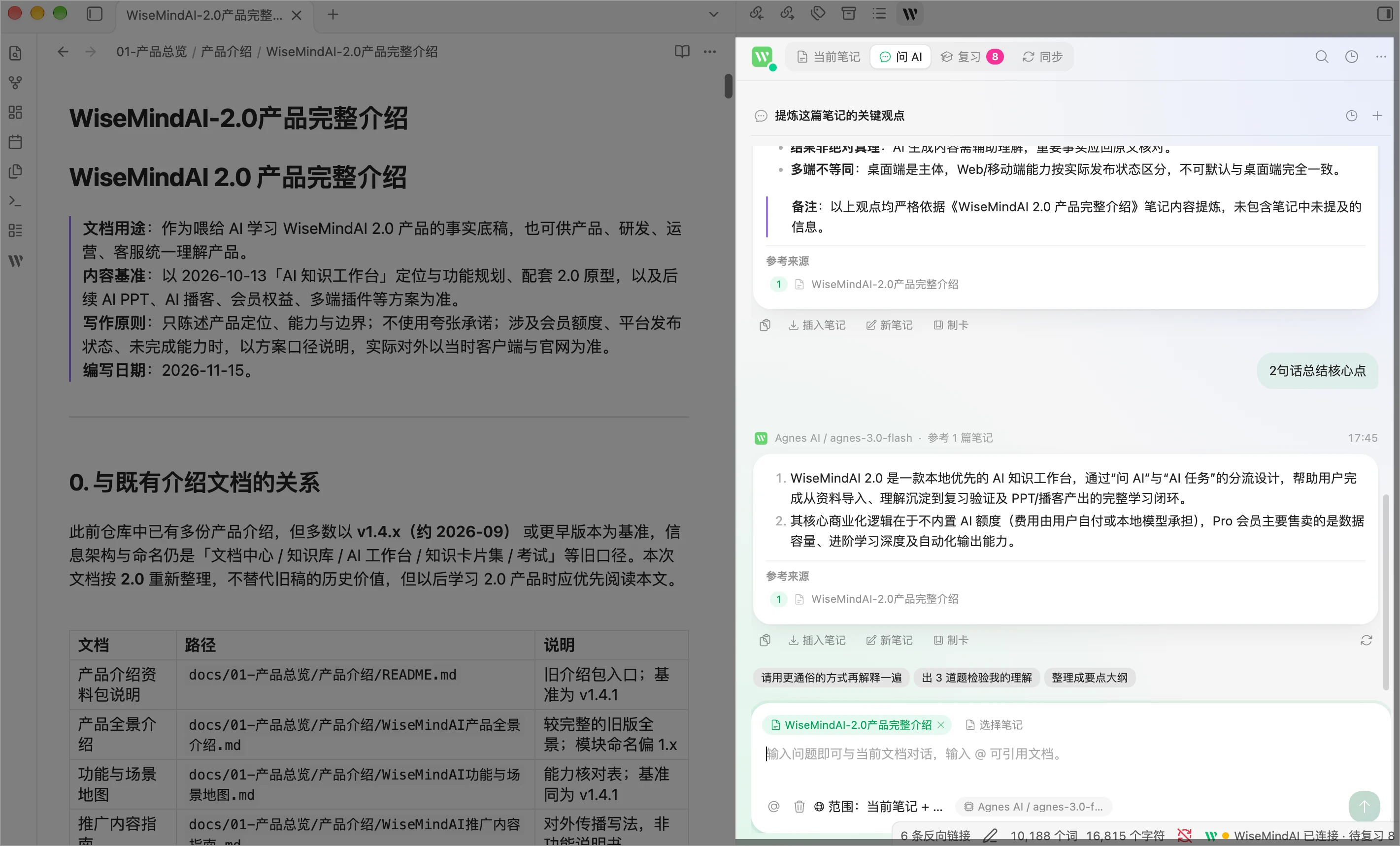
Ask AI about a note
- Ask about the current note or a selection.
- Supports multiple sessions, streaming replies, and cancel.
- Type
@in the chat to cite other notes in the vault for comparison or extra context.
Steps:
- Open the Ask AI side panel, or choose “Ask about selection” on selected text.
- Confirm the scope (current note, My Materials, topics, and so on).
- Enter your question; use
@to cite other notes or topics. - You can copy, insert, save as a new note, or turn the answer into review cards.
@ candidates default to at most 40 notes and can be adjusted in settings (up to 200).
Make editable knowledge cards
- Generate Q&A cards, concept cards, or mixed types from a note or selection.
- You can set count, difficulty, card set, and folder.
- Preview and edit before saving to WiseMindAI or inserting into the current note.
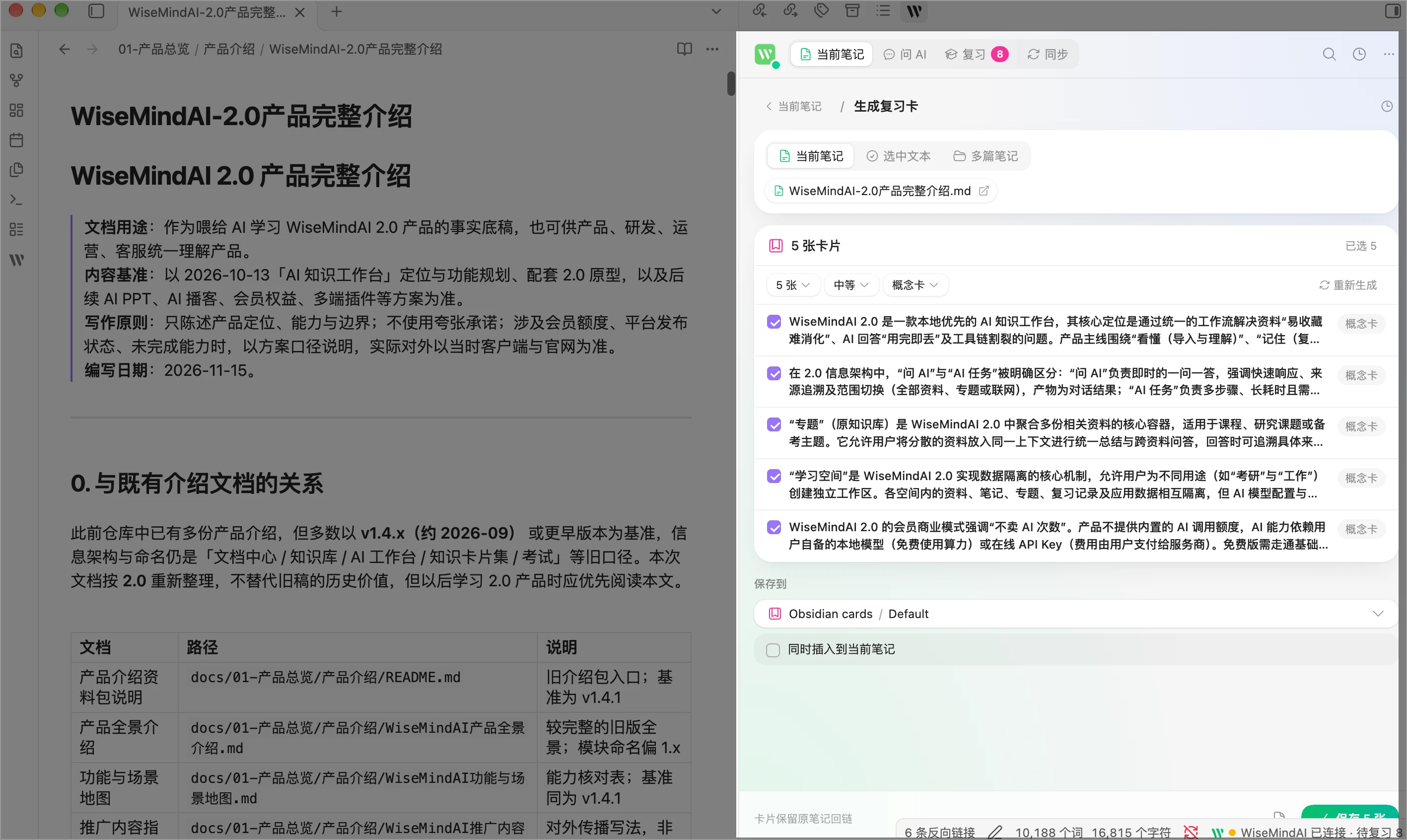
Optionally insert into the current note at the same time and keep a backlink. “Make a quiz” creates and opens a quiz in WiseMindAI (requires desktop support).
Selection rewrite
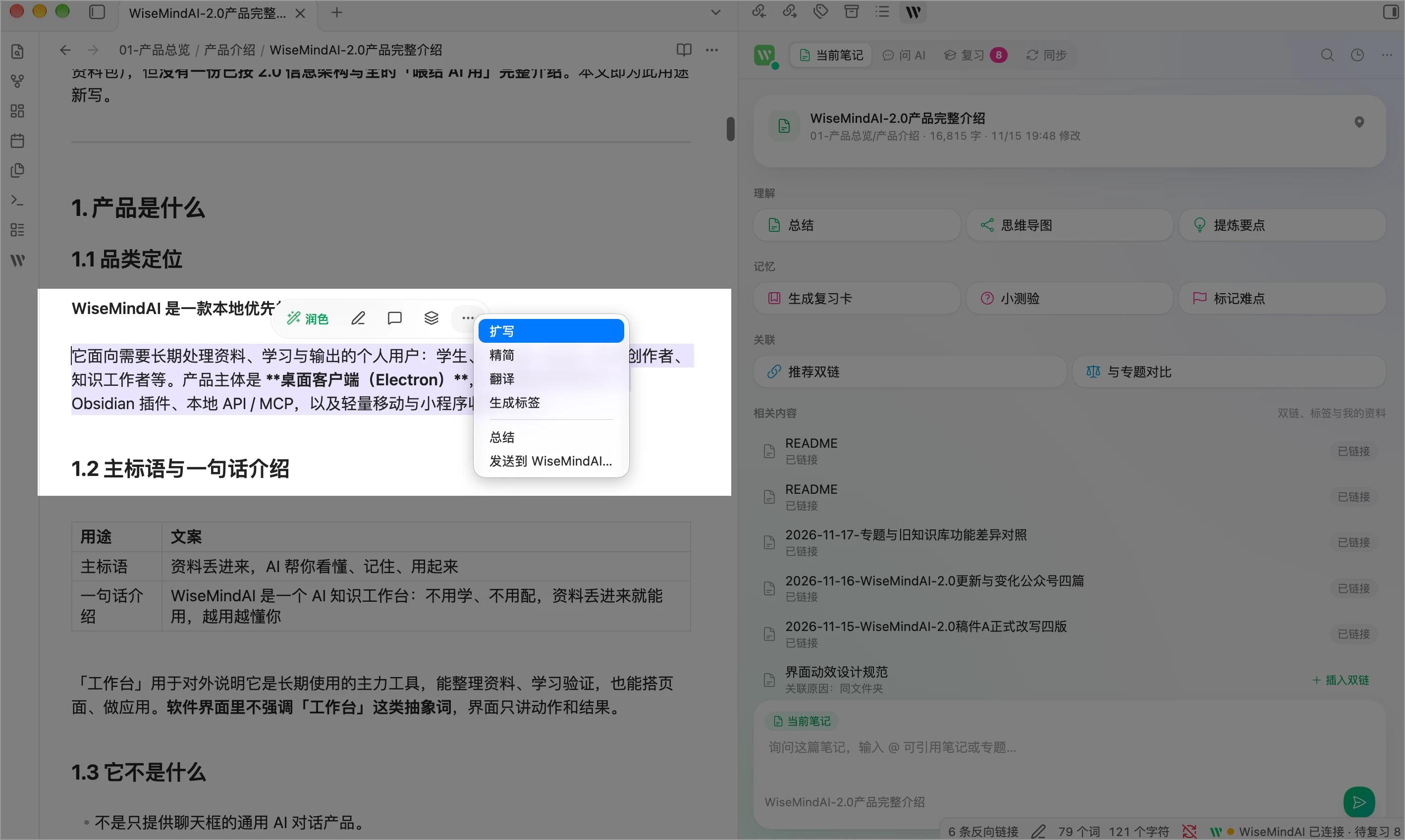
After selecting text, use the command palette, editor menu, or selection toolbar to:
- Rewrite, expand, shorten, or polish
- Generate tags
- Ask AI, make cards, or send to WiseMindAI
Whether results are written back into the note is always confirmed by you. “Preview before write-back” is on by default; confirm before replace or insert.
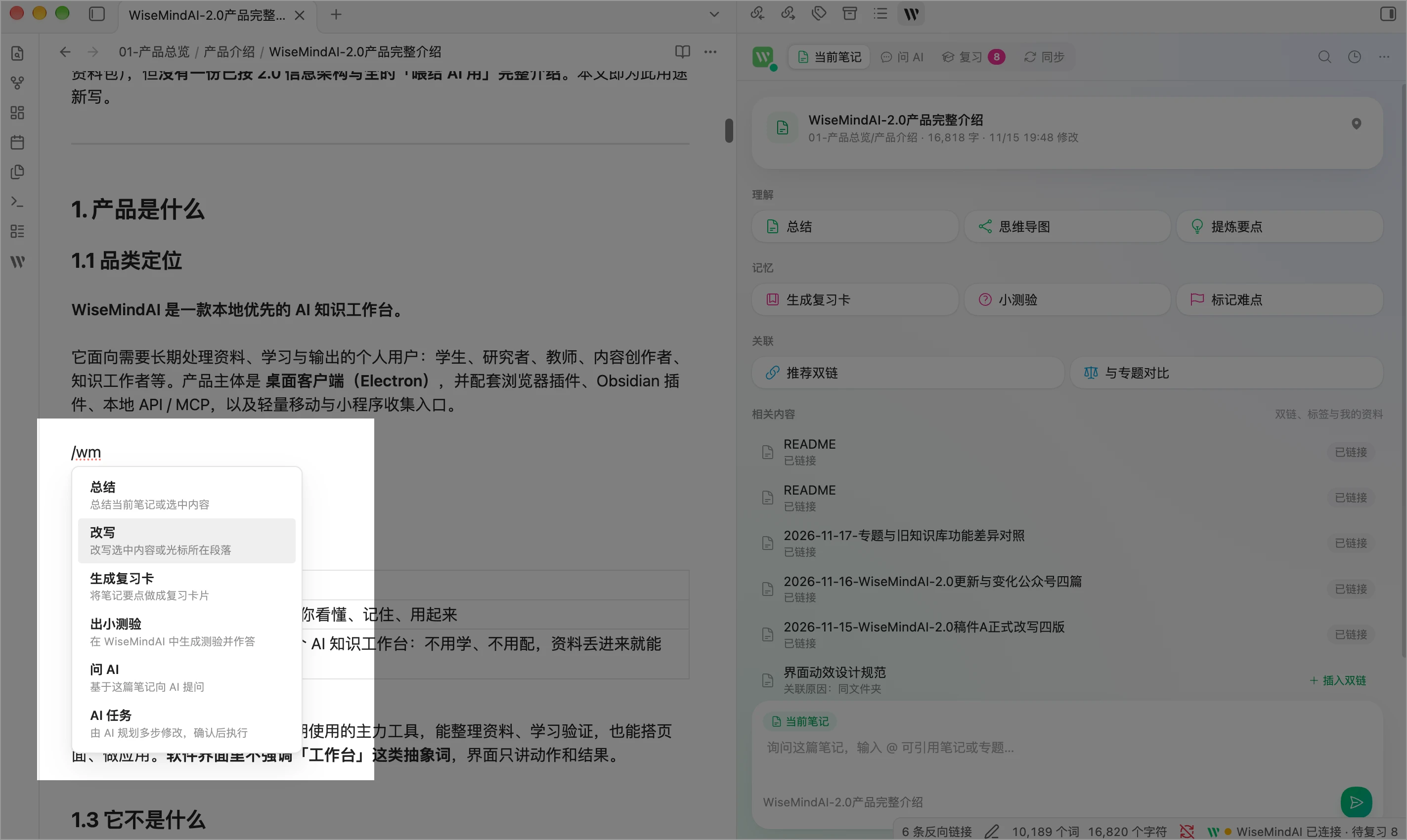
Type /wm in the editor to quickly open summarize, rewrite, make cards, quiz, and more. The command palette can also open the panel, send the current note, sync now, and similar actions. The plugin does not ship default hotkeys.
Next: Sync and send